FX & Harmony on Erae
Erae 2 includes a built-in arpeggiator that transforms held notes into rhythmic, melodic patterns, no DAW required. This article explains how to turn it on and what each setting does.
The Arp button
Erae 2 has a dedicated Arp button in the control strip to the right of the touch surface. This button does two things at once each time you press it:
- Opens the arpeggiator settings on the LCD screen, so you can adjust parameters.
- Toggles the arpeggiator on or off for the currently selected keyboard element.
When the arpeggiator is active (unmuted), the Arp button glows green. When it is off (muted), the button returns to its default dimmed color.
The arpeggiator is per keyboard element: each keyboard on your layout has its own independent arpeggiator settings. Select the keyboard you want to arpeggiate first, then press Arp.
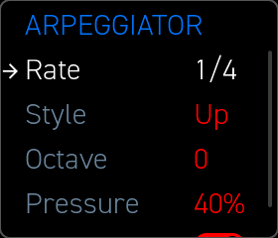
Arpeggiator settings
When the arpeggiator screen is open, use the encoder to navigate between rows and adjust values. There are five parameters:
Rate
How quickly the arpeggiator fires notes, expressed as a note division relative to the current tempo.
| Value | Description |
|---|---|
| 1/32 | Very fast: thirty-second notes |
| 1/16 | Sixteenth notes |
| 1/8 | Eighth notes |
| 1/4 | Quarter notes (default) |
| 1/2 | Half notes |
| 1/1 | Whole notes |
| Pressure | Rate is controlled by how hard you press: press harder to play faster |
The default rate is 1/4 (quarter notes).
When Sync is on (see below), the rate locks to your DAW's or device's MIDI clock. When Sync is off, the arpeggiator runs at a fixed internal tempo.
Style
The order in which the arpeggiator plays back the notes you are holding.
| Style | Description |
|---|---|
| Up | Plays notes from lowest to highest, then repeats (default) |
| Down | Plays notes from highest to lowest, then repeats |
| UpDown | Goes up to the top, then reverses, without repeating the top note |
| UpAndDown | Goes up to the top, reverses, and repeats the top and bottom notes |
| Random | Picks a random note from the held set each step |
Octave
How many octaves above the held notes the arpeggiator will span. Set to 0 to stay within the octave you are playing; set higher to spread the pattern upward across multiple octaves.
Range: 0 to 8 octaves. Default: 0.
Pressure
Controls how much the pressure of each touch affects the velocity of the arpeggiated notes. At 0, all arpeggiator notes are played at a fixed velocity regardless of how hard you press. At 100, your touch pressure fully determines each note's velocity.
Range: 0 to 100. Default: 40.
Sync
When Sync is on, the arpeggiator locks its rate to incoming MIDI clock, from your DAW, a hardware sequencer, or another clock source. This keeps the arpeggio in perfect time with the rest of your project.
When Sync is off, the arpeggiator runs at a fixed internal rate. This is useful if you want to play freely without a clock.
Default: on (sync to MIDI clock enabled).
Note: For Sync to work, your DAW or hardware must be sending a MIDI clock signal and Erae 2 must be receiving it. See Connecting Erae to Hardware Synths: DIN MIDI, Clock & Adapters for clock routing details.
Opening the settings without toggling mute
If you want to check or change arpeggiator settings without toggling the arpeggiator on or off, hold Settings and press Arp at the same time. This opens the settings screen without changing the mute state.
Related articles
- Selecting Scales on Erae: choose the scale your arpeggio plays in
- KeyGrid: understand the keyboard layout the arpeggiator runs over
- Connecting Erae to Hardware Synths: DIN MIDI, Clock & Adapters: sync the arpeggiator to external MIDI clock