Using Erae 2 with Bitwig (Full MPE)
Bitwig Studio offers the most complete MPE integration of any DAW, and Erae 2 works out of the box once you make two choices correctly: add the device as a Generic MPE controller (not a generic MIDI controller), and set the instrument track channel to MPE (not "All"). Missing either step is the root cause of almost every Bitwig MPE support ticket.
This article is an Erae 2 deep-dive. If you want a quick cross-DAW comparison or are on an older Erae Touch (MK1), start with MPE Setup on Erae 2: Ableton, Logic, Bitwig, Cubase & Reaper.
Note: Not sure what MPE is? Read What Is MIDI MPE? first: it explains pitch, slide, and pressure per note in plain language.
How Erae 2 connects to Bitwig
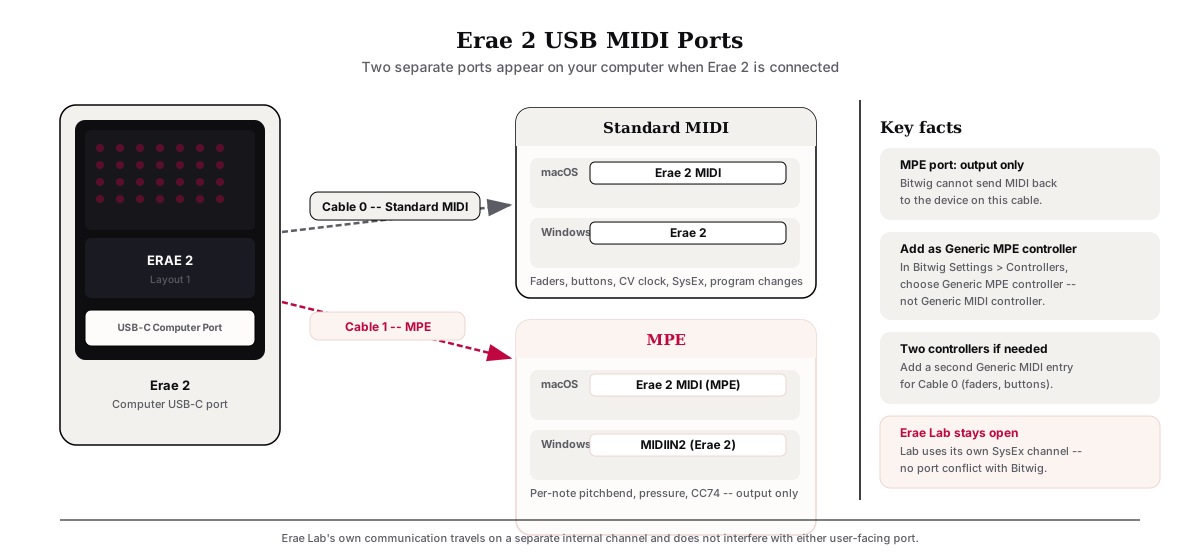
Erae 2 appears in your operating system as two separate MIDI ports:
| Port | macOS name | Windows name | What it carries |
|---|---|---|---|
| Standard MIDI | Erae 2 MIDI | Erae 2 | Non-MPE elements (faders, buttons, CV clock), program changes, SysEx |
| MPE | Erae 2 MIDI (MPE) | MIDIIN2 (Erae 2) | Per-note pitchbend, pressure, and slide (CC74) for keyboard elements with MPE enabled |
The MPE port is output-only from the device: Bitwig cannot send MIDI back to the device on that cable. Erae Lab's own communication travels on a third internal channel (named "Lab" on macOS) and does not interfere with either of the user-facing ports above.
Step 1: Enable MPE in Erae Lab
MPE is an opt-in setting per keyboard element, not a global device mode. You must enable it in Erae Lab and push the project to the device before Bitwig receives any MPE data.
-
Connect Erae 2 to your computer via the Computer USB-C port (the center port on the back panel).
-
Open Erae Lab and open your project.
-
Click the keyboard element you want to play expressively (the isomorphic or chromatic keyboard grid on the canvas).
-
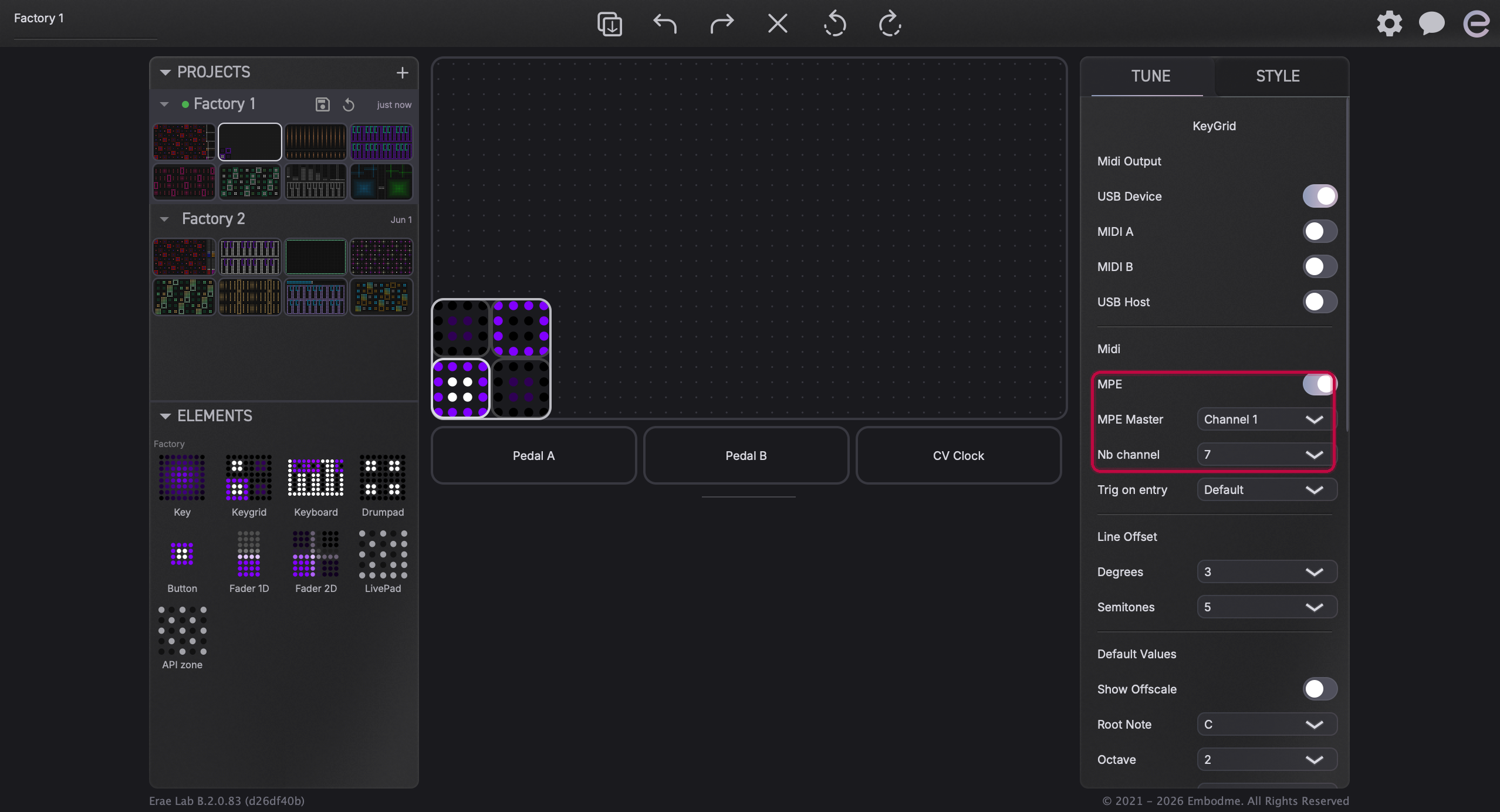
In the right panel, go to the Tune tab and find the MPE checkbox. Enable it.
When MPE is switched on, Erae Lab automatically adjusts two values:
- Nb channel (the number of MPE member channels) is set to 7, meaning 8 member channels per the MPE spec. This supports up to 8 simultaneous independent voices.
- PB Range (pitchbend range) is set to 48 semitones. You will need to match this value in your Bitwig instrument.
-
Under MPE Master, choose Channel 1 (lower zone) or Channel 16 (upper zone). Channel 1 is the correct choice for the vast majority of synths and Bitwig instruments. Only change it if a specific instrument requires the upper zone.
- Save the project (Cmd+S on macOS, Ctrl+S on Windows).
Note: The CC74 section appears in the Tune panel only when MPE is enabled; this is expected. CC74 is the designated MPE slide axis (vertical finger movement, also called Timbre or Brightness) and is only relevant in MPE mode.
Step 2: Add Erae 2 as a controller in Bitwig
This is where most users run into trouble. Bitwig has two paths for adding a MIDI device: Generic MIDI controller and Generic MPE controller. The MIDI controller path does not expose MPE. You must use the MPE path.
-
In Bitwig, open Dashboard (the grid icon, top left) and go to Settings > Controllers.
-
Click the + button to add a controller.
-
In the browser that opens, look for Generic > Generic MPE controller.
Warning: Do not select "Generic MIDI controller" from the Hardware Surfaces section. That mode treats all incoming data as single-channel MIDI and has no MPE option anywhere in the interface: the reason tickets report "no MPE option in Bitwig generic controller" is that users land here by mistake.
-
In the controller entry that appears, set the MIDI Input to:
- macOS:
Erae 2 MIDI (MPE) - Windows:
MIDIIN2 (Erae 2)
- macOS:
-
If your project also uses non-MPE elements (faders, buttons, CV clock), add a second controller entry: this time add a Generic MIDI controller and point its input at the standard cable (
Erae 2 MIDIon macOS,Erae 2on Windows). Bitwig treats each cable as an independent controller.
Note: Erae Lab can remain open while Bitwig is running. Lab uses its own SysEx channel and leaves both MIDI cables free for the DAW. The reports of "Erae Lab and Bitwig can't run at the same time" are a misconception: there is no port conflict.
Step 3: Enable MPE on the instrument track
Even with the controller wired up correctly, Bitwig requires you to opt in to MPE per instrument track.
-
Create an instrument track and load an MPE-capable instrument. Bitwig's built-in Polymer synthesizer supports full MPE. Phase-4 and most MPE-capable VST3/CLAP plugins also work.
-
In the track header, set the Input to the Generic MPE controller you added in Step 2.
-
Click the channel selector next to the input (it defaults to "All"). Change it to MPE.
If the "MPE" option is greyed out or missing, the loaded instrument does not support MPE. Try Polymer to confirm the signal chain works, then switch to your preferred instrument.
-
Inside the instrument, match the pitchbend range to Erae Lab's setting. For Polymer: open the instrument, find the MPE panel, and set Pitch Bend Range to 48. If this value does not match, horizontal finger movement will produce the wrong pitches, either too extreme or too compressed.
Step 4: Verify all three MPE axes
A quick end-to-end check before you start playing:
- Pressure (Z axis): Touch the keyboard pad with one finger and press harder. The instrument should respond with loudness or timbre changes driven by how hard you press.
- Pitchbend (X axis): Hold a note and slide your finger left or right. You should hear continuous pitch movement up to ±24 semitones (the ±48 semitone range split across both directions).
- Slide / Timbre (Y axis, CC74): Hold a note and slide your finger up or down. If the instrument maps Timbre or Brightness (CC74), you should hear a timbral change. In Polymer, this maps to the Timbre parameter by default.
- Independence: Hold two notes simultaneously. Bending or pressing one finger should affect only that note, not the other.
If any axis is unresponsive, use the checklist in the Troubleshooting section below.
Configuring CC74 (slide / timbre)
CC74 is the MPE-designated Y-axis. In Erae Lab it appears as the CC74 section in the Tune tab when MPE is enabled.
In Erae Lab:
- Y-Relative (default and recommended): sliding up from your initial touch position sends higher values; sliding down sends lower values. The starting position is the neutral point.
- Y-Absolute: maps the physical position on the pad directly (top = maximum, bottom = zero). Useful if you want a fixed-position gesture rather than a movement from wherever you placed your finger.
In Bitwig:
- Polymer, Phase-4, and most native Bitwig instruments recognize CC74 as the MPE "Timbre" axis automatically. No manual routing needed.
- Third-party MPE VSTs: check the instrument's modulation matrix. Look for a source named "MPE Timbre", "Slide", "CC74", or "Y" and route it to the parameter you want to control.
- Non-MPE VSTs: add a MIDI CC modulator in Bitwig and route CC74 to the parameter. This works, but expression is per-instrument rather than per-note.
Troubleshooting
| Symptom | Root cause | Fix |
|---|---|---|
| "No MPE option" anywhere in Bitwig controller settings | Erae 2 was added via Generic MIDI controller or Hardware Surfaces, not Generic MPE controller | Remove the existing entry; re-add via Settings > Controllers > Generic MPE controller |
| All notes sound the same, no per-finger expression | Instrument track channel is set to "All" instead of "MPE" | Click the channel selector on the instrument track and choose MPE |
| Pitch slides sound wrong, too extreme or too compressed | Pitchbend range in Erae Lab (48 semitones) does not match the instrument's range | Set pitchbend range to 48 in both Erae Lab and the instrument |
| No MIDI signal in Bitwig at all from the MPE port | MPE is not enabled in the keyboard element in Erae Lab, so data routes to the standard cable, not the MPE cable | Enable MPE on the keyboard element in Erae Lab's Tune tab and save the project |
| Windows: cannot find which port is MPE | Windows port names are generic; port order may be confusing | Port named Erae 2 = standard MIDI (cable 0). Port named MIDIIN2 (Erae 2) = MPE (cable 1). Always use the second one for MPE |
| Erae Lab freezes or shows "Not Connected" after Bitwig opens | This would be a genuine conflict, but it is rarely reported and is not expected behavior | Confirm you are on a current version of Erae Lab. Lab's SysEx channel is separate from both user MIDI cables; they do not compete |
| MPE option is greyed out on the instrument track | The loaded instrument does not support MPE | Test with Bitwig Polymer first to confirm the chain works, then revisit the target instrument's MPE settings |
| Pressure (Z axis) does nothing | The instrument has no modulation target for Channel Pressure / MPE Pressure | Open the instrument's mod matrix and assign "MPE Pressure" or "Poly Aftertouch" to a parameter (e.g. volume, filter cutoff) |
Tips for Bitwig + Erae 2 workflows
- Polymer for a quick start: Bitwig's Polymer synthesizer has MPE enabled by default and assigns all three axes to audible parameters, making it the fastest way to verify your setup is working end to end.
- Modulator chains: Bitwig's modulator system lets you layer additional CC sources on top of MPE. For example, you can add a step modulator and have it multiply with the MPE pressure signal for rhythmic dynamics.
- Multiple layouts on one project: If your Erae Lab project contains both keyboard elements (MPE) and fader/button elements (standard MIDI), route the two controller entries to different tracks: the MPE controller to your instrument tracks and the standard MIDI controller to a MIDI control track for macros or transport.
- Nb channel vs. polyphony: The Nb channel setting in Erae Lab (default 7, meaning 8 member channels) limits how many simultaneous independent voices the device can send. If you want 16-voice independent expression, raise Nb channel to 15. Note that increasing it does not change the total polyphony limit of the synth itself.
Related: MPE Setup on Erae 2: Ableton, Logic, Bitwig, Cubase & Reaper | What Is MIDI MPE? | Erae Lab Tune Tab: MIDI, Expressivity & Configuration