Switching Layouts via MIDI Program Change
You can switch between layouts on your Erae from any DAW, hardware MIDI controller, or sequencer by sending a short sequence of three MIDI messages. This is ideal for live performance: layout changes can happen automatically in sync with song sections, cue points, or foot controller presses, without touching the device.
The three-message sequence
The Erae does not respond to a bare Program Change. It requires a specific Bank Select prefix to distinguish layout commands from regular Program Change messages your layout elements might also be listening to. The full sequence is:
| Order | Message | Value |
|---|---|---|
| 1 | CC#0 (Bank Select MSB) | 127 |
| 2 | CC#32 (Bank Select LSB) | 1 |
| 3 | Program Change | layout slot number (0-based) |
All three messages must be on the same MIDI channel. The channel itself does not matter (any of the 16 MIDI channels works), but it must be consistent across all three messages.
Order is strict. The Bank Select messages (steps 1 and 2) must arrive before the Program Change. If the Program Change arrives first, the Erae ignores it silently. There is no error indicator; the layout simply does not change.
Layout slot numbering
The Erae firmware numbers layout slots starting at 0, while Erae Lab displays them starting at 1:
| Device | Wire range | Lab display |
|---|---|---|
| Erae 2 | 0-7 | Layout 1-8 |
| Erae Touch | 0-31 | Layout 1-32 |
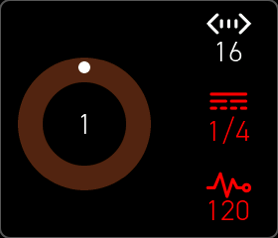
Program Change value 0 selects the layout shown as "1" in Lab. Program Change value 7 selects "8" on Erae 2.
Note: Ableton Live displays Program Change numbers starting at 1 (not 0). To select layout slot 0 ("Layout 1" in Lab), enter PC 1 in Ableton. For "Layout 2", enter PC 2, and so on. Hardware controllers and most other DAWs use 0-based numbering and do not need this offset.
Choosing the right MIDI port (Erae 2)
The Erae 2 exposes two USB MIDI ports: MIDI (the main port) and MIDI (MPE) (the dedicated MPE output). Send layout-switch messages to the MIDI port, not the MPE one.
| Purpose | macOS | Windows |
|---|---|---|
| Layout switching, use this | Erae 2 MIDI | MIDIIN2 (Erae 2 MIDI) |
| MPE output, do not use for layout switching | Erae 2 MIDI (MPE) | MIDIIN2 (Erae 2 MIDI (MPE)) |
Note: Exact port names can vary by OS version and how the device was first registered. If your messages are not working on one port, try the other.
The Erae Touch presents a single USB MIDI input; no port disambiguation is needed.
Step by step: Ableton Live
- Create a new MIDI track. Set its MIDI output to "Erae 2 MIDI" (Mac) or "MIDIIN2 (Erae 2 MIDI)" (Windows).
- Set the track's MIDI channel to any consistent channel, for example channel 16, to keep layout-switch messages separate from your instrument tracks.
- Open or create a MIDI clip. In the clip's MIDI note editor, switch to the Envelopes or MIDI event view and insert three events in sequence:
- CC 0, value 127 (Bank Select MSB)
- CC 32, value 1 (Bank Select LSB)
- Program Change: enter the target layout number (remember: Ableton is 1-based, so enter 1 for Layout 1, 2 for Layout 2, etc.)
- Place the clip at the point in your timeline where you want the layout switch. When the clip plays or is triggered, the Erae switches to that layout.
Note: You can put the three messages in a dedicated clip on a return track or a separate MIDI track that only routes to the Erae. This keeps layout-switch events cleanly separated from notes and expressions going to your instruments.
Step by step: hardware MIDI controllers (Morningstar MC6 and similar)
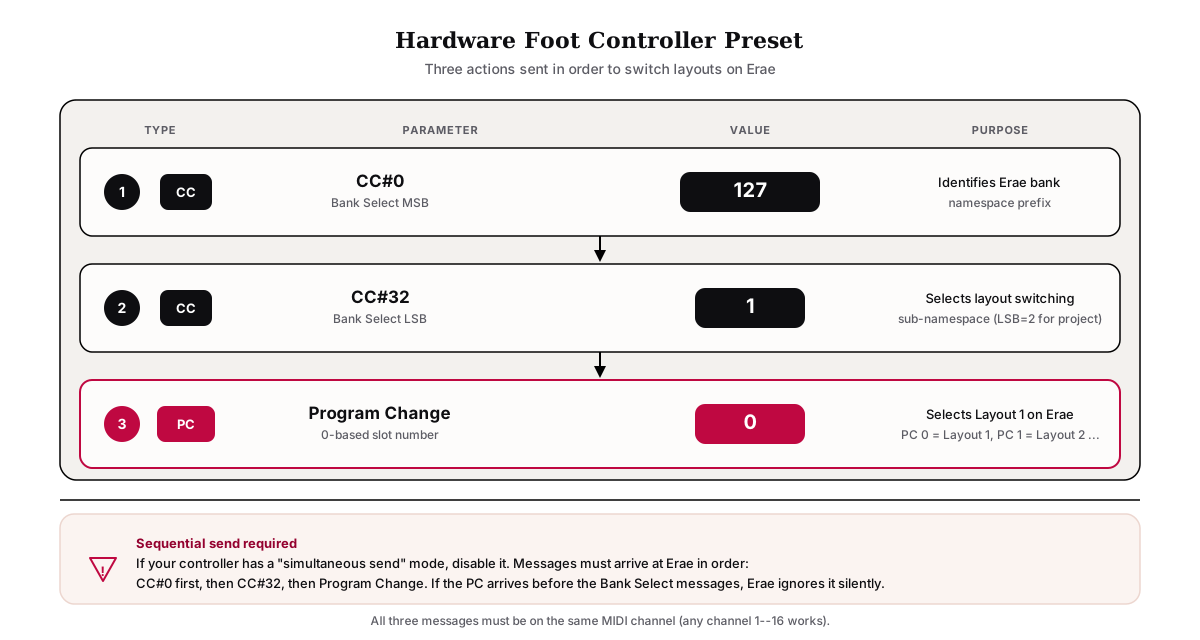
On hardware foot controllers, configure a preset with three actions executed in order:
- Action 1: Send CC, Channel 1, CC Number 0, Value 127
- Action 2: Send CC, Channel 1, CC Number 32, Value 1
- Action 3: Send Program Change, Channel 1, Program Number <target slot> (0-based, no Ableton offset)
Warning: Some controllers have a mode that sends all actions simultaneously. Make sure your controller is set to sequential send mode. If messages arrive out of order, the Erae ignores the Program Change.
Most hardware controllers use 0-based program numbering, so PC 0 = Layout 1, PC 1 = Layout 2, and so on.
Using a button on the Erae itself
If you prefer to trigger layout changes by touching the Erae surface rather than from an external device, you can configure a Button element in Lab to send the correct sequence automatically.
- In Erae Lab, add a Button element to your layout.
- In the Tune tab on the right panel, set the button Type to Program Change.
- In the Preset dropdown that appears, choose Layout Change.
- Select the target Layout from the numbered list (1-8 on Erae 2).
- Push the layout to your device.
When you press that button on the Erae surface, it sends the Bank Select MSB=127, LSB=1, and Program Change sequence automatically, both to itself and to any other connected devices on the same MIDI output.
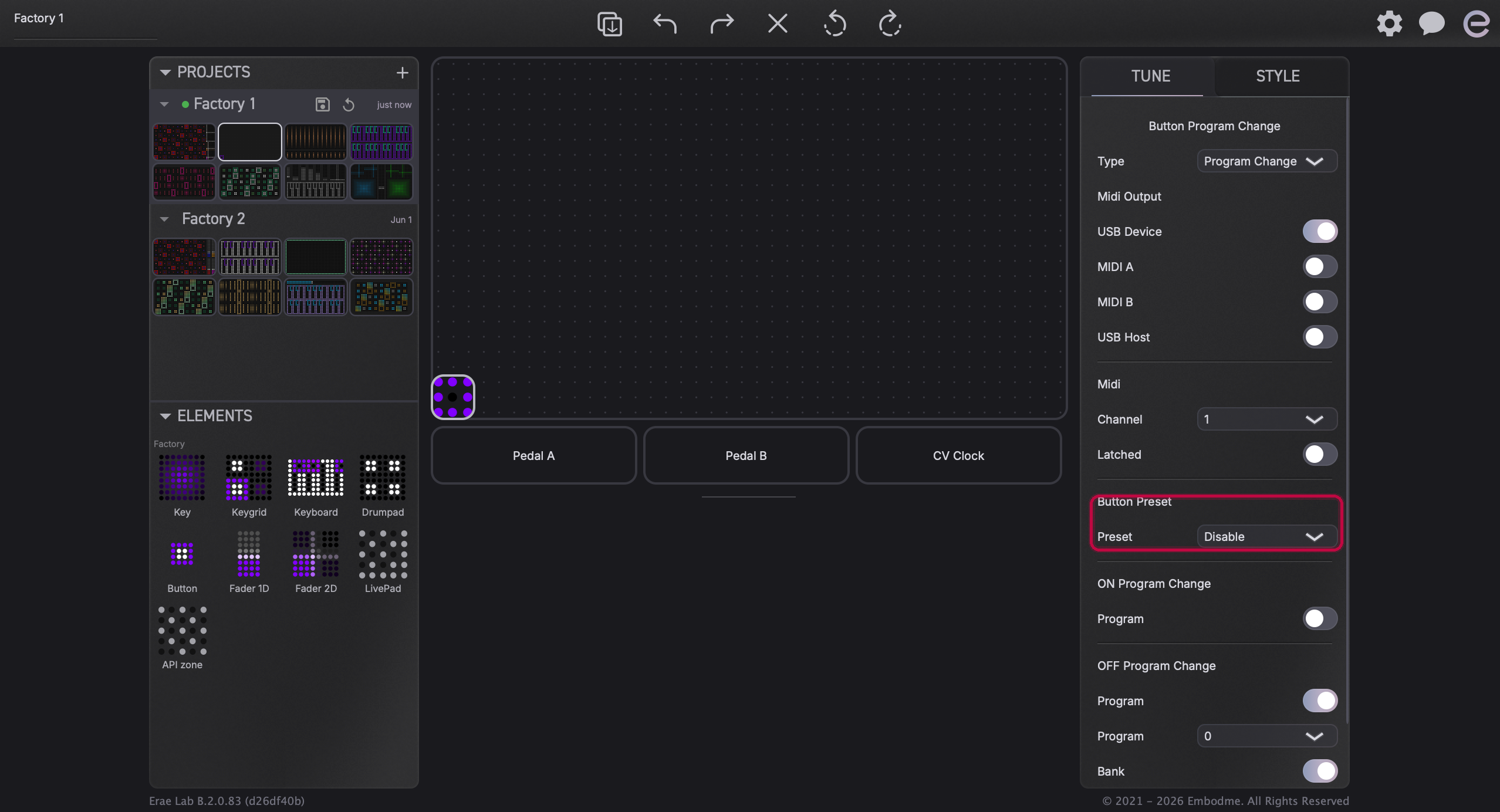
Note: Lab also offers a Project Change preset for buttons, which switches the active project on the SD card (project 1-8). The sequence is the same except LSB = 2 instead of 1.
Avoiding conflicts with your synthesizer
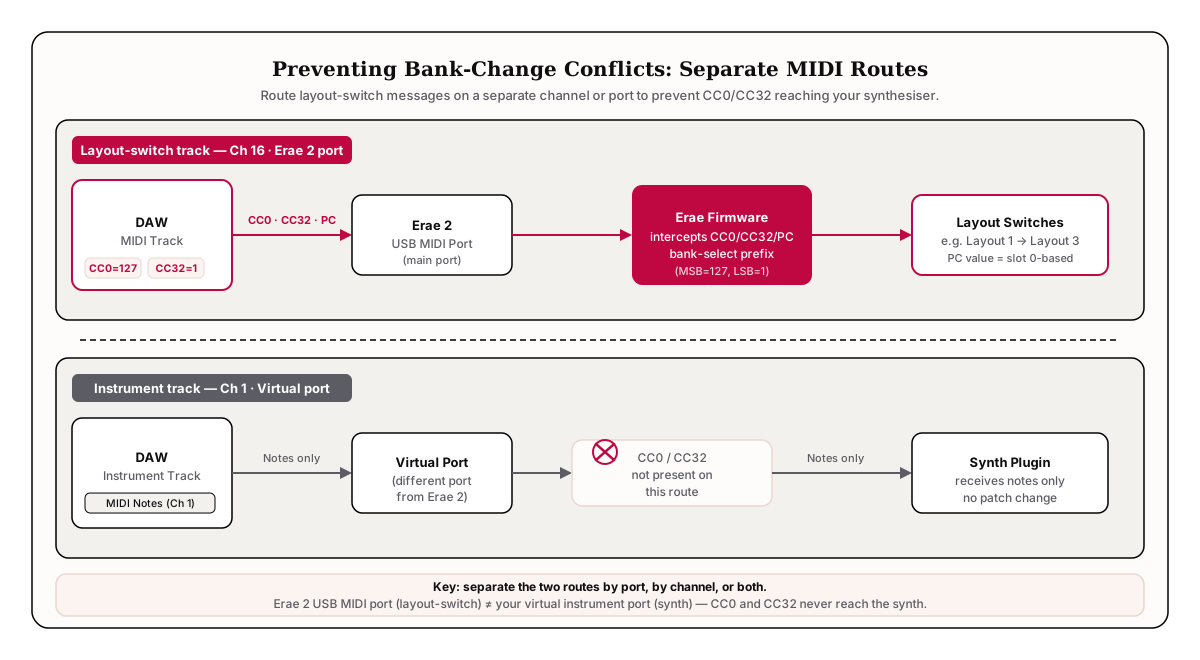
CC#0 (Bank Select MSB) and CC#32 (Bank Select LSB) are standard General MIDI controllers. If a synthesizer or software instrument is listening on the same MIDI channel and port as your layout-switch messages, it will also receive those CCs and may interpret them as a patch bank change, altering your synth sound at the same moment you change layouts.
This conflict only happens when your layout-switch messages share both the same MIDI port and the same channel as an instrument. To prevent it:
- Use a dedicated MIDI channel. Route layout-switch messages on a channel your instruments do not use (for example, channel 16 if your instruments use channels 1-15).
- Use a separate MIDI port route. If your DAW allows per-track MIDI filtering, strip CC#0 and CC#32 from any track that feeds an instrument, while leaving them intact on the track going to the Erae.
- Route the Erae on its own port. Since the Erae 2 appears as a dedicated USB MIDI port, your synth plugins typically receive MIDI on a different virtual port; they will not see the Erae-bound messages unless you explicitly route them there.
Troubleshooting
| Symptom | Likely cause | Fix |
|---|---|---|
| Layout does not change | Bank Select messages not sent, sent on wrong channel, or sent to wrong port | Confirm CC#0=127 and CC#32=1 are sent on the same channel as the PC, on the correct port |
| Works sometimes but not always | Messages arrive out of order | Check your controller or DAW clips for sequential ordering; avoid "simultaneous send" mode |
| Synthesizer changes patch at the same time | CC#0 / CC#32 reaching an instrument on the same channel/port | Use a separate MIDI channel or per-track CC filter |
| Right layout in Lab, wrong slot on device | Program number offset mismatch | Ableton: add +1 (Ableton PC 1 = firmware slot 0). Hardware controllers: use 0-based numbering directly |
| Works in Ableton but not on Morningstar (or vice versa) | Different numbering conventions | Ableton is 1-based; most hardware is 0-based. Adjust accordingly |
| Cannot find the correct port | Erae 2 presents two MIDI ports | Try the "MIDI" port vs the "MIDI (MPE)" port on Mac; try port 1 vs port 2 on Windows |
Known limitations
- No outgoing Program Change on manual layout switch. When you change layouts by turning the encoder or pressing a button on the Erae 2 itself, the device does not send a Program Change back to the DAW. Bidirectional synchronization, where the Erae reports its active layout to the host, is on the feature request backlog but not yet implemented.
- Layout switching only, not scale or key changes. You cannot change the active scale or root key from an external MIDI controller using this protocol. Scale and key changes are manual only.
- MIDI channel is arbitrary. Any of the 16 channels works. The channel does not select a sub-namespace; only the Bank Select values (MSB=127, LSB=1) do that.