Calibrating Your Erae Surface
If your Erae feels too stiff, too light, or is triggering notes when you barely touch it, you can tune the pressure response in just a few steps. There is no button sequence to run: calibration on both Erae Touch and Erae 2 is handled automatically by the firmware at startup, and you adjust sensitivity through software, not a ritual.
How calibration actually works
Every time your Erae powers on, the firmware measures each sensor cell's resting baseline and sets internal thresholds based on those readings. This happens in the background, in seconds, without any input from you. You do not need to hold any button, avoid touching the surface, or repeat a startup sequence.
What you can control is how much pressure is required before a touch registers and how much force counts as "full" velocity. Those controls live in the Settings menu (Erae 2) and in Erae Lab (both products).
Note: There is no on-device "tap to calibrate" screen, no button combo that re-runs calibration, and no per-cell correction mode. Any guide describing those steps is outdated and those functions no longer exist.
Adjusting sensitivity on Erae 2
The Erae 2 Settings screen includes a Sensitivity option with four preset levels that shift the detection threshold across the whole surface.
To change sensitivity:
- Press the Settings button on your Erae 2 to open the SETTINGS screen.
- Scroll down to Sensitivity.
- Turn the encoder to cycle through the four levels: XSensitive, Sensitive, Safe, XSafe.
- Press the encoder to confirm. The setting is saved automatically.

| Level | What it means |
|---|---|
| XSensitive | Triggers at the lightest possible touch. Best for pianissimo playing or feather-light fingertip technique. Prone to false triggers if you brush the surface. |
| Sensitive | Light touch, lower force needed. Good for expressive playing styles. |
| Safe | The factory default. Requires a deliberate press to trigger. Balanced for most players and environments. |
| XSafe | Requires noticeably more force. Useful in situations where accidental grazing of the surface causes unwanted notes (e.g., playing in a cramped space or with thick gloves). |
Note: These levels apply globally: they shift the response of the entire surface at once. There is no per-element pressure tuning.
Adjusting the velocity curve on Erae 2
Sensitivity controls when a touch is registered; the Velocity Curve controls how pressure maps to MIDI velocity after that. If your velocities always feel too quiet or always spike to maximum, this is the right control.
To reach the Velocity Curve:
- Open the SETTINGS screen.
- Scroll to Velocity Curve and press the encoder to enter.
- Adjust the four curve parameters (Threshold, Drive, Compand, and Range) with the encoder.
- The curve preview updates in real time as you turn.
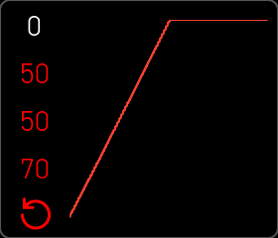
- Range is the most impactful parameter for most players. A higher Range value means you reach full velocity more easily (less pressure needed for max output). A lower Range spreads the dynamic window wider.
- Threshold sets the minimum pressure before any velocity is output: raise it to ignore very light incidental contact.
- Drive and Compand shape the curve profile (linear, soft-knee, expanded, or compressed).
Adjusting pressure settings in Erae Lab
Both Erae Touch and Erae 2 can have their pressure response adjusted through Erae Lab when connected via USB. Select an element on the canvas, open the Tune tab in the right panel, and scroll to the Expressivity Tune section. Under the Pressure tab you can configure how pressure maps to MIDI velocity or CC for that specific element type.
Note: Erae Lab does not currently expose a global pressure-range slider. Global pressure calibration is performed on the device itself. On Erae 2, use the Sensitivity and Velocity Curve controls in the Settings menu as described above. The per-element Expressivity Tune settings in Erae Lab are the only pressure adjustments available from the desktop application.
Erae Touch (legacy MK1): sensitivity notes
The Erae Touch does not have an LCD, so there is no on-device Sensitivity menu. Pressure response is stored in device settings and can be updated through Erae Lab when connected.
If your Erae Touch feels unusually stiff or unresponsive after a firmware update, updating to the latest firmware is the first step: early firmware versions had a known sensitivity regression that was corrected in subsequent releases.
Troubleshooting persistent pressure problems
Surface requires very hard presses to trigger notes
- Check your Sensitivity setting (Erae 2): set it to Sensitive or XSensitive and test.
- Update your firmware. Sensitivity improvements have shipped in multiple firmware updates.
- If the problem persists after both steps, record a short video showing the surface response and contact support. The video helps the team distinguish a calibration issue from a hardware fault.
Notes trigger without touching the surface (ghost triggers)
- Lower Sensitivity (Erae 2): try Safe or XSafe.
- Update your firmware. The threshold and filtering logic is refined in each release.
- If ghost triggers continue on the latest firmware with Safe or XSafe, contact support with a video. Persistent false triggers at the highest threshold level suggest a sensor hardware issue.
Some areas of the surface feel less responsive than others
A small variation in response across the surface is normal and is handled by per-cell baseline calibration at startup. A pronounced dead zone (a region that requires dramatically more force or does not trigger at all) is worth investigating, though minor variation on its own is not a sign of a problem.
Quick diagnostic (Erae 2 and Erae Touch):
- In Erae Lab, create a simple layout with a single large element (for example, a single Key element that covers most of the canvas).
- Play across the entire surface and watch the brightness and fill response of the element's LEDs. Erae Lab shows pressure as a brightness/fill response on each element as you press.
- Compare the response across different areas of the surface. A large, consistent difference in Halo size at the same applied force is worth flagging; small variation from spot to spot is normal for FSR-based sensing and not a fault on its own.
- If you find a large discrepancy, record a video of the test and send it to support. It gives the team an exact map of the affected region.
Note: Dead zones that cannot be improved by sensitivity adjustments or a firmware update typically indicate a hardware problem. Contact support to discuss next steps, including repair or replacement.
Cross-links
- Updating Your Erae 2 Firmware: keep firmware current for the latest sensitivity improvements
- Testing for Dead Zones and Ghost Touches: step-by-step dead-zone diagnostic
- Erae Lab Tune Tab: MIDI, Expressivity & Configuration: per-element pressure and expressivity settings in Erae Lab