Erae Lab Tune Tab: MIDI, Expressivity & Configuration
The Tune tab in Erae Lab is where you configure everything about how an element sends MIDI. Select any element on the canvas and click the Tune tab in the right panel to open its configuration. What you see varies by element type: a keyboard has MPE controls and glissando, a fader has initial value and CC axes, a button can send notes, CC, or program changes.
This article covers the sections you'll find on keyboard and key elements, where the full set of Tune controls appears. Fader and button specifics are called out where they differ.
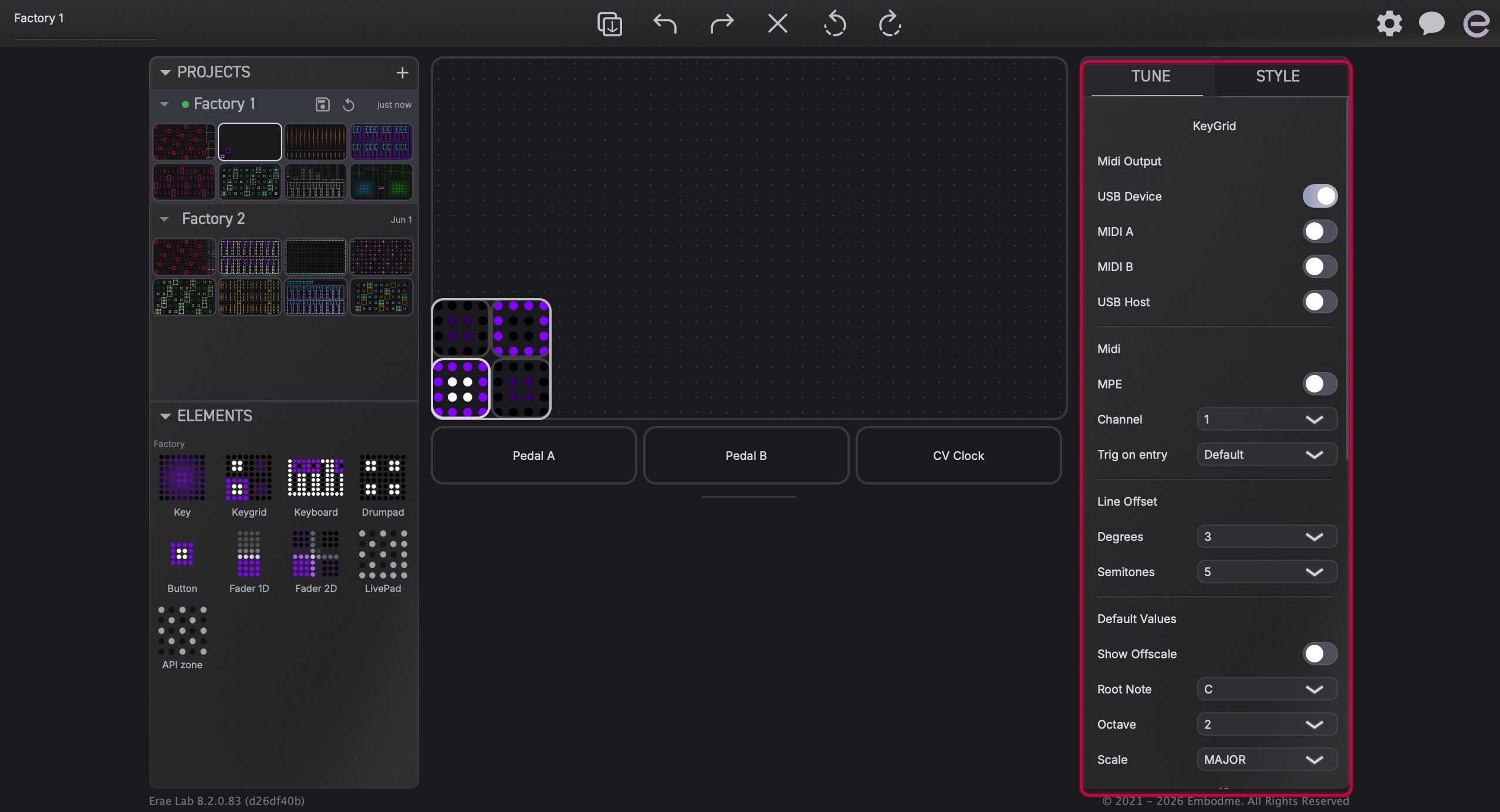
MIDI Output Destination
At the top of every element's Tune panel is the MIDI Output section. Use it to choose which physical outputs carry this element's MIDI data. You can enable any combination:
| Toggle | What it routes to |
|---|---|
| USB Device | The computer connected via the Computer USB-C port |
| USB Host | A device plugged into the Synth USB-C port (e.g. a hardware synth with USB-MIDI) |
| MIDI A | The physical MIDI DIN output A (via TRS adapter) |
| MIDI B | The physical MIDI DIN output B (via TRS adapter) |
By default, USB Device is on. If you are sending to a hardware synth over DIN MIDI, enable MIDI A or MIDI B here in addition to, or instead of, USB.
MIDI Channel & MPE
Standard MIDI channel
When MPE is off, the Channel selector sets which MIDI channel (1-16) this element sends on. You can route different elements to different channels to control multiple synth parts from a single layout.
Enabling MPE
Keyboard elements (Isomorphic, Chromatic, Drumpad) have an MPE checkbox. When you tick it:
- The Channel label changes to Nb channel and its range becomes 1-15. This is the number of voice channels: how many simultaneous fingers the keyboard can express independently. Each finger claims its own channel, so "Nb channel = 5" means up to 5 fingers playing polyphonically with per-note pitch bend, pressure, and slide.
- A Master channel selector appears, set to either Channel 1 or Channel 16. This is the global channel that carries overall parameter changes (pitch bend range, bank select, etc.). Channel 1 is the standard MPE choice; Channel 16 is used by some legacy setups. Voice channels fill in from the other end: with master on Channel 1, voices use channels 2 and up; with master on Channel 16, voices use channels 15 and down.
Note: MPE must also be enabled in your DAW or hardware synth to receive per-note expression. See MPE Setup on Erae 2: Ableton, Logic, Bitwig, Cubase & Reaper for per-DAW instructions.
When MPE is enabled, the Pitch Bend Range slider sets the semitone range for per-note pitch bend (default 48 semitones for MPE; the synth must be told the same range). Enabling MPE also resets pitch bend to 48 automatically to follow the MPE specification.
Line Offset (keyboard elements)
Line offset controls how notes are arranged row-by-row on an isomorphic keyboard. Each row steps up by the offset value.
- Semitones: used when the keyboard is in chromatic (all-notes) mode. The default is 5 semitones, giving a guitar-like tuning where each row shifts up a perfect fourth.
- Degrees: used when the keyboard is in scale mode. The default is 3 degrees, which keeps scale patterns visually consistent across rows.
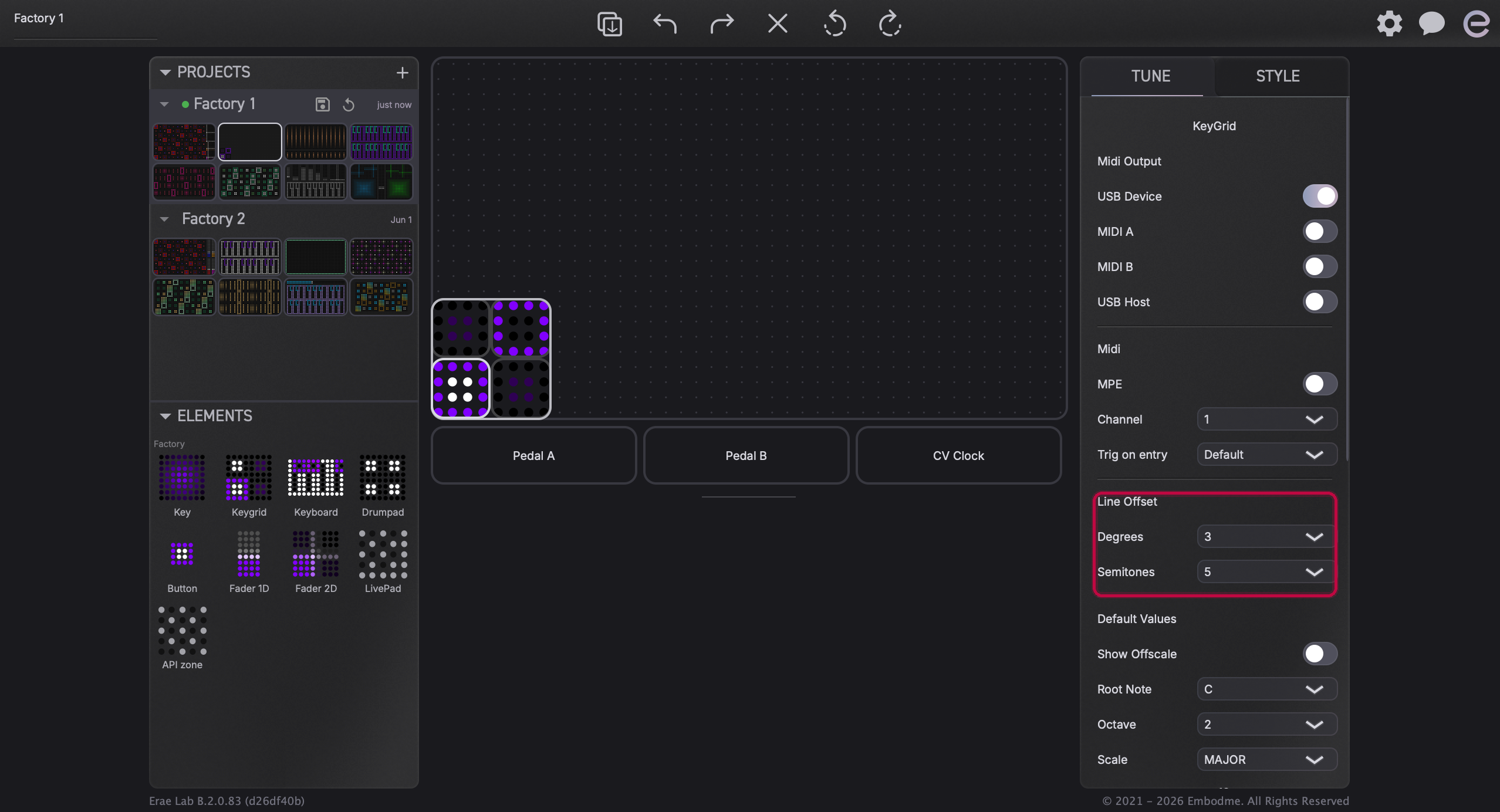
Switch between the two using the scale / chromatic toggle in the same panel. Only the active mode's slider is enabled; the other is greyed out.
See The KeyGrid, Erae's Isomorphic Keyboard for a deeper explanation of how each mode shapes the visual layout of the grid.
Scale & Root Note (keyboard elements)
Below Line Offset, the Default Values section lets you set the keyboard's starting note, octave, and scale. These feed into which keys light up in which color and which notes map to which position.
- Root Note: the tonic of the scale (C, C#, D, ... B)
- Octave: starting octave for the root note (e.g., Octave 4 = middle C area)
- Scale: which scale to apply (Major, Minor, Pentatonic, etc.). The device's LCD scale selector and the Lab scale picker both set the same value; they stay in sync.
- Show Off-Scale Notes: when enabled, notes outside the current scale appear on the keyboard (dimmed); when disabled, only in-scale notes are shown.
Note: The scale selector in this panel affects the element's default scale. On-device scale changes (via the Erae 2 LCD scale roller) also update this value and sync back to Lab when connected.
Expressivity
The Expressivity section holds three sub-panels, each toggled by a tab bar: Glissando, Pressure, and Vibrato. Toggle each sub-panel on with its enable checkbox. On key elements, only Pressure and Vibrato are available (no glissando).
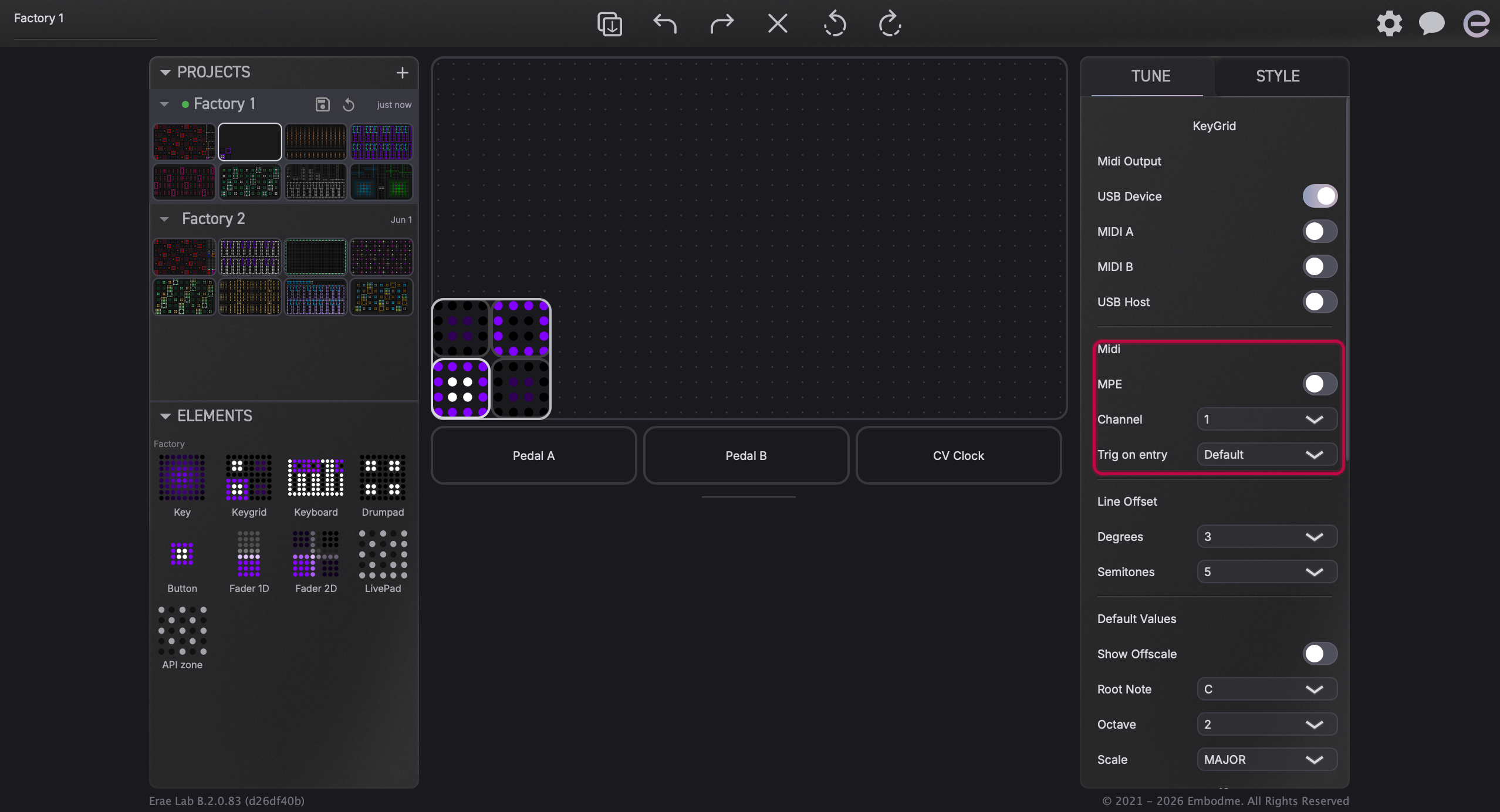
Glissando (keyboard elements only)
Glissando allows fingers sliding across the keyboard to produce smooth pitch slides rather than discrete note triggers.
| Control | What it does |
|---|---|
| Enable | Turns glissando on for horizontal (X) finger movement |
| Y Enable | Also applies glissando to vertical (Y) movement |
| Retrigger | When on, each new key hit retriggers the note instead of slurring |
| Tune Location | Pad: pitch quantises to the center of each key pad. Finger: pitch follows exact finger position within the key |
| Smoothing | Controls how quickly slides respond; lower is snappier, higher is smoother glide |
| In-Tune Width | How wide the "in-tune zone" is around each pitch center (0-100). Wider values make it easier to land cleanly on a note before a slide begins |
Pressure
Pressure maps how hard you press to MIDI. The controls here are:
| Control | What it does |
|---|---|
| Enable | Activates pressure tracking for this element |
| Pressure Type | Poly Pressure (per-note, MIDI Aftertouch) or Channel Pressure (one value for the whole channel) |
| Min / Max | The output range (0-127). Narrow it to compress pressure into a smaller band |
Note: Channel Pressure is the widest-supported option for standard synths. Poly Pressure (per-note aftertouch) requires the synth to support it. For MPE instruments, Poly Pressure carries per-finger expression.
Vibrato
Vibrato adds a pitch oscillation when you shake a finger laterally while holding a note.
| Control | What it does |
|---|---|
| Enable | Activates vibrato detection |
| Style | Shape of the oscillation curve: Linear, Quadratic (gentle S-curve), or Far Quadratic (sharper response at extremes) |
| Intensity | How strong the vibrato effect is (0-4.0 in the UI) |
| Return Speed | How quickly the pitch returns to center after you stop shaking. This is a smoothing factor for the oscillation decay, not pitch quantisation |
| Pitch Bend Range | The pitch bend range in semitones used for the vibrato output (default 12) |
CC74 Slide (keyboard elements with MPE)
Just below Expressivity on keyboard elements is a CC74 section. CC74 (Brightness) is the MPE "slide" axis: it maps a specific gesture to CC74 output, which many MPE-capable synths interpret as timbre or filter brightness.
| Control | What it does |
|---|---|
| Gesture | Which axis drives CC74: Pressure, X Absolute, Y Absolute, X Relative, Y Relative, or Speed |
| Initial Value | The CC74 value sent at note-on, before you move |
| Min/Max | Same output-range parameter as the CC absolute axes below |
The default gesture is Y Relative (vertical slide motion), which is the standard MPE slide interpretation.
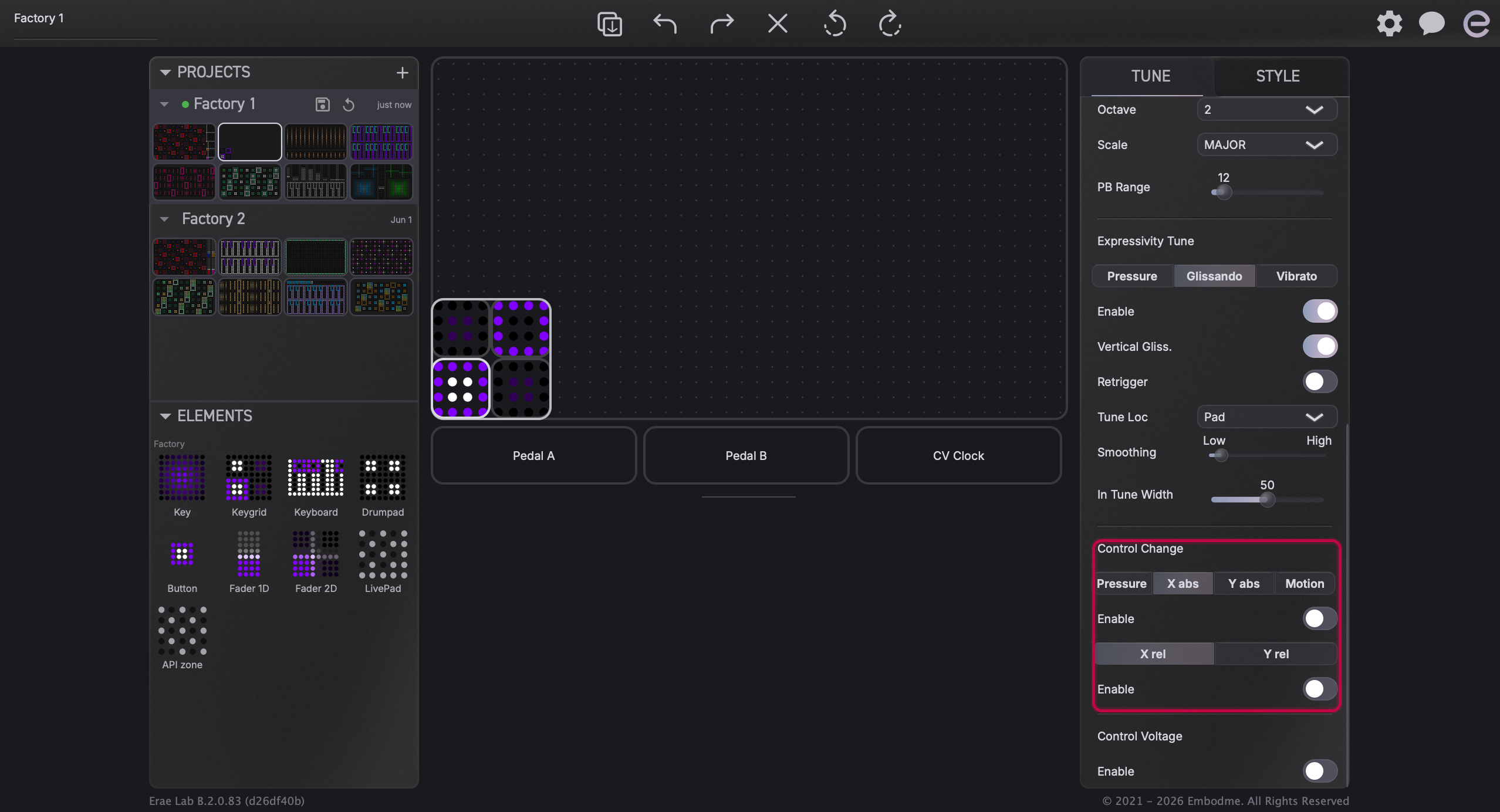
Control Change (CC)
The Control Change section lets you assign additional CC messages to an element's motion axes, on top of (or instead of) note data.
Absolute CC axes
Each absolute axis sends the element's current position as a CC value in the range Min-Max.
| Axis tab | What it tracks |
|---|---|
| Pressure | How hard you press |
| X abs | Horizontal finger position across the element |
| Y abs | Vertical finger position across the element |
| Motion | How fast the finger is moving (useful for velocity-like effects on continuous elements) |
Each axis panel has:
- Controller: the CC number to send (0-127). Use the dropdown to pick by name or number. Also supports CC14bit (14-bit resolution, 0-31 for the MSB), RPN, and NRPN for higher-resolution control.
- Min / Max: output range
Warning: CC#0 (Bank Select MSB) and CC#32 (Bank Select LSB) are reserved for layout switching in Erae Lab. Assigning elements to these CCs can cause unintended layout changes. Erae Lab warns you if a duplicate CC is detected on the same channel.
Relative CC axes
| Axis tab | What it tracks |
|---|---|
| X rel | Change in horizontal position (delta) |
| Y rel | Change in vertical position (delta) |
Relative CC sends increments, useful for controlling parameters that should accumulate (knob-style) rather than jump to an absolute position. Each axis has its own Controller assignment and base attributes.
Control Voltage (CV): Erae 2 only
Below the CC section, keyboard and key elements expose a Control Voltage section for routing to Eurorack or analog synthesizers via the Erae 2's CV outputs.
- CV Note: assigns this element's pitch to a CV output
- Velocity / Pressure: a toggle selects which of the two this element sends: velocity (note-on velocity) or pressure (continuous aftertouch)
- Advanced CV axes: absolute and relative X/Y motion can also be routed to CV outputs independently
Each CV output (CV1-CV4) can only be used by one element at a time. Lab warns you if two elements share the same output.
Fader-specific controls
Fader elements (1D and 2D) share the CC section but have a different Expressivity area. Instead of Glissando/Pressure/Vibrato, a fader's Tune panel shows:
- Initial Value: the CC value sent when the fader is touched (0-127)
- Center Y (2D faders only): the rest position for the vertical axis
The same CC absolute axes (Y abs for 1D; X abs and Y abs for 2D), Pressure, and Motion axes are available just as on keyboard elements.
Button-specific controls
Buttons have a type selector that determines their entire Tune panel:
| Button type | What it sends |
|---|---|
| Note | A MIDI note on press / off on release |
| CC | A CC value when pressed, a different value when released |
| Program Change | Bank MSB, Bank LSB, and Program number on press; optionally a different program on release |
| CV | Voltage on/off via a CV output |
| Tap Tempo | No configurable parameters, just taps the global MIDI clock |
Saving and syncing to the device
Changes you make in the Tune tab are saved to the Erae Lab project file. They are sent to the device when you use File > Push to Device or when the device reconnects with auto-sync enabled. Closing the project without pushing means the device keeps its previous configuration until the next sync.
See Erae Lab Overview for a full description of the project save, push, and sync workflow.