Selecting Scales on Erae
Erae applies a musical scale to every keyboard element on your layout. Notes that fall outside the chosen scale can either be hidden or shown in a different color, so the surface becomes a map of whatever tonality you are working in.
This article covers:
- How to select a scale and root note on the Erae 2 LCD (on-device)
- How to set a scale in Erae Lab (desktop)
- Showing or hiding off-scale notes
- The full list of 15 factory scales
Note: MK1 (Erae Touch) owners: the original scale-selector gesture (hold the bass clef pictogram) was specific to that device's LED grid. Skip to Erae Touch: Selecting a Scale at the bottom for MK1 instructions.
Selecting a Scale on Erae 2
The scale screen is reached from any keyboard element's context on the device LCD.
Opening the Scale Screen
Press the dedicated Scale button on the device once to open the Scale screen. Press it again to close and return to the previous view. The encoder and Return button navigate within the scale screen once it is open.
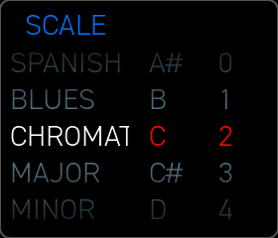
The scale screen shows three scrollable rollers arranged side by side:
| Column | What it controls |
|---|---|
| Scale (left, widest) | Which of the 15 factory scales to use |
| Root Note (center) | The pitch the scale is built from (C, C#, D ... B) |
| Octave (right) | Octave offset (-2 through 8) |
Scrolling the Rollers
Turn the encoder or drag your finger up and down directly on the LCD column you want to change. The middle item in each column is the current selection: it is highlighted. Changes take effect immediately; you will hear (and see on the surface LEDs) the scale update in real time.
Choosing a Scale
Scroll the left roller to the scale name you want. The device displays scale names in abbreviated capitals: for example, MINOR is the natural minor (Aeolian) mode, MELMINOR is Melodic Minor, and HARMINOR is Harmonic Minor. See the full name reference table below.
Choosing a Root Note
Scroll the center roller to set the tonal center. The root note is the reference pitch the scale is built from. For example, selecting MAJOR + D gives you D Major; selecting DORIAN + A gives you A Dorian.
Root note is a pitch class (C through B), independent of which octave your lowest key sounds in. That is controlled separately by the Octave roller.
Setting the Octave
The right roller shifts the overall register of the keyboard up or down. Use this to transpose the layout to the range that suits your playing or synth patch, without changing the scale or root.
Showing or Hiding Off-Scale Notes
On isomorphic keyboard elements, a small toggle button appears in the top-right corner of the scale screen. It controls whether notes outside the selected scale appear on the touch surface.

- Toggle ON (chromatic icon lit): all 12 semitone positions are shown. In-scale keys use your assigned in-scale color; off-scale keys appear in a contrasting style so you can still reach them intentionally.
- Toggle OFF: only in-scale notes appear. The surface shows a clean map of the mode, and every key you touch is guaranteed to be in scale.
This toggle only appears for isomorphic keyboard elements. It is not shown for Chroma (piano-layout) keyboards, where the physical layout already distinguishes white and black keys.
Setting a Scale in Erae Lab
Erae Lab gives you the same control from your computer. Changes made in Lab are pushed to the device when you send the layout.
Steps
- Open your project in Erae Lab and select a keyboard element on the canvas.
- The Tune tab appears in the right panel.
- Under Scale, use the dropdown to choose from the 15 factory scales.
- Use the Root Note picker to set the tonal center.
- Use the Octave field to shift the register.
- The Show Off-Scale toggle (for isomorphic keyboards) corresponds to the on-device chromatic toggle.
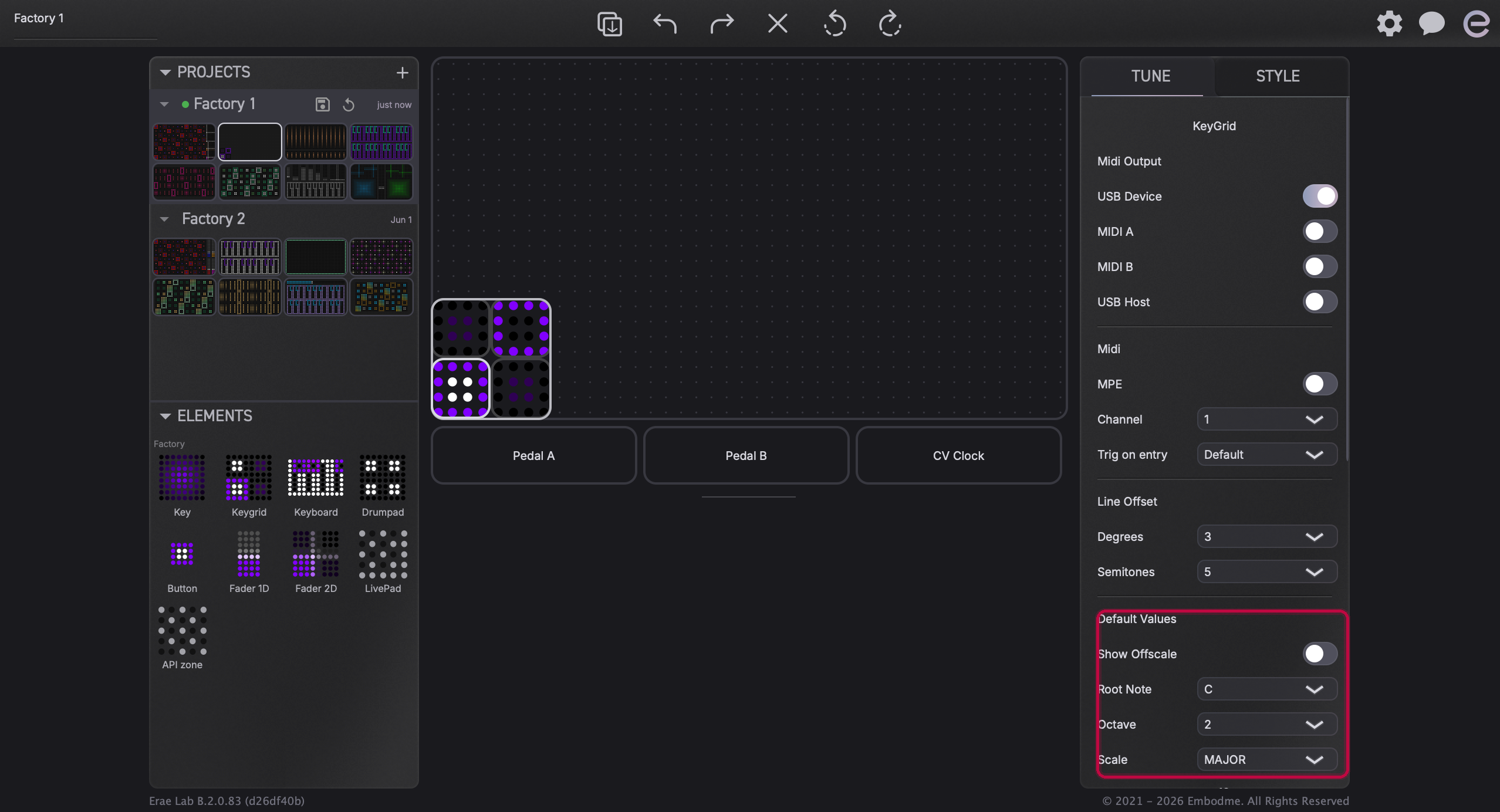
After adjusting, use Send to Device (or the sync button in the top bar) to push the updated layout to your Erae 2.
Note: Scale settings are per-element: each keyboard on your layout can use a different scale and root note. Select a different keyboard element on the canvas to configure it independently.
Factory Scales Reference {#factory-scales}
Erae includes 15 built-in scales. The device LCD shows abbreviated names; the full names and interval patterns are listed below.
| Device Label | Full Name | Semitone Intervals from Root |
|---|---|---|
| CHROMATIC | Chromatic | 0 1 2 3 4 5 6 7 8 9 10 11 |
| MAJOR | Major (Ionian) | 0 2 4 5 7 9 11 |
| MINOR | Natural Minor (Aeolian) | 0 2 3 5 7 8 10 |
| MELMINOR | Melodic Minor | 0 2 3 5 7 9 11 |
| HARMINOR | Harmonic Minor | 0 2 3 5 7 8 11 |
| ARABIC | Arabic | 0 1 4 5 7 8 11 |
| DORIAN | Dorian | 0 2 3 5 7 9 10 |
| PHRYGIAN | Phrygian | 0 1 3 5 7 8 10 |
| GYPSY | Gypsy | 0 2 3 6 7 8 10 |
| MIXOLIDIA | Mixolydian | 0 2 4 5 7 9 10 |
| ROMANIAN | Romanian | 0 2 3 6 7 9 10 |
| GYPSMINOR | Gypsy Minor | 0 2 3 6 7 8 11 |
| JAPANESE | Japanese | 0 1 5 7 8 |
| SPANISH | Spanish | 0 1 3 4 5 7 8 10 |
| BLUES | Blues | 0 3 5 6 7 10 |
Note: If you need a scale not listed here (such as Lydian or a pentatonic mode), the workaround is to build a drum pad element and assign individual notes manually in Erae Lab. This gives you full control over which MIDI notes each pad sends, independent of any scale quantization.
Erae Touch (Legacy) {#erae-touch-legacy}
This section is for Erae Touch (MK1) owners. If you have an Erae 2, see the sections above.
On the Erae Touch, scale selection uses the LED grid on the lower half of the touch surface.
- Hold the bass clef symbol in the top-left area of the device surface. The lower section of the LEDs changes to show the scale selector grid.
- The grid displays root notes along the top row (C through B, plus a sharp position) and the available scales as colored blocks arranged in two rows below.
- Touch a root note, then touch a scale block to select it. The surface updates immediately.
- Release the bass clef hold to return to playing mode.
The Erae Touch supports the same 15 factory scales listed above, displayed as pictogram blocks on the LED grid. The chromatic toggle shown in this article is an Erae 2 feature not available on the Erae Touch.