What Is MIDI MPE?
MIDI MPE (MIDI Polyphonic Expression) is an extension of standard MIDI 1.0 that gives each finger on a touch surface its own independent channel of expression. On a conventional MIDI controller, all notes share a single pitch-bend wheel, a single pressure reading, and a single modulation value. With MPE, every note you play carries its own pitch, pressure, and slide data simultaneously.
Why regular MIDI falls short for expressive surfaces
Standard MIDI was designed for keyboards where notes are either on or off, and a single global pitch-bend wheel bends all sounding notes together. That works well for a traditional piano-style instrument, but it means that if you press two keys and slide one finger sideways, both notes bend, not just the one you moved.
Erae is a continuous pressure-sensitive surface where each finger can move freely in X, Y, and Z after you press. To make that expressivity meaningful in a DAW or synth, the controller needs to communicate per-note independently. MPE is how it does that.
The four MPE dimensions
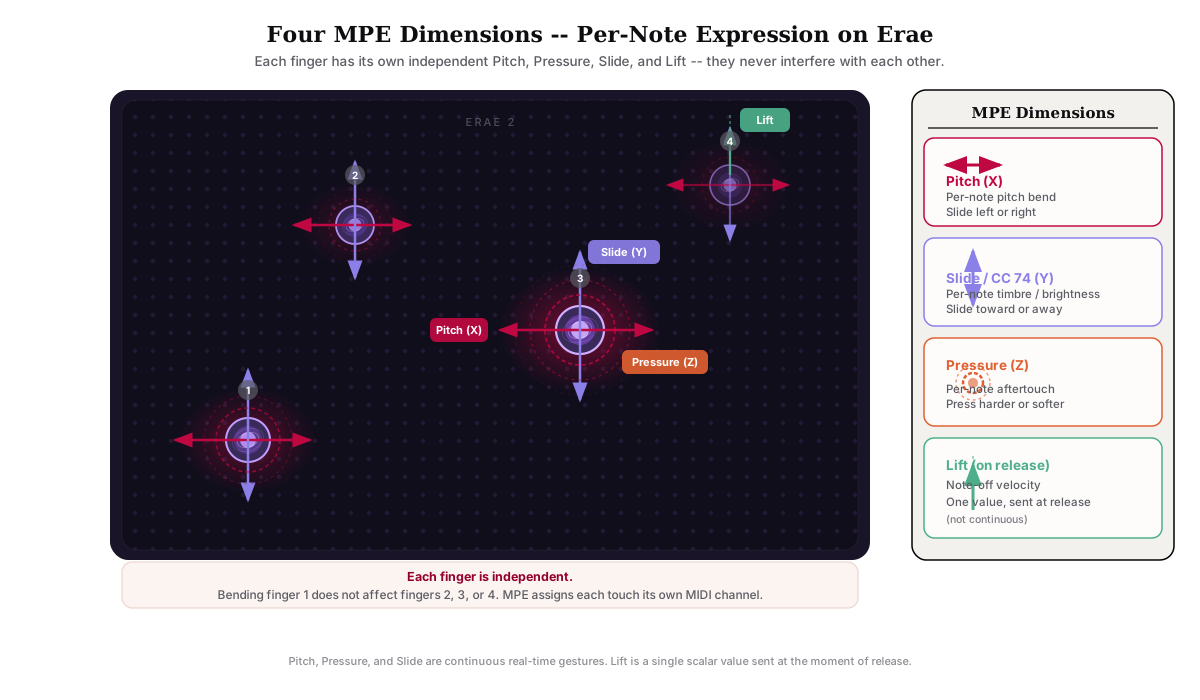
MPE defines four per-note dimensions of expression. Erae supports all of them:
| Dimension | MIDI message | What you do | What happens |
|---|---|---|---|
| Pitch | Per-note pitch bend | Slide finger left or right | Individual note bends up or down |
| Pressure | Per-note channel pressure (aftertouch) | Press harder or lighter | Individual note responds to touch force |
| Slide | Per-note CC 74 (Y axis / timbre) | Slide finger toward or away from you | Individual note sends a brightness / timbre value |
| Lift | Note-off velocity | Release with more or less speed | A single intensity value is sent when you lift your finger |
Note: Lift is the velocity of your finger release: one scalar value sent at the moment you lift, not a continuous real-time gesture. The Pitch, Pressure, and Slide dimensions are continuous: they update in real time as your finger moves. How a synth responds to any of these depends on how its MPE mapping is set up.
How MPE works under the hood
In standard MIDI, one channel carries one stream of notes with shared expression. MPE uses a pool of channels, one per finger, so that each note travels on its own channel. A designated "master channel" (channel 1 or channel 16) sends global messages that apply to all notes at once, while each "member channel" carries the per-note expression for a single touch.
When you enable MPE on a keyboard element in Erae Lab, the Erae device automatically routes all expressive MIDI for that element to a separate USB MIDI port called MIDI (MPE). Your DAW needs to receive MIDI from that port and route it to an MPE-capable instrument to hear the result.
The two USB MIDI ports
When you connect Erae to a computer, it appears as two MIDI inputs in your DAW:
- Erae 2 MIDI: standard (non-MPE) MIDI, notes, CC, program change
- Erae 2 MIDI (MPE): per-note expressive MIDI when MPE is enabled
Note: On Windows, these ports may appear as Erae 2 and MIDIIN2 (Erae 2) rather than using the MIDI (MPE) label. Both cables are always present; the second one is the MPE output.
For MPE to work, your DAW instrument track must be set to receive MIDI from the MIDI (MPE) port and configured in MPE mode. If you are receiving from the standard port, or if the instrument is not in MPE mode, expression will not work per-note.
Enabling MPE in Erae Lab
MPE is enabled per keyboard element, not globally. To turn it on:
- Open Erae Lab and select a project containing a keyboard element (isomorphic keyboard, chromatic keyboard, or drumpad keyboard).
- Click the keyboard element on the canvas to select it.
- In the right panel, open the Tune tab.
- Toggle MPE on.
When you enable MPE, Erae Lab automatically sets the pitch-bend range to 48 semitones and the number of member channels to 8. You can also set:
- MPE Master: Channel 1 (lower zone) or Channel 16 (upper zone). Most MPE synths default to Channel 1.
- Nb channel: how many simultaneous fingers get independent expression (1 to 15). Set this to match the polyphony of your synth or the number of fingers you typically use.
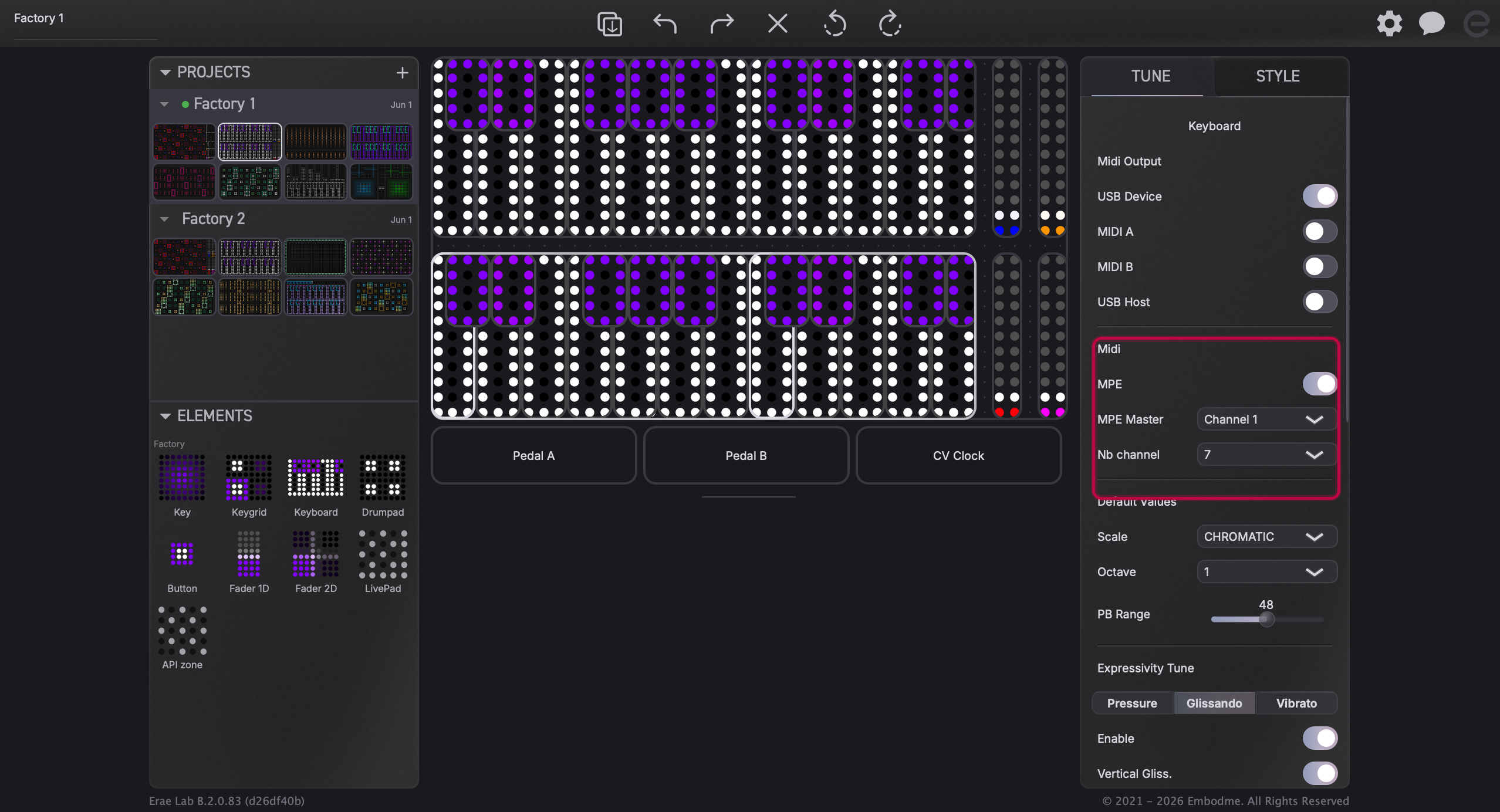
Note: When MPE is enabled, the CC 74 gesture option (slide axis) becomes available in the Tune tab. You can set it to Y-relative, Y-absolute, or none depending on how you want the vertical axis to behave.
Note: Your synth or VST pitch-bend range must match Erae's setting (48 semitones by default when MPE is on) or pitch expression will sound wrong. Check the pitch-bend range in your synth's MPE settings and set it to 48, or manually adjust Erae's PB Range in the Tune tab to match your synth.
Setting up your DAW to receive MPE
The steps differ slightly per DAW, but the pattern is the same: direct the MIDI (MPE) port to an MPE-enabled instrument track. Full per-DAW instructions are in MPE Setup on Erae 2: Ableton, Logic, Bitwig, Cubase & Reaper.
Ableton Live note: Ableton Live re-routes all incoming MIDI to channel 1 for VST/AU instruments by default. This silently collapses per-note MPE expression unless you explicitly enable the MPE toggle on the instrument track itself. If MPE seems to do nothing in Ableton, that toggle is the first thing to check.
MPE vs. MIDI 2.0
MPE and MIDI 2.0 are distinct standards. MPE is an extension of MIDI 1.0: it uses standard channel-based messages but assigns one channel per note. MIDI 2.0 (UMP) is a newer protocol with higher resolution and native per-note expression built in.
Erae 2 supports both. MPE works with any modern DAW and MPE-capable synth today. MIDI 2.0 support is available via a separate path for hosts and instruments that support it. For most studio use, MPE is the standard way to access full per-note expression on Erae.
What to do next
- Enable MPE on your keyboard element: follow the steps above in Erae Lab.
- Connect your DAW: see MPE Setup on Erae 2: Ableton, Logic, Bitwig, Cubase & Reaper for per-DAW walkthroughs, including the Ableton MPE toggle gotcha.
- Using Bitwig? See Using Erae 2 with Bitwig (Full MPE) for a deeper dive.
- Not getting sound at all? Check Troubleshooting Stuck or Hanging Notes.