Setting Up Sustain & Expression Pedals on Erae 2
The Erae 2 has two dedicated pedal inputs (Pedal A and Pedal B) that accept sustain pedals, expression pedals, kick triggers, and more. Each input is configured per-layout in Erae Lab, and each can be assigned its own pedal type, MIDI channel, and output routing.
Note: This article applies to the Erae 2 only. The Erae Touch (MK1) has no pedal inputs.
What you need to know first
Connector location
Pedal A (Input A) and Pedal B (Input B) are jacks 11 and 12, the two rightmost connectors on the back of the Erae 2, immediately to the right of the ten CV/Gate jacks.
All twelve jacks use the same 3.5 mm TRS mini-jack form factor. Most sustain and expression pedals have a 6.35 mm (1/4 inch) connector, so you will need a 6.35 mm to 3.5 mm adapter to connect standard pedals. Use a TRS (stereo) adapter for expression pedals; a TS (mono) adapter is sufficient for simple on/off switch pedals.
Note: When Pedal A is active in your layout, the CV output for jack 11 is unavailable, and vice versa for Pedal B and jack 12. If you need CV from those jacks, set the pedal type to Disabled or remove the pedal element from your layout.
External power is required
The pedal inputs are only active when the Erae 2 is receiving enough power. The Erae 2 has a dedicated Power USB-C port on the rear panel for its main power input; connecting a USB-C power supply there gives the device full power. If instead you run the device purely on bus power from the Device port (the USB-C port that connects to your computer), it can enter a Low Power state and the pedal inputs are disabled: no MIDI signal will come out even if a pedal is plugged in.
Connect a USB-C power supply to the Power port for the pedal inputs to work. If you see a "Low Power" warning on the screen at boot, that is your cue that the pedals (and CV outputs) are currently off.
Pedal types
The Erae 2 supports five pedal types in the current firmware:
| Type | Best for | Default MIDI output |
|---|---|---|
| Switch | Footswitch, tap tempo, looper control, program change | CC 64, On = 127 / Off = 0 (Note or Program Change also available) |
| Sustain (Binary mode) | Standard sustain pedal | CC 64, On = 127 / Off = 0 |
| Sustain (Continuous mode) | Half-pedal / soft-pedal style (potentiometer pedal on CC 64) | CC 64, continuous 0-127 |
| Expressive | Expression pedal (volume, filter sweep, etc.) | CC 11 (Expression), continuous 0-127 |
| Kick | Drum kick trigger, velocity-sensitive | MIDI note C2, velocity from impact force |
Note: A HiHat controller type is also implemented in the firmware but is not exposed in the current public type selector. If you are using a hi-hat pedal controller, contact support.
The Switch and Sustain Binary types behave identically for a standard sustain pedal: both send CC 64 on/off. The difference is labeling and intent. Choose Sustain for clarity if you are connecting a sustain pedal.
Setting up a pedal in Erae Lab
Pedal elements live in the layout editor, separate from the visible surface elements (keys, faders, etc.). You need to add one for each input you want to use.
- Open Erae Lab and open the layout you want to use with the pedal.
- In the left sidebar, click the Elements tab.
- In the elements panel, locate the Pedal section (non-visible elements appear below the surface elements).
- Click Add Pedal and choose Input A (jack 11) or Input B (jack 12).
- Select the Type that matches your pedal.
- Set the MIDI Channel and Output Routing (USB Device, USB Host, MIDI A, MIDI B, or a combination).
- Push the layout to your Erae 2.
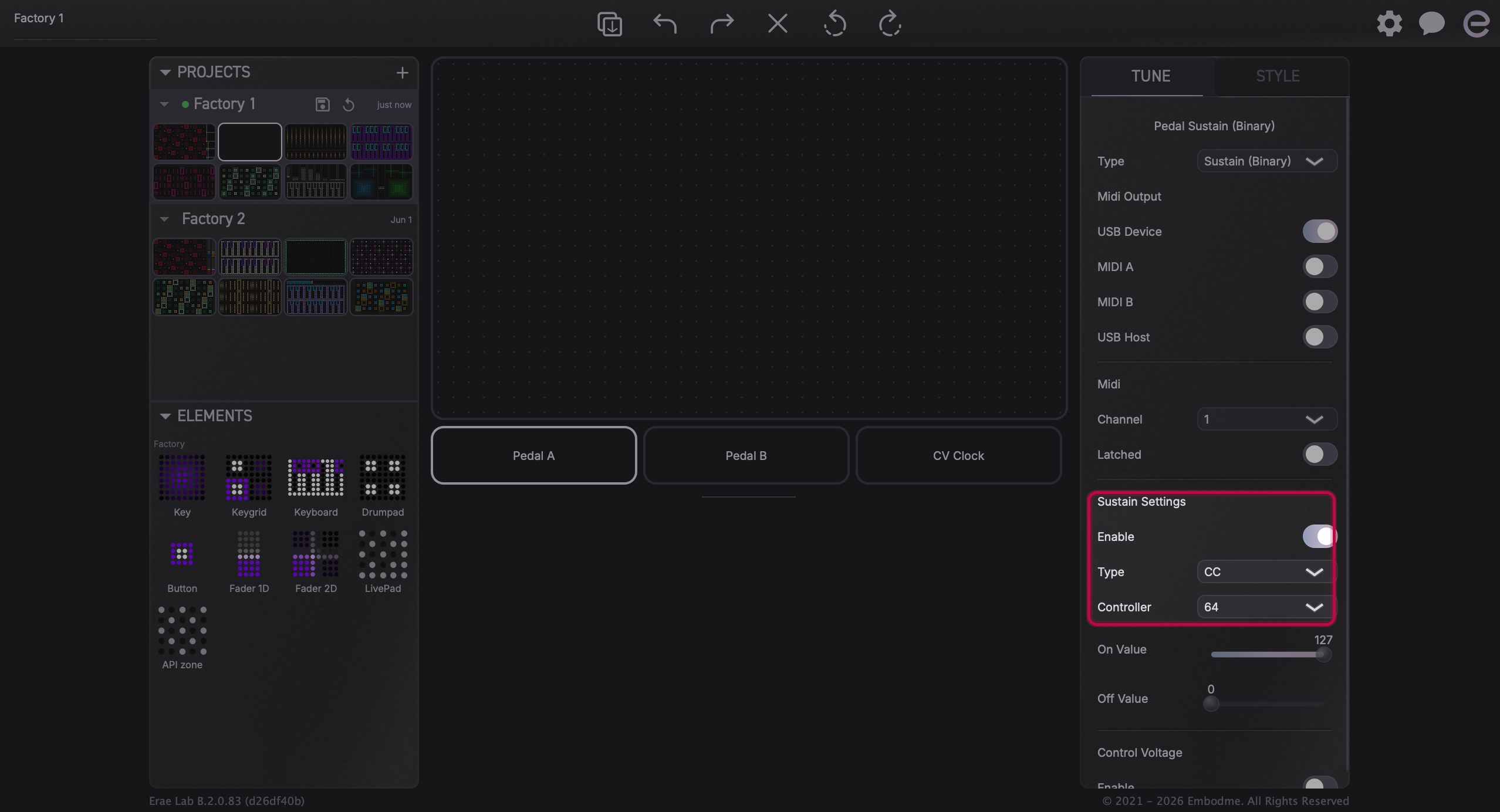
Once the layout is on the device, the hardware input activates automatically; there is no separate global toggle you need to flip.
Switch type: sub-options
When Type is set to Switch, you can choose the message the pedal sends:
- CC: sends a CC number of your choice (default CC 64). Set On Value and Off Value.
- Note: sends a MIDI note on press, note off on release.
- PC: sends a Program Change number on press.
- Tap Tempo: taps the internal clock tempo with each press.
Enable Latched if you want each press to toggle the state rather than behaving momentarily.
Sustain type: Binary vs Continuous
After choosing Sustain, a Mode sub-selector appears:
- Binary: simple on/off. Use this with a standard switch-type sustain pedal.
- Continuous: reads the full range of a potentiometer-type pedal on CC 64. Requires calibration (see below).
Reviewing and adjusting settings on the device
After pushing a layout with a pedal element, you can check or adjust the pedal directly on the Erae 2 screen.
- Press the Settings button on the device.
- Rotate the click-wheel to navigate to FootSw A or FootSw B and press to enter.
- You will see the current type, channel, CC number, and other parameters for that input.
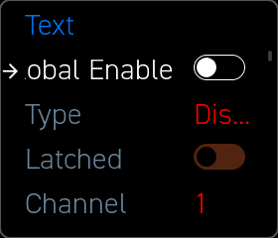
The Global Enable indicator at the top shows whether the current project has an active pedal element on this input. If it shows as off, your layout does not yet have a configured pedal element, so go back to Erae Lab to add one and push the layout again.
You can adjust the type and parameters here without returning to the computer. Changes take effect immediately and are written back to the layout.
Calibration
Expression pedals and continuous-type inputs need calibration so the Erae 2 knows the min and max positions of your specific pedal. Without it, the output range may be incomplete or reversed.
Types that require calibration: Expressive, Sustain (Continuous), and Kick.
To calibrate:
- Plug in the pedal.
- Go to Settings > FootSw A or FootSw B.
- Scroll to Calibrate and press the encoder.
- Follow the on-screen wizard: press the pedal fully down when asked, then release it fully up, then confirm.
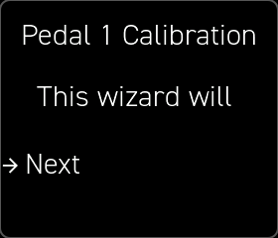
If the pedal output feels reversed after calibration (high when up, low when down), enable the Invert option in the pedal settings.
Troubleshooting
Pedal plugged in but no MIDI signal
Check power first. The pedal inputs are disabled in low-power mode. Confirm a USB-C power supply is connected to the Power port, and that no "Low Power" warning appeared at boot.
Check the layout. The Erae 2 only enables a pedal input when the active layout contains a configured pedal element for that input. If no element is present, nothing happens regardless of what is plugged in. Open Erae Lab, verify the layout has a Pedal element on the correct input (A or B), and push it again.
Check which jack you are using. Pedal A = jack 11 (second from right), Pedal B = jack 12 (rightmost).
Check the adapter. For expression pedals, make sure you are using a TRS (stereo, three-contact) adapter. A mono TS adapter carries only the tip signal, which is insufficient for a potentiometer-type expression pedal.
Pedal sends wrong CC number
The default CC for sustain-type pedals is CC 64 (standard sustain). If your synth or DAW is not responding, verify that it is set to receive CC 64, or change the CC number in the pedal settings (on device or in Erae Lab) to match what your instrument expects.
Note: Some older support documents mention CC 63 for sustain. CC 63 is "Hold 2", which is non-standard. The Erae 2 defaults to CC 64, the correct standard sustain CC.
Pedal state stuck on (sustain held open)
If a pedal was set to Latched mode and the state is stuck, press the pedal once to toggle it off, or go to the pedal settings and disable Latched mode. You can also send an explicit CC 64 value of 0 from a MIDI tool to release any stuck sustain in your DAW.
Expression pedal has no range or wrong range
Run the calibration wizard (Settings > FootSw A or B > Calibrate). Make sure you are pressing fully down and fully releasing when the wizard asks. A minimum travel range is required; if the wizard does not accept the calibration, check that the pedal is making electrical contact at both extremes.
Configuring the pedal displaced my CV output from jack 11 or 12
This is expected behavior. Jacks 11 and 12 serve a dual role: when they are in pedal mode, their CV output function is suspended. To restore CV on those jacks, open the layout in Erae Lab, change the pedal type to Disabled (or delete the pedal element), and push the layout.
Cross-product note
If you are using an Expert Sleepers FH-2 or similar USB MIDI controller alongside the Erae 2, connect it to the USB Host port, not to jacks 11/12. The FH-2 is a USB MIDI device, not a TRS pedal; it uses the USB Host connection, not the pedal inputs. The Erae 2's USB Host connection is hot-pluggable, so you can connect the FH-2 at any time; power the Erae 2 first and let it finish booting before connecting for the most reliable detection.
Related articles