Troubleshooting Stuck or Hanging Notes
A stuck note is one that keeps sounding after you lift your finger: the instrument hears the NoteOn but never receives the NoteOff. This article walks through the most common causes in order of likelihood, from the simplest fix to hardware escalation.
Note: This article covers both Erae Touch (MK1) and Erae 2 (MK2). Steps that differ between models are called out where relevant.
Step 0: Clear the stuck note right now
Before diagnosing, silence the sound:
| DAW | How to send All Notes Off |
|---|---|
| Ableton Live | Options menu > MIDI > Send MIDI Panic (or Cmd+Shift+Z on macOS / Ctrl+Shift+Z on Windows) |
| Logic Pro | Window menu > Show MIDI Activity, then click the Panic button |
| Bitwig Studio | Double-click the Stop button in the transport bar |
| Other DAWs | Send CC 123 (value 0) on all 16 channels from any MIDI utility |
There is no dedicated Panic button in Erae Lab for the DAW MIDI path. The automatic all-notes-off in Erae Lab fires only on the internal plugin-hosting path (when you disconnect the device or unload a plugin from within Lab). For live DAW work, use your DAW's own panic command.
Switching to a different layout in Erae Lab also clears any stuck notes that originate from the looper or sequencer, since a layout switch triggers a full note-off across those engines.
Step 1: Isolate: layout-specific or global?
Create a new project in Erae Lab with a single keyboard element covering the full surface. Keep it simple: no arpeggiator, no looper, standard MIDI (MPE off for now). Play notes and see if stuck notes still occur.

- Stuck notes stop with this layout: the cause is in your original layout's configuration, for example an MPE toggle, arpeggiator setting, or element configuration. Continue to Step 5.
- Stuck notes continue with this layout: the problem is at the firmware, USB, or DAW level. Continue to Step 2.
Why this works: the firmware captures the MIDI destination (main cable vs. MPE cable) at the moment a NoteOn is sent, and uses that same destination for the NoteOff. If MPE mode was toggled on a keyboard element between a NoteOn and a NoteOff, the NoteOff would go to the wrong cable and the DAW would never receive it. A single-element layout with a fixed configuration removes that variable entirely.
Step 2: Check your firmware version
Open Erae Lab and look at the status bar at the bottom of the window. The connected device's firmware version is shown there. If an update is available, Erae Lab will prompt you automatically and install it.

Outdated firmware is a confirmed cause of stuck notes. Older firmware versions did not correctly save the MIDI output destination at NoteOn time, which meant that changing MPE settings or reconnecting mid-session could leave notes hanging. This was fixed in a firmware update.
After updating: fully quit and relaunch your DAW so it re-establishes the MIDI connection to the device. A DAW that was open during the firmware update may be holding stale port references.
Note: Firmware version and Erae Lab version are independent. Updating Erae Lab does not update the firmware on the device; the device updates its own firmware automatically once Erae Lab detects a connected unit running an older version.
Step 3: Verify NoteOff is actually being sent
A MIDI monitor tells you whether the NoteOff is leaving the device at all. This is the fastest way to pinpoint whether the problem is in the device, the USB connection, or the DAW/synth.
How to open a MIDI monitor:
- macOS: Open Audio MIDI Setup (in Applications > Utilities). From the Window menu, choose Show MIDI Studio, then click your Erae device and look at the MIDI activity LEDs. For a full message view, use MIDI Monitor by Snoize (free).
- Windows: Use MIDI-OX or any similar free utility.
- In Ableton Live: The MIDI In indicators in the top bar flash on incoming messages. For per-message detail, add a MIDI track with "MIDI From" set to your Erae port and arm it; you'll see notes arrive in the clip slot.
Which port to monitor:
- On macOS: "Erae 2 MIDI" (standard) or "Erae 2 MIDI (MPE)" depending on whether MPE is enabled in Erae Lab for the keyboard element you're playing. Monitor both if unsure.
- On Windows: the ports appear as "Erae 2" and "MIDIIN2 (Erae 2)"; monitor both.
- On Erae Touch (MK1): ports appear as "Erae Touch MIDI" and "Erae Touch MIDI (MPE)".
What you see and what it means:
| In the MIDI monitor | What it means |
|---|---|
| NoteOn arrives, NoteOff arrives shortly after you lift | The device and USB are working correctly. The problem is in the DAW or synth. Jump to Step 6. |
| NoteOn arrives, no NoteOff | The NoteOff is being lost between the device and your DAW. Check USB connection (Step 4) or MPE cable mismatch (Step 5). |
| No NoteOn either | The device is not sending on this port. Check that you're monitoring the correct port, and that the keyboard element's MIDI output is not muted in Erae Lab. |
| Both NoteOn and NoteOff arrive, but the synth still hangs | The synth or plugin is ignoring the NoteOff. See Step 6. |
Step 4: Check USB connection stability
The MPE cable (cable 1) on both Erae Touch and Erae 2 is output-only from the device. If the USB connection drops for even a fraction of a second during a held note, the NoteOff packet that the device sends at release is lost, and the DAW has no way to recover it after reconnect.
Signs of USB instability:
- Erae Lab's "E" connection icon in the top bar briefly turns grey, then reconnects.
- On Windows, you hear the USB connect/disconnect sound.
- The DAW's MIDI input list momentarily loses the Erae port.
What to try:
- Replace the USB cable with a known-good data cable (not a charge-only cable, since those have no data wires).
- Connect the Erae directly to a port on your computer rather than through a hub.
- If you're using a USB 3.x port and experiencing intermittent drops, try moving to a USB-A 2.0 port. Some USB 3.x host controllers have compatibility issues with USB 2.0 Full Speed devices like the Erae's MIDI interface.
- On Erae 2: use the correct USB-C port. The rear panel has three USB-C ports: "Power" is the main power input for the power supply, "Device" connects to your computer and is where Erae 2 shows up as a class-compliant USB-MIDI device, and "Host" is for connecting USB-MIDI gear such as synths and controllers (it can supply up to 0.5 A to a connected device). Make sure your DAW cable is in the Device port, and connect the power supply to the Power port for full power. If the device is only getting bus power (for example from the Device port with no Power port connection), it can still run, but in Low Power mode, with reduced LED brightness, some features limited, and a "Low Power" warning at boot, so plug in the Power port if you see that warning.
Reconnecting is safe to do at any time: the USB connection is hot-pluggable, so there's no need to power the device off first. After any USB reconnect, any NoteOff messages that were in flight at the moment of the drop are gone. Send a DAW panic to clear stuck state before continuing.
Step 5: Check MPE port and channel configuration
When MPE is enabled on a keyboard element in Erae Lab, MIDI messages for that element go out on cable 1 ("Erae 2 MIDI (MPE)"). When MPE is disabled, they go on cable 0 ("Erae 2 MIDI"). If your DAW is only listening to one of the two ports, it will see NoteOn messages but miss NoteOff messages when the routing changes.
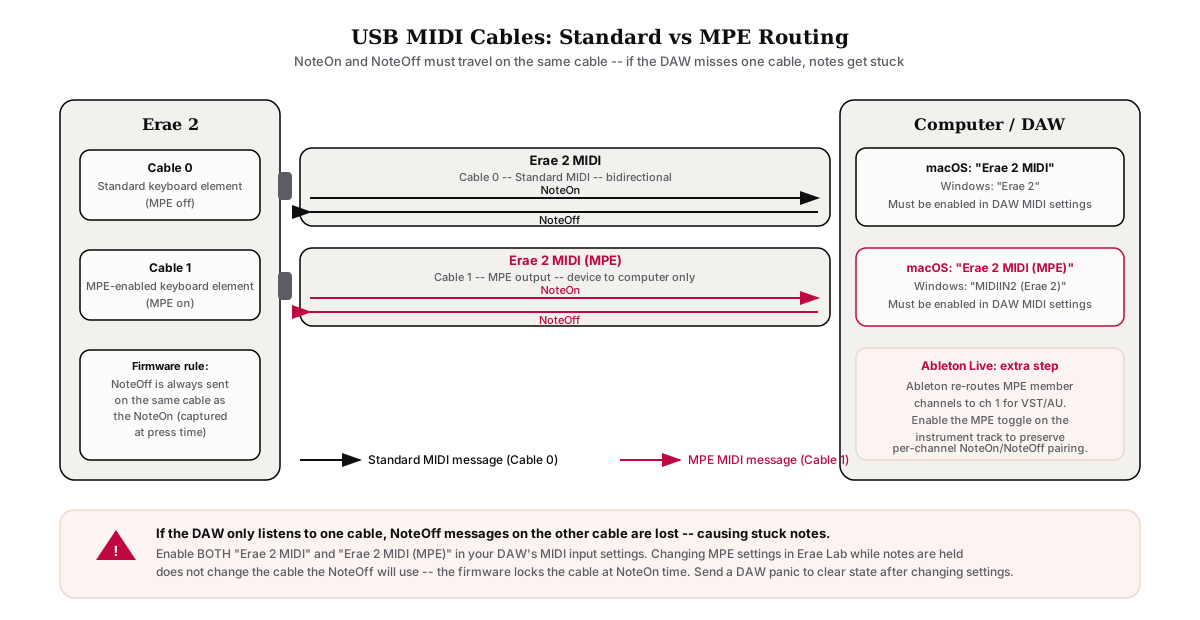
For Ableton Live specifically: Ableton re-routes all incoming MIDI to channel 1 for VST and AU instruments unless the instrument track has MPE explicitly enabled. A NoteOn that arrives on channel 5 (an MPE member channel) and a NoteOff that arrives on channel 1 (after Ableton's remapping) do not match: Ableton cannot pair them, and the note hangs.
Fix: enable the MPE toggle on the instrument track in Ableton Live. This tells Ableton to preserve per-channel messages and match NoteOn/NoteOff by channel.
For other DAWs: make sure both "Erae 2 MIDI" and "Erae 2 MIDI (MPE)" are enabled as MIDI inputs in your DAW's MIDI settings, and that the instrument receiving notes is set to receive from the correct port.
If you recently changed MPE settings in Erae Lab while notes were held: the firmware always sends the NoteOff on the same cable that carried the NoteOn (captured at NoteOn time). If you toggled MPE off while a note was still ringing, the NoteOff will still go on the MPE cable, so make sure the DAW is listening to that cable, or send a panic to clear the state before changing settings.
Step 6: Rule out the synth or plugin
If MIDI monitor confirms that both NoteOn and NoteOff are reaching your computer, but the synth still hangs, the problem is in the synthesizer or plugin, not in Erae.
Common synth-side causes:
- Sustain pedal held (CC 64 = 127): If a sustain pedal is active (physically or accidentally via MIDI), most synths will ignore NoteOff while sustain is held. Check the pedal settings in Erae Lab and in your DAW's MIDI inputs.
- Infinite release envelope: Some presets have a very long or infinite release. This is intended behavior, not a stuck note. Reduce the Release setting on the synth.
- Synth-specific "hold" or "latch" modes: Some synths and plugins have their own hold/latch feature that keeps notes alive after NoteOff. Check the synth's settings.
- Voice-stealing + legato: Some synths in legato mode do not stop the previous note until a different note is struck. Play two notes in sequence to see if the first releases.
Quick test: load a simple GM-style instrument (GarageBand piano, Ableton Wavetable in its default Init preset, or any simple softsynth with a short envelope) and repeat the stuck-note scenario. If notes no longer hang, the cause is in the original instrument's preset or settings.
Step 7: Check the arpeggiator
If the keyboard element that's producing stuck notes has the arpeggiator enabled in Erae Lab, check the arpeggiator settings in the right panel.
The arpeggiator works by holding notes internally and scheduling them at a set rate and pattern. If the arpeggiator is enabled and you switch layouts or disconnect the device before all arpeggiated notes have been released, the NoteOff for the last arpeggiated note may not be sent in time.
Fix: before switching layouts or disconnecting, lift all fingers from the surface first and wait for the last arp note to cycle through, then disconnect or switch. Alternatively, disable the arpeggiator on elements where it is not needed.
To check: select the keyboard element in Erae Lab's canvas, open the right settings panel, and look for the Arpeggiator section. If the Enable toggle is on, the arp is active for that element.
Escalation: stuck notes in a specific physical zone
If stuck notes occur consistently in the same area of the surface (always the top-right corner, always a specific strip) and reproduce across all layouts and DAWs, the cause may be a sensor fault rather than a software or configuration issue.
Diagnostic steps:
- Create a single keyboard element covering the full surface.
- Play notes slowly in a grid pattern, one note at a time, across every area of the surface.
- Note which zones produce stuck notes and whether the pattern is consistent across sessions.
If the same physical zone reproducibly produces stuck notes and all firmware/USB/DAW causes have been ruled out, this is consistent with a hardware sensor issue. See Testing for Dead Zones and Ghost Touches for the full diagnostic workflow.
For confirmed hardware defects: contact Embodme support at [email protected] with a short video showing the stuck notes, the layout used, and the firmware version visible in Erae Lab. Every Erae unit carries a 2-year warranty, and stuck notes caused by a confirmed sensor defect in a specific zone are covered.
Summary checklist
- Sent DAW panic to clear current stuck state
- Tested with a single full-surface keyboard element (no arp, no MPE)
- Updated device firmware via Erae Lab and restarted DAW
- Confirmed NoteOff appears in MIDI monitor after finger release
- Verified USB cable is a data cable, connected directly (not through a hub)
- Checked that both Erae MIDI ports are active in DAW, and MPE is enabled on the Ableton instrument track if using MPE
- Ruled out synth-side hold/sustain/infinite-release settings
- Checked arpeggiator enable state on the keyboard element
If all of the above are clear and stuck notes still occur in a consistent physical zone, contact Embodme support at [email protected] to arrange a repair or exchange.