Erae 2 Not Detected: USB & Connection Troubleshooting
Your Erae 2 has three USB-C ports on the rear panel, and plugging into the wrong one is the most common reason it does not show as connected in Erae Lab. This guide walks you through each connection issue, from quick cable swaps to step-by-step OS-specific fixes.
Note: This article applies to the Erae 2 only. The Erae Touch (MK1) uses a single Micro-USB port and a different connection flow.
Understanding the three USB-C ports
The back panel of your Erae 2 has three USB-C ports:
| Port | Label | What it does |
|---|---|---|
| Power | Power | The main power input. Plug your power supply in here for full power (full LED brightness, CV/Gate, and all features). |
| Computer | USB Device | Connect this one to your Mac or PC. Erae 2 appears as a class-compliant USB-MIDI device (the Main and MPE ports), and Erae Lab and your DAW communicate through it. |
| Synth | USB Host | Connect class-compliant USB MIDI instruments here, so Erae can act as a USB host for them. Supplies up to about 500 mA (0.5 A) to a connected device. |
Erae 2 has no battery. For full performance, plug your power supply into the dedicated Power port. If you run the Erae 2 without the Power port connected (for example, on bus power over the Computer port), it switches to the Low Power state described below: reduced LED brightness and some features disabled.
Connect in the right order
- Plug your power supply into the Power port for full power.
- Connect a USB-C cable from the Computer (USB Device) port to your computer or a powered USB-C hub.
- Wait for the Erae 2 to finish booting: the LCD will show the Home screen.
- Launch Erae Lab. The connection indicator ("E" icon) in the top bar should light up within a few seconds.
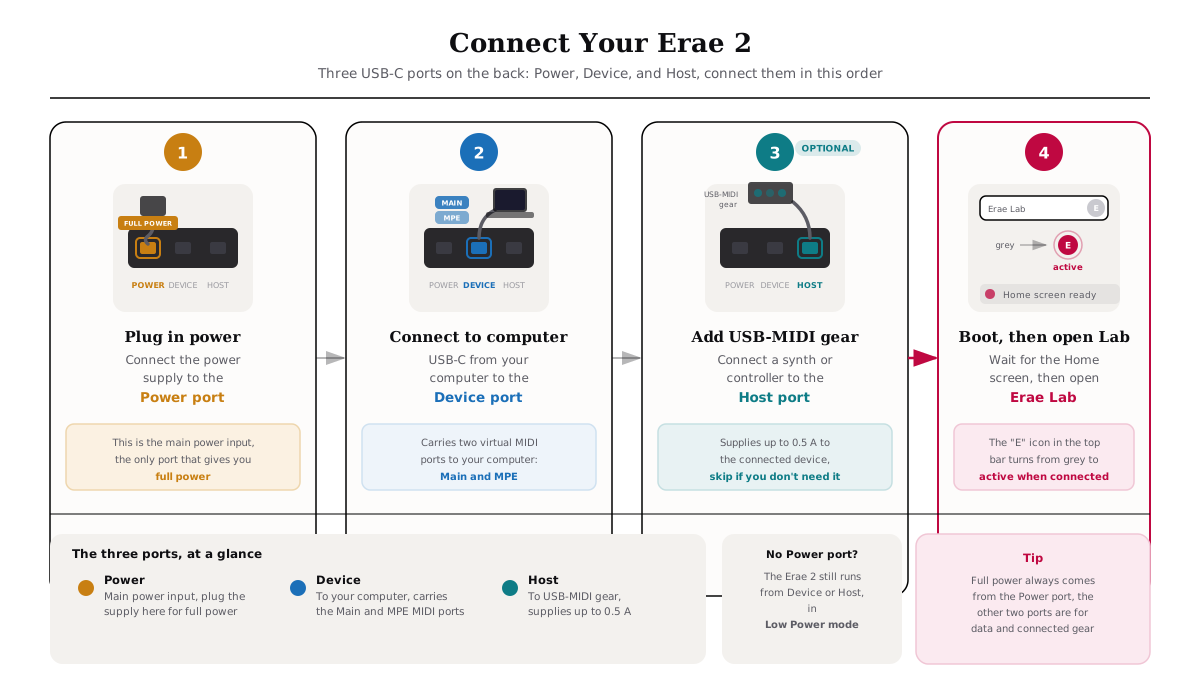
If the Power port is not connected and the Computer port alone cannot supply enough power (for example, an unpowered USB hub or a low-current computer port), the device boots in the Low Power state described below.
"Low Power" warning on the LCD
If the LCD shows a Low Power message at startup, Erae 2 detected less than about 15 W available on the Computer port.
What changes in Low Power mode:
- Display brightness is reduced
- CV outputs are disabled
- Footswitch inputs are disabled
- MIDI B output is disabled
How to fix it:
- Plug your power supply into the Power port (the main power input) for full power. If you are running from the Computer port alone, use a higher-power USB-C PD source rather than a bus-powered hub or a low-current port.
- Use a cable rated for USB Power Delivery, not a thin charge-only cable.
- If you only need basic note playing (no CV, footswitch, or full brightness), running from a lower-power source such as a laptop port is fine.
Erae Lab does not show the device as connected
If the "E" icon in Erae Lab's top bar stays grey instead of lighting up, work through these steps in order:
1. Confirm you are using the correct port
The Computer port is the only port that connects to Erae Lab. The Synth port is for USB MIDI instruments only and will not be recognized by Erae Lab. If you are unsure which port you used, unplug and start fresh with the connection order above.
2. Try a different cable
Use a USB-C cable rated for both data and power (USB 2.0 data plus a Power Delivery-capable rating). Charge-only cables carry power but no data signals and will not let Erae Lab detect the device.
3. Connect directly to your computer
USB hubs, especially unpowered ones, can prevent the Erae 2 from being detected or from getting enough power. Plug the Computer port directly into a USB-C or USB-A port on your computer (use a USB-C to USB-A adapter if needed) for the initial test.
4. Reset the connection
Unplug the cable, wait a few seconds, then reconnect it and relaunch Erae Lab. In Erae Lab, you can also open Preferences and choose Reset MIDI Connections to force a fresh device scan.
5. Platform-specific checks
macOS:
- No driver installation is needed: the Erae 2 is USB class-compliant. If the device does not appear after first plug, try replugging the Computer cable or restarting Erae Lab.
- Open Audio MIDI Setup (Applications > Utilities) and check the MIDI Studio window. If the device appears with a numbered suffix (for example, "Erae 2 2") after a firmware update, select the old entry and remove it, then reconnect USB to restore a clean enumeration.
Windows:
- Close other MIDI applications before opening Erae Lab. If a DAW is already running and has claimed an Erae 2 port, Erae Lab may not complete its handshake. Once Lab is connected, you can open your DAW: see Windows: MIDI port selection below for which ports to use.
- Open Device Manager (right-click the Start button > Device Manager) and look under "Sound, video and game controllers" or MIDI devices. A yellow exclamation mark on "Erae 2" usually means a stale device entry: right-click it, choose Uninstall device, then unplug and replug the Computer cable to let Windows re-enumerate the device.
Linux:
- The Erae 2 is USB class-compliant and does not require a custom driver on Linux. If the device is not detected, USB access may be blocked by udev rules: check that your user has permission to access the device node (usually under
/dev/bus/usb/), and add a udev rule for vendor ID0x2B87if needed.
6. Try bootloader recovery
If Erae Lab still does not show the device as connected after all the above steps, and the device itself fails to boot normally (LCD stays dark, no button LEDs, no USB enumeration), the firmware may need to be reflashed:
- Connect the Computer cable and open Erae Lab.
- If Erae Lab detects the device in bootloader mode, it offers to install the latest firmware or select a firmware file.
- Erae Lab streams the firmware over USB. Do not disconnect the cable during the transfer.
- The device reboots automatically once the update finishes.
Erae 2 has a recovery bootloader in a separate, protected region of flash memory that survives any failed or partial firmware update, so it always remains recoverable this way. See Erae 2 Firmware Update Troubleshooting if the reflash itself runs into a problem.
Windows: MIDI port selection
On Windows, the Erae 2 appears as two MIDI ports in your DAW and MIDI software:
| Port name | Use in DAW? | Purpose |
|---|---|---|
| Erae 2 MIDI | Yes, standard MIDI | Notes, velocity, CC, pitch bend. Use this for standard (non-MPE) instruments. |
| Erae 2 MIDI (MPE) | Yes, MPE only | Per-note expression data. Enable this in MPE-compatible instruments and plug-ins. |
Erae Lab talks to the device over a separate vendor USB connection that does not appear as a MIDI port in your DAW, so there is nothing to avoid opening there. If Erae Lab and your DAW need to run at the same time: open Erae Lab first and let it connect, then open your DAW.
macOS: MIDI port names
On macOS, the Erae 2 appears in Audio MIDI Setup and your DAW as two named cables:
| Port name | Use in DAW? | Purpose |
|---|---|---|
| Erae 2 MIDI | Yes, standard MIDI | Notes, velocity, CC, pitch bend. |
| Erae 2 MIDI (MPE) | Yes, MPE only | Per-note expression data for MPE instruments. |
As on Windows, Erae Lab uses a separate vendor USB channel rather than a MIDI port, so no port needs to be reserved for it.
What the LCD is telling you
The Erae 2 LCD displays live status messages that are useful for diagnosing connection problems:
| LCD message | What it means |
|---|---|
| (normal Home screen) | Device is running normally and ready to connect. |
| Low Power | The Power port is not connected and available power is below about 15 W: brightness, CV, footswitch, and MIDI B are disabled until you connect the Power port or a higher-power source. |
| No SD | No microSD card detected. |
| SD Error / SD Disk Error | The card's filesystem was not recognized, or a read/write failure occurred. |
For firmware-transfer messages ("Waiting for USB," "Ready to Update," "Receiving File," and so on), see Erae 2 Firmware Update Troubleshooting.
When to contact support
If working through all the steps above does not resolve the issue, send a bug report from Erae Lab (it automatically attaches the logs support needs) or contact [email protected] and include:
- Your operating system and version (for example, macOS 15.4 Sequoia or Windows 11 23H2)
- Erae Lab version (shown in the title bar or About screen)
- What the Erae 2 LCD shows when the Computer cable is connected
- Whether the device appears in Device Manager (Windows) or Audio MIDI Setup / System Information > USB (macOS)
- Whether trying a different cable made any difference
If the device disconnects and reconnects repeatedly even with a known-good cable, never appears in the OS across multiple cables and multiple computers, or the Computer port is visibly damaged, this points to a hardware issue and support may need to arrange a repair.