Erae 2 Firmware Update Troubleshooting
Firmware updates on the Erae 2 run automatically through Erae Lab, but when something goes wrong, the symptoms can look alarming. This article explains what each LCD message means, what Lab is doing behind the scenes, and exactly what to do when the update stalls, fails, or refuses to start.
Note: If you are looking for the normal step-by-step update procedure, see Updating Your Erae 2 Firmware. Come back here if something goes wrong.
Before you start: check these prerequisites
Erae Lab silently refuses to begin an update if any of the following is missing. Confirm them before troubleshooting anything else.
1. Sufficient power on the Power port
The Erae 2 has three USB-C ports on the rear panel: Power, Device, and Host. Full power comes from the Power port, where your power supply plugs in. If the update check finds insufficient power, Lab shows a blocking message before it will proceed:
"Please connect your Erae to a power supply before updating firmware."
A dedicated USB-C power adapter connected to the Power port is recommended for firmware updates. The device can still run in Low Power mode when powered another way (for example, bus power over the Device port), but that mode limits some features and will not pass this check.
2. Device port connected directly to your Mac or PC
The Device port carries the firmware data and connects to your computer, where the Erae 2 shows up as a class-compliant USB-MIDI device. Connect it directly to your computer, not through a USB hub or dock, to ensure reliable high-speed data transfer.
3. Erae Lab is up to date
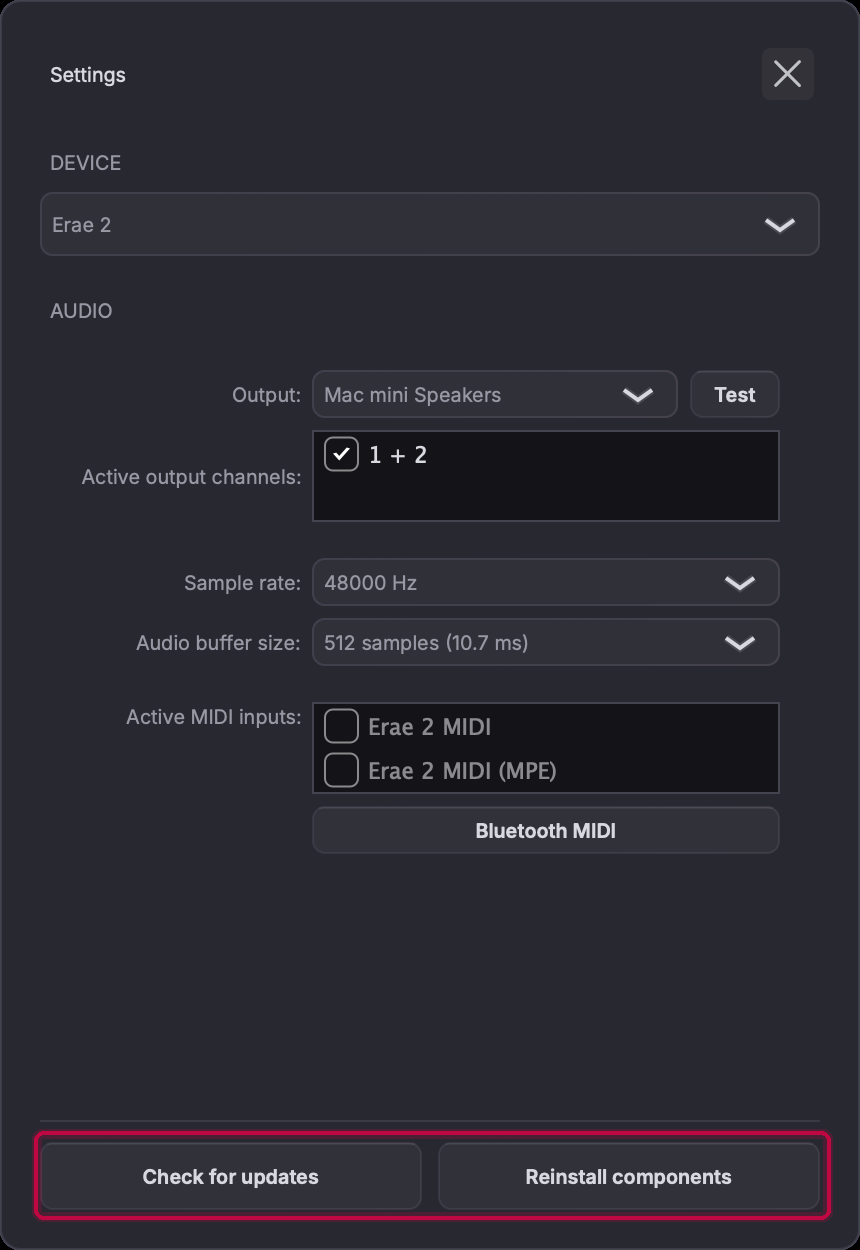
The firmware file is bundled inside Erae Lab. If Lab is outdated, the bundled firmware file may be missing or older than what is already on your device. Open Lab's Settings (gear icon, top-right corner) and click Check for updates if you are unsure.
4. Close all DAWs and MIDI applications
On Windows especially, a DAW that has opened the Erae 2 MIDI port can block Lab from accessing the bootloader during the update. Close them before you click "start update." Lab will also prompt you with a reminder dialog before proceeding.
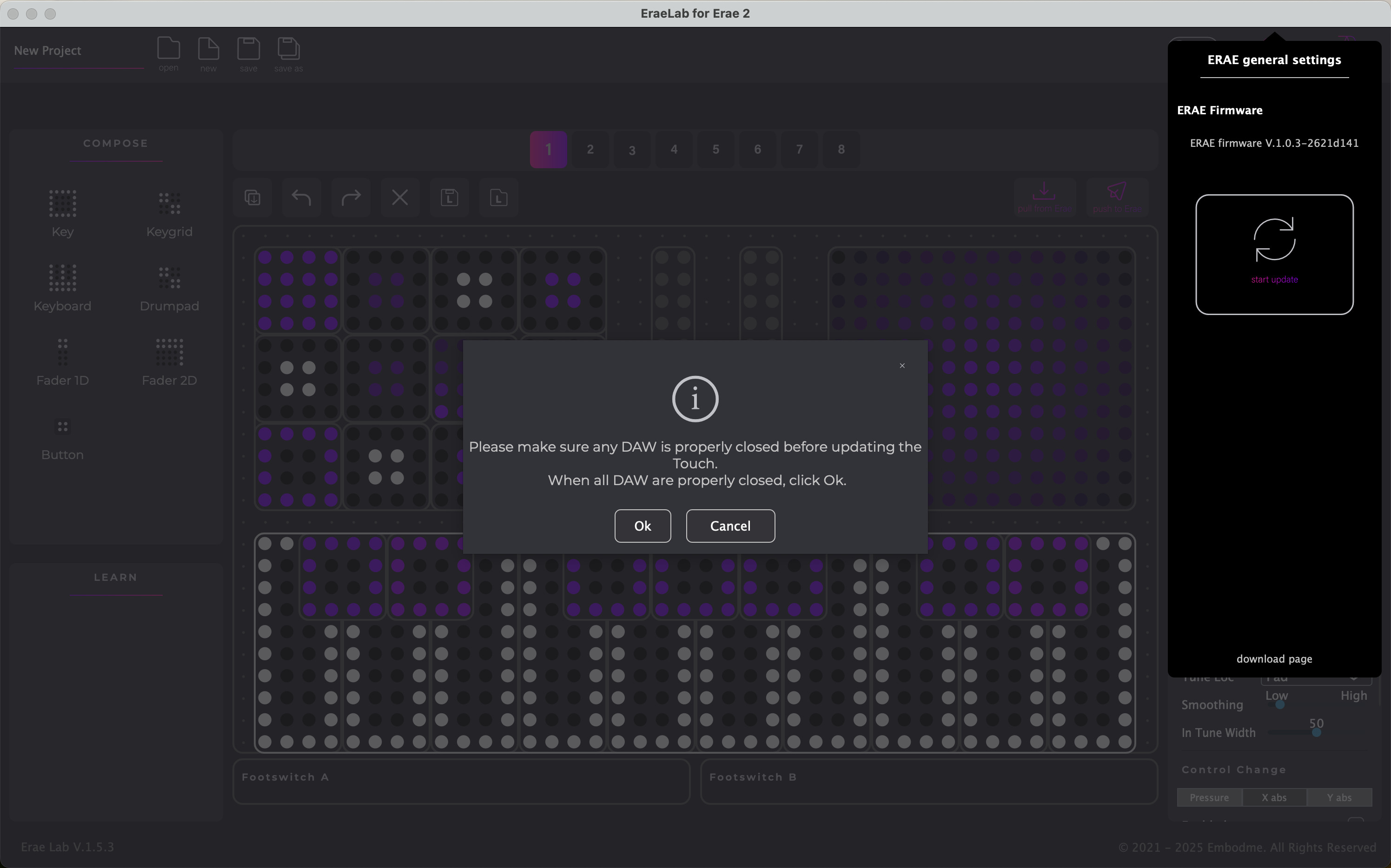
Note: The dialog text currently reads "updating the Touch," a known wording issue in the current version of Lab. It is referring to your Erae 2.
What happens during a normal update
Understanding the normal sequence helps you recognize whether you are actually stuck or just waiting. Erae Lab detects a newer firmware file automatically and drives the whole process; you only need to confirm a couple of prompts.
- Lab detects a newer firmware file and sends your Erae 2 a command to reboot into update mode.
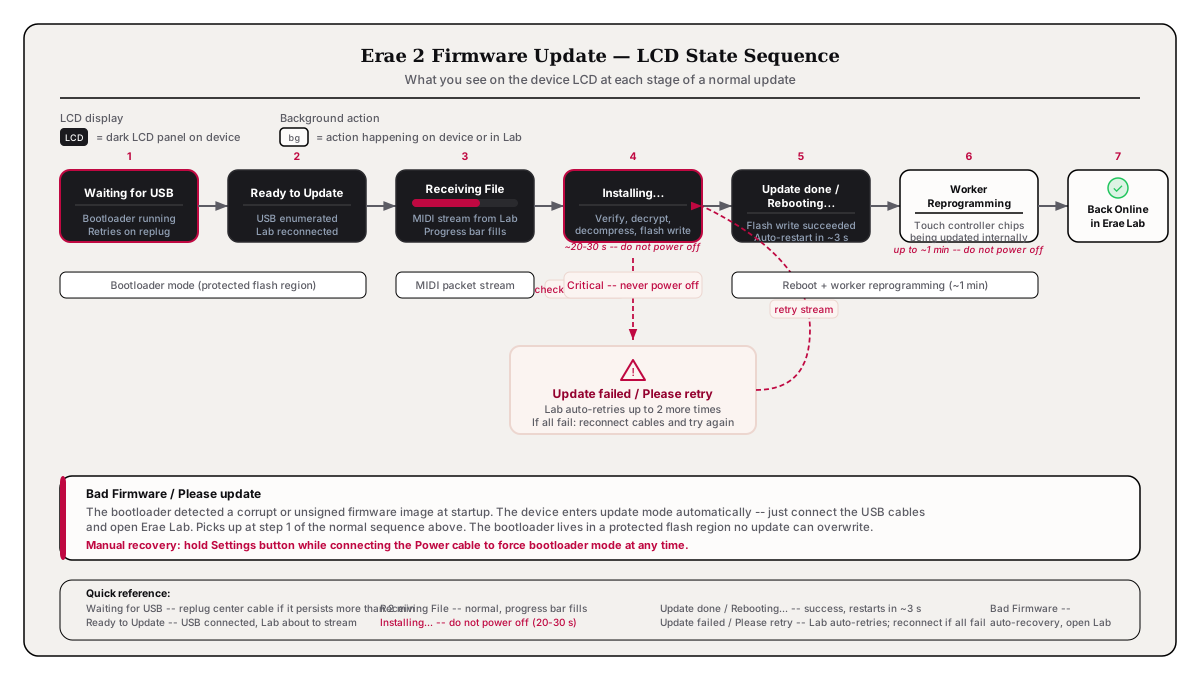
- The device restarts and the LCD shows "Waiting for USB," then "Ready to Update" once Lab reconnects.
- Lab streams the firmware file over USB as a series of MIDI packets. The LCD shows "Receiving File" with a progress bar.
- Installation begins. When all data is received, the LCD shows "Installing..." for roughly 20 to 30 seconds while the device verifies the file signature, decrypts, decompresses, and writes the firmware to flash.
- Success. The LCD shows "Update done / Rebooting..." for about 3 seconds, then the device restarts.
- Worker reprogramming. After rebooting, the Erae 2 reprograms its internal touch controller chips. This takes up to about one minute. The device may look unresponsive during this window. Lab waits up to 3 minutes. Do not power off during this phase.
- Lab confirms the version and shows a success notification.
Symptom: The update option does not appear in Lab
Lab only offers the update when it detects a firmware file on disk that is newer than what the device is running. If no update prompt appears:
-
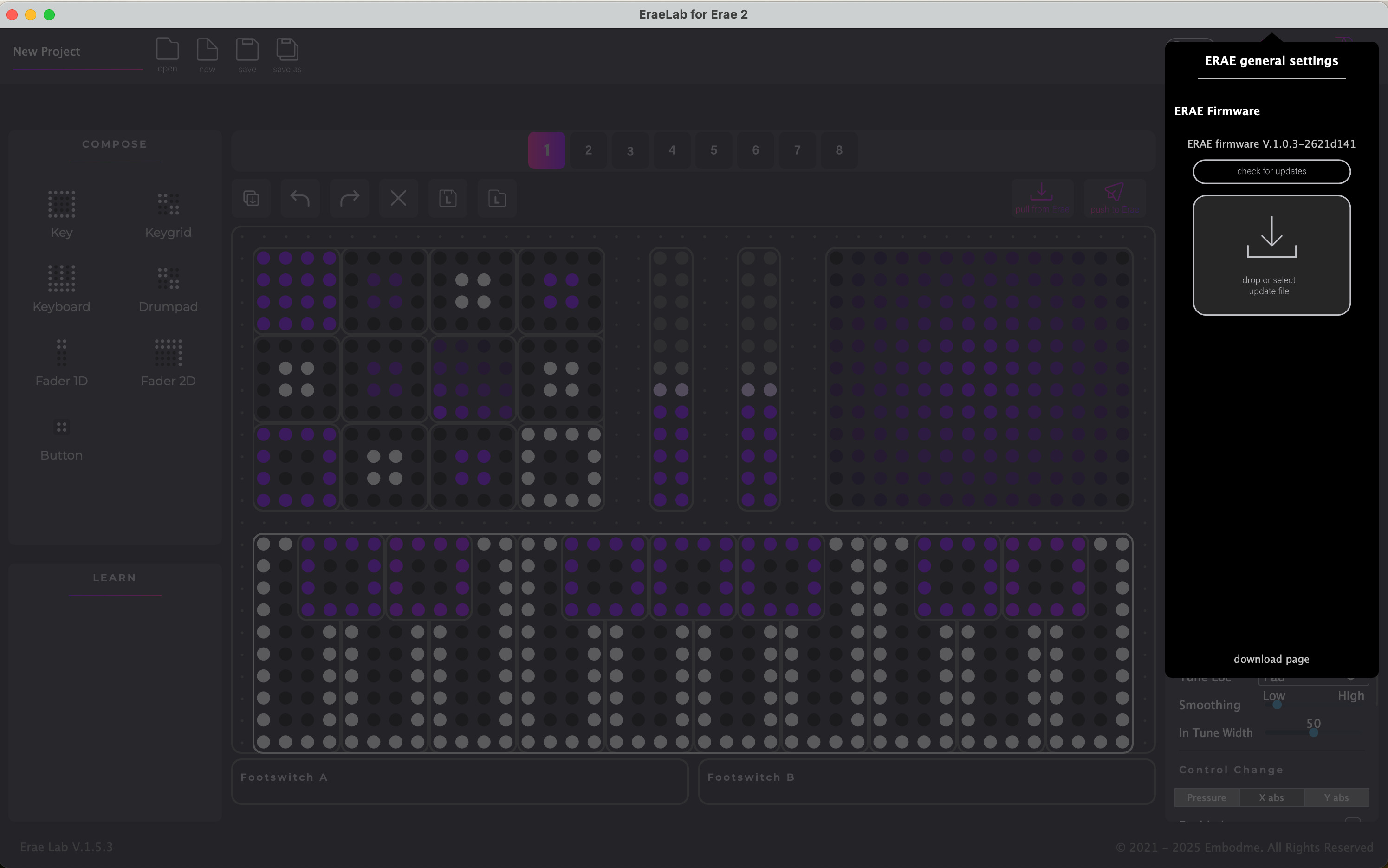
Your device may already be up to date. This is the most common reason. Check the firmware version shown in the ERAE general settings panel against the latest release.
-
The firmware file may not have been installed yet. After a fresh Lab installation, Lab's component installer runs in the background. Wait 30 to 60 seconds after the first launch, then reconnect the device.
-
The firmware file is missing. Open the firmware folder and check:
- macOS:
~/Library/Application Support/Embodme/firmware/ - Windows:
%APPDATA%\Embodme\firmware\
There should be a file named
erae_2_update_<version>.syx. If the folder is empty or only containserae_touch.syx(an older file for a different product), the Lab component installer did not complete. Open Lab Settings and click Reinstall components, or reinstall Erae Lab from scratch. - macOS:
If you need to force a device that is already running normally into update mode (for example, to reinstall the current version or pick a specific file), see Manual recovery: forcing bootloader mode below: entering bootloader mode brings up a toast with Install latest firmware and Select file options.
Symptom: LCD stuck on "Waiting for USB"
The device is in update mode but your computer has not recognized its USB connection yet.
- Replug the Device cable. Unplug the USB-C cable from the Device port and plug it back in. The bootloader actively retries USB enumeration on each replug, so this alone resolves the issue in most cases.
- Try a different USB-C cable and a different port directly on your computer (avoid hubs).
- On Windows: Open Device Manager and look under "Sound, video and game controllers" for "Erae 2." If it appears as an unknown device, a driver conflict may be blocking the bootloader port. Make sure all DAWs are closed and try replugging.
- Wait, but not too long. Lab gives the bootloader up to 60 seconds to appear. If the LCD is still on "Waiting for USB" after 2 minutes with no progress, move to the manual recovery steps below.
Warning: Do not force-reboot the device while it shows "Waiting for USB." The bootloader is running and will keep retrying. A premature power-off resets the process without making any progress.
Symptom: Progress bar complete but device not rebooting
After Lab finishes streaming the data, the device runs a separate installation step (decryption, decompression, and flash write). This takes 20 to 30 seconds and the progress bar will appear full while it happens.
What you should see on the LCD:
| LCD message | What it means | What to do |
|---|---|---|
| Installing... | Flash write in progress. Normal. | Wait. Do not power off. |
| Update done / Rebooting... | Success. Device will restart in ~3 s. | Wait for it to finish booting. |
| Update failed / Please retry | Checksum or signature error. | Lab will retry automatically (up to 2 more times). |
Warning: Never unplug the power cable or force-reboot while "Installing..." is on screen. Interrupting a flash write requires a manual recovery (see below).
After "Update done / Rebooting...," allow up to 3 additional minutes for the device to finish reprogramming its internal touch controllers and come back online in Lab.
Symptom: "Update failed / Please retry" on the LCD
Lab automatically retries the firmware stream up to 2 more times when it sees a failure. You do not need to do anything: watch the LCD. If all three attempts fail, Lab shows an error and stops.
Recovery steps after all retries fail:
-
Close Erae Lab.
-
Unplug the USB-C cable from the Device port. If you also have a power adapter connected to the Power port, unplug that too.
-
Wait 10 seconds.
-
Reconnect the Power adapter first (if you use one), then reconnect the USB-C cable to the Device port.
-
Open Erae Lab. After about 5 seconds, Lab detects that the device is still in bootloader mode and shows a toast:
"Bootloader detected. / Install latest firmware / Select file / Dismiss"
Choose Install latest firmware and let the update run again.
-
If Lab does not show this toast, open the ERAE general settings panel (gear icon), find the ERAE Firmware section, and click check for updates, then start update.
-
If the update fails again on a second attempt, try on a different computer to rule out a USB controller or driver issue on your current machine.
-
If it fails on a second computer with a fresh Lab installation, contact Embodme support.
Symptom: Lab says "Firmware update did not take effect"
This means the update stream completed and the device rebooted, but the version on the device did not change: the new firmware did not take hold.
Lab stops retrying automatically to avoid re-triggering the same failed flash on every reconnect. Restart Erae Lab to clear this state and try again.
If the update fails a second time after a Lab restart, reinstall Erae Lab to get a fresh copy of the firmware file (the on-disk .syx may be corrupt), then try once more.
Manual recovery: forcing bootloader mode
Use this when the device shows "Bad Firmware / Please update" on its LCD, when the device will not boot normally, or when you need to recover from a stuck update.
This hardware recovery path works even when the device cannot boot into its main firmware.
-
Disconnect all USB-C cables from the device.
-
Hold the Settings button (the button on the top edge of the device).
-
While holding the Settings button, reconnect a power source to the Power port.
-
Keep holding until the LCD shows "Waiting for USB" or "Ready to Update," then release.
-
If the Device port is not already connected to your computer, connect it now.
-
Open Erae Lab. After about 5 seconds, Lab detects the bootloader and shows a toast with three choices:
"Bootloader detected. / Install latest firmware / Select file / Dismiss"
-
Choose Install latest firmware to install the newest bundled version and let the update complete normally from step 3 of the normal sequence above. Choose Select file if you need to install a specific
.syxfile (for example, one sent by support): this opens a file picker so you can browse to it.
About "Bad Firmware / Please update": This LCD message means the bootloader detected a corrupt or unsigned firmware image when it tried to start up. The device enters update mode automatically: you do not need to hold the Settings button. Just connect the Power and Device ports and open Lab.
Note: The Erae 2 cannot be permanently damaged by a failed firmware update. The bootloader lives in a separate, protected flash region that no update can overwrite. If the device shows "Bad Firmware," the bootloader is still running and the situation is fully recoverable by re-flashing.
LCD messages reference
| LCD message | Meaning |
|---|---|
| Waiting for USB | In bootloader mode, waiting for the Device port cable to enumerate on the host. Replug the cable if this persists. |
| Ready to Update | USB connected. Waiting for Lab to begin streaming the firmware file. |
| Receiving File (with progress bar) | Firmware data is being received from Lab. Normal. |
| Installing... | Signature verification, decryption, decompression, and flash write in progress. Do not power off. |
| Update done / Rebooting... | Flash write succeeded. Device will restart automatically. |
| Update failed / Please retry | Checksum or signature error. Lab will retry automatically. If all retries fail, follow the recovery steps above. |
| Bad Firmware / Please update | The bootloader found a corrupt or unsigned firmware image at startup. Connect USB and open Lab to re-flash. |
Still not working?
If none of the steps above resolve the issue, collect the following before contacting support:
- Your operating system and version
- The version of Erae Lab (shown in the bottom-left corner of the Lab window)
- What you see on the device LCD at the point where it gets stuck
- Whether the issue happens on a second computer
Contact Embodme support through the Erae Hub.
See also: Updating Your Erae 2 Firmware, Erae 2 Not Detected: USB & Connection Troubleshooting, Erae Power Requirements