Erae 2 Won't Boot or Has Display Issues
Use this guide if your Erae 2 shows a black screen, a dim or half-lit display, freezes during startup, or appears stuck in a boot or update state. Work through the steps below in order: the most common causes are at the top.
Note: The Erae 2 has a protected recovery bootloader that survives any failed or partial firmware update. If your device is unresponsive, it can always be recovered by following the steps in this article.
Identify Your Symptom
Before diving in, find the description that best matches what you see:
| What you observe | Jump to |
|---|---|
| Display is completely black, no LEDs, no response | Check your power source |
| Display is dim or half-lit, LEDs look faded | Check your power source |
| Screen shows "Erae" logo and version but never finishes booting | LCD message table |
| Screen shows "Low Power" message after startup | Check your power source |
| Screen shows "Please insert microSD card and reboot" | LCD message table |
| Screen shows "Waiting for USB" or "Ready to Update" | Force recovery mode |
| Screen shows "Installing..." and device seems frozen | Wait for the install phase |
| Device boots inconsistently, sometimes works, sometimes doesn't | Check your power source |
Step 1: Check Your Power Source
This is the root cause of most display and boot problems.
The Erae 2 has three USB-C ports on its back panel: Power (the main power input: plug your power supply in here for full power), Device (connects to your computer; the Erae 2 is a class-compliant USB-MIDI device over this single connection) and Host (for connecting USB-MIDI gear such as synths or controllers; can supply up to 0.5 A/500 mA to a connected device).
Full power comes from the Power port. The Erae 2 can still run in a Low Power mode when powered from another port, for example bus power over the Device port with no supply connected to the Power port. When that happens, the firmware detects the lower power budget and puts the device into a Low Power state:
- Caps LED brightness, so the display may look dim or half-lit.
- Shows a "Low Power" warning on the LCD after the startup screen, listing features that are off.
- Limits some features, such as CV outputs, until the Power port has a supply connected.
On a very underpowered source, the device can fail to boot at all, or boot only intermittently.
What to check:
- Confirm your power supply is connected to the Power port, not the Device or Host port.
- For full brightness, CV outputs, and firmware updates, connect the included power supply (or a compatible USB-C PD adapter) to the Power port.
- Use the USB-C cable included with your Erae 2.
- Avoid USB hubs when troubleshooting: connect the Device port directly to your computer.
- Power the Erae 2 off and on again with the power supply connected to the Power port.
If the display then shows "Low Power," the Power port does not have a supply connected, or the connected source is not delivering enough power. Connect a laptop-class USB-C PD adapter to the Power port.
Step 2: Read What the LCD Is Telling You
The Erae 2 LCD shows specific status messages during startup and firmware updates. These are your fastest diagnostic tool.
Note: The boot logo briefly shows "Erae" (not "Erae 2"): this is normal and by design.
| LCD message | What it means | What to do |
|---|---|---|
| "Erae" + version number (brief flash, ~1-2 s) | Normal boot splash | Wait for it to clear |
| "Low Power (Low brightness, CV disabled)" | No power supply connected to the Power port | Connect a power supply to the Power port and reboot |
| "Please insert microSD card and reboot" | The microSD card is missing or not seated | Power off, reseat the microSD card, then power on |
| "SD Card error (Check SD card)" | microSD card detected but unreadable | Try reseating; if persistent, contact support |
| "Waiting for USB" | Bootloader mode: waiting for a USB connection | Connect the Device port to your computer and open Erae Lab |
| "Ready to Update" | Bootloader mode: USB connected, ready for firmware | Erae Lab will begin automatically; wait |
| "Receiving File" + progress bar | Firmware data is streaming in | Do not disconnect; wait for it to finish |
| "Installing..." | Firmware being written to the device | Do not power off: this takes up to 30 seconds |
| "Update done / Rebooting..." | Update succeeded | Device will reboot automatically within a few seconds |
| "Update failed / Please retry" | Firmware install did not succeed | Retry via Erae Lab with a power supply connected to the Power port |
| "Bad Firmware / Please update" | The firmware on the device failed its signature check | Connect to Erae Lab to reinstall firmware |
Step 3: Force Recovery Mode (if Stuck)
If the device will not boot to the play surface, you can force it into its recovery bootloader at any time. This is always safe: the bootloader lives in a separate, protected part of the device's memory and cannot be overwritten.
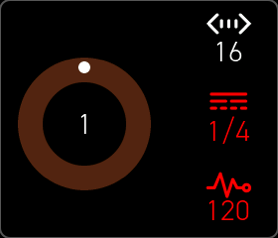
Steps to force recovery mode:
- Power the Erae 2 off using its power switch.
- Connect a power supply to the Power port, if you have not already.
- Press and hold the Settings button on the front panel.
- While holding Settings, flip the power switch on.
- Release Settings once the LCD shows "Waiting for USB."
- Connect the Device port to your Mac or PC if it is not already connected.
- Open Erae Lab: it will detect the device and offer to install the latest firmware.
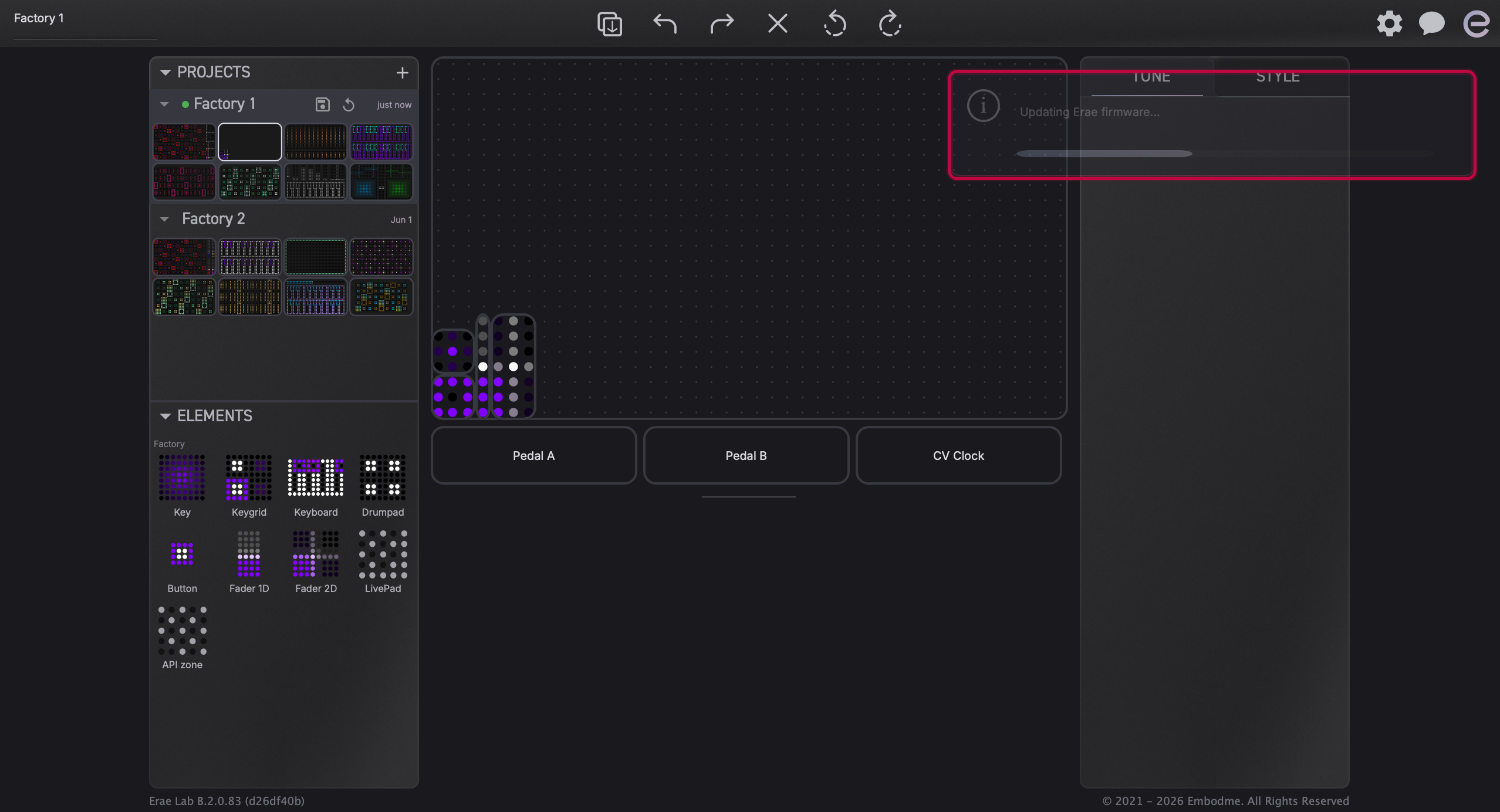
Erae Lab automatically detects when a device is already in bootloader mode and prompts you to install firmware after a few seconds. Accept the prompt to reinstall.
Warning: Firmware installation requires sufficient power on the Power port. If power is insufficient, Erae Lab shows "Please connect your Erae to a power supply before updating firmware" and will not proceed. Connect a laptop-class USB-C PD adapter to the Power port rather than relying on bus power alone.
Step 4: Wait Out the Install Phase
A very common report: "the progress bar in Erae Lab finished, but the device looks frozen."
After the firmware data transfer completes, the Erae 2 does significant work before it reboots:
- Decrypts, decompresses, and writes ~1.3 MB to flash, which takes approximately 20-30 seconds. The LCD shows "Installing..." during this window.
- Reboots, then re-programs its internal touch worker chips, which can take up to about a minute. The device may look blank or unresponsive during this stage.
Erae Lab is aware of this and waits up to 3 minutes for the device to come back online after a successful update. The progress indicator in Lab will remain active throughout.
What to do: Simply wait. Do not power off the device. If after 4-5 minutes the device has not reappeared in Erae Lab, continue to the next step.
Step 5: If "Waiting for USB" Persists After Connecting
If the LCD shows "Waiting for USB" but your computer does not detect the device after you plug in the Device port:
- The Erae 2 automatically generates a USB reconnect signal if the host missed the initial connection, so wait a few seconds after plugging in.
- Unplug and replug the USB-C cable on the Device port while the device is still powered on. This often resolves detection issues immediately.
- Make sure no DAW, MIDI utility, or other application has claimed the device's MIDI port. On Windows, close any DAW or MIDI app before opening Erae Lab.
- Try a different USB cable if available, and connect directly to your computer rather than through a hub.
- The Device port carries exactly two USB MIDI cables (
Erae 2 MIDIfor the main data,Erae 2 MIDI (MPE)for per-note expression). If a DAW or MIDI utility is holding one of these ports open, close it before reopening Erae Lab.
Erae Lab Shows the Device as Disconnected
Erae Lab does not show a "Disconnected" message. Instead, the "E" connection icon in the top bar stays grey when no device is detected, and turns active once Erae Lab establishes a connection. If the icon stays grey after connecting the Device port:
- Work through Step 1 and Step 5 above.
- Check the LCD for a status message and match it against the table in Step 2.
- Confirm you connected your computer to the Device port, not the Power or Host port.
When to Contact Support
If your device failed a firmware update or still will not boot after working through the steps above, send a bug report from Erae Lab right after the failed update or boot attempt. It automatically attaches the diagnostic logs Embodme support needs to investigate, so do this before power-cycling the device further if possible.
Also contact Embodme support if:
- The display and all LEDs remain completely off with a known-good power supply connected to the Power port and the power switch on. This may indicate a hardware fault (failed display, power controller, or a loose internal connector).
- The device boots successfully only occasionally, for example fewer than half the time, with a power supply connected to the Power port.
- The display is partially lit on only one section of the screen (partial LCD hardware failure).
- "Update failed / Please retry" persists after two attempts with a power supply connected to the Power port.
- The device went through forced recovery mode (Settings-button boot) and still will not reach the play surface.
What to include in your support request:
- The bug report sent from Erae Lab (see above), which carries the relevant logs automatically.
- A short video showing the LCD and LED state, and how the power and USB cables are connected.
- Your device serial number (label on the back panel).
- Which power source you are using on the Power port (included supply / USB-C PD adapter / other), and whether the Device port is also connected.
- Your Erae Lab version and firmware version, if the device boots far enough to show them.
Embodme will assess whether hardware repair or replacement is needed.