Activating EraeSound: Sign-In, Licensing & Demo Mode
EraeSound is a synthesizer that runs standalone inside Erae Lab, and also as a VST3/AU plugin in your DAW. A license is tied to your email address and the computer where it runs, not to your Erae hardware. You can run EraeSound with or without an Erae connected.
Note: Once activated on a computer, EraeSound keeps working without an internet connection for about a week at a time. Reconnect every so often so it can refresh your license in the background; see After activation below.
Before you begin
- EraeSound is delivered through Erae Lab. After installing Erae Lab, it will download and install the EraeSound plugin automatically.
- See Downloading and Installing Erae Lab if you have not yet installed the software.
- You need the email address you used when you purchased EraeSound.
How to activate EraeSound
-
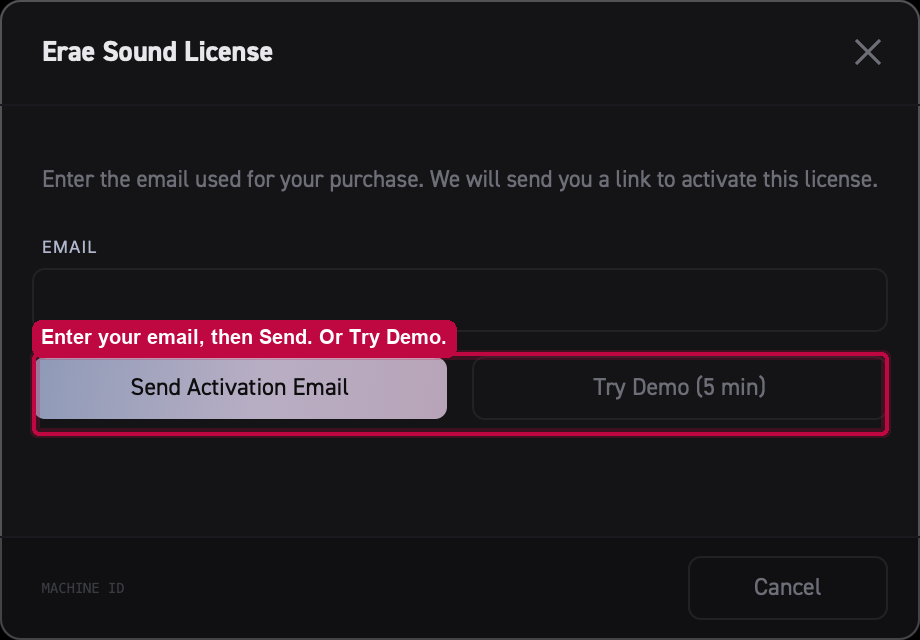
Open EraeSound in Erae Lab (or load it in your DAW). The easiest way to get started is to open EraeSound standalone inside Erae Lab. If you prefer working in a DAW, load it there as a VST3 or AU plugin instead. Either way, the activation dialog appears automatically the first time. If you have previously closed the dialog, you can reopen it at any time from inside the plugin UI.
-
Enter your email address and click "Send Activation Email". Use the email address you registered when you purchased EraeSound. Embodme's licensing server sends you a sign-in email. If the email is not associated with a purchased license, the dialog shows a "no license found" message; see the troubleshooting section below.
-
Check your inbox and click the link in the email. The link opens
embodme.comin your browser, which completes the sign-in and tells the licensing server that your computer is authorized.Note: The link in the email is single-use. Do not click it more than once and do not share it with others. If you need a new link, simply type your email again and click "Send Activation Email."
-
Switch back to Erae Lab (or your DAW). EraeSound checks with the server every few seconds. Once authorization is confirmed, the plugin downloads and saves your license locally. The dialog switches to a "Licensed" state showing your email and machine name.
From this point on, your license is stored encrypted on this computer.

Demo mode: try before you buy
Any user, with or without a license, can try EraeSound in demo mode. Audio plays normally for 5 minutes, then goes silent. You can restart the demo as many times as you like: click "Restart Demo" in the dialog, or simply close and reopen the plugin (or your DAW) to get a fresh 5-minute window.

Demo mode has real limitations beyond the audio timeout, from the moment it starts:
- You cannot save or "Save As" your work.
- You cannot load your own presets (only the read-only factory presets and Init are available).
If you want to save your work or use your own presets, activate with your email as described above.
Note: There is no limit on how many times you can restart or reopen the demo session. Demo mode is completely free and does not require an account.
After activation: offline use and license refresh
Your license is saved in a secure location on your computer (see Where is my license stored? below). Every time you open the plugin, it loads and verifies the license locally.
EraeSound's license is valid for about 7 days at a time, and it quietly renews itself in the background each time your computer is online while EraeSound is running. This means EraeSound keeps working offline for up to about a week since its last successful check-in. If it stays offline longer than that, it will ask you to sign in again the next time you launch it, the same quick email-link flow as your first activation.
Machine limit: activating on multiple computers
Your license allows you to run EraeSound on up to 3 computers at the same time. Each computer where you sign in uses one activation slot. For example, a Mac studio setup and a Windows laptop count as 2 slots.
Note: "Machine" means the computer where EraeSound runs, not your Erae hardware. Hardware is not relevant to the license count.
If you reach the limit
When you try to activate on a fourth computer, the plugin shows the Max Activations screen with a list of your registered computers (name and last-seen date).
To free a slot:
- Click "Deauthorize" next to a computer you no longer use.
- Wait for the server to confirm the removal.
- The current computer can now activate successfully.
If you need to transfer your license to a new computer, see EraeSound: Max Activations & Moving to a New Computer.
Where is my license stored?
The license file is encrypted with a fingerprint unique to your computer. Copying it to another machine will not work.
| Platform | License folder |
|---|---|
| macOS | ~/Library/Application Support/Embodme/ |
| Windows | %APPDATA%\Embodme\ |
| Linux | ~/.local/share/Embodme/ |
Note: Replacing your motherboard or reinstalling your operating system may change your computer's fingerprint and require re-activation.
Troubleshooting
"I never received the sign-in email"
- Check your spam or junk folder.
- Make sure you used the same email address you registered when you purchased EraeSound.
- If the plugin showed a network error instead of "email sent," your internet connection timed out. Try again.
"The link in the email says it has expired or is invalid"
Magic links are single-use. If your browser re-requested the URL (browser history pre-fetch, double-click, etc.), the link is consumed. Go back to the plugin, type your email again, and click "Send Activation Email" to get a new one.
"Activation says 'no license found'"
The email you entered is not associated with a purchased EraeSound license.
- Check whether you used a different email at checkout.
- If you purchased a bundle, the license may be under the order email, which can differ from your Embodme account email.
- Contact Embodme support with your order confirmation and we will look it up.
"I clicked the email link but the plugin still shows as unlicensed"
Keep the plugin's activation dialog open while you click the email link. The plugin checks the server every 2 seconds. Once the link is clicked, wait up to 10 seconds for the dialog to update.
If the dialog has been open for more than 30 minutes since you clicked "Send Activation Email," the session has timed out. Click "Send Activation Email" again to start a fresh session.
"I moved to a new computer and my license doesn't work"
Your old computer is still registered and occupies an activation slot. Use the Deauthorize button in the Max Activations screen (accessible from the plugin on any already-activated machine), then re-activate on the new computer. See EraeSound: Max Activations & Moving to a New Computer for a step-by-step guide.
"EraeSound went silent mid-session"
If you were in demo mode, the 5-minute window elapsed. Click "Restart Demo" or activate with your email.
If you are licensed, your offline window may have run out and a background refresh has not yet succeeded. Reconnect to the internet, open the plugin dialog, and sign in again if prompted.
Reporting an issue: EraeSound logs
If you need to report an issue, use the Bug Report feature inside EraeSound. It automatically collects and sends the logs support needs, so you do not need to find or attach any files yourself.
Note: Bug Report is available once you have an active license. If you are still on the activation screen or in demo mode, activate first, then use Bug Report from inside the plugin.