The KeyGrid, Erae's Isomorphic Keyboard
The KeyGrid is Erae's isomorphic keyboard: a rectangular grid where every pad sits the same pitch interval away from its neighbours. Move one step to the right and the pitch always rises by the same amount. Move one row up and it rises by whatever line offset you have set. Because that pattern never changes, any chord or scale shape you learn works the same way in every key. Learn a shape once and you can play it anywhere on the surface. This article explains what makes the KeyGrid isomorphic, why that is so useful, how the scale and Show Offscale controls behave, and how the two line-offset modes (scale degrees and semitones) shape the grid.
Note: The isomorphic KeyGrid works the same way on Erae Touch (MK1) and Erae 2 (MK2). The grid behaviour and the Erae Lab controls are identical on both instruments.

What "isomorphic" means
On a piano, the black-and-white key pattern repeats every octave, but its physical shape changes depending on the key you play in. A C major scale has a different fingering from a D major scale, and a C major chord looks nothing like an F# major chord. The geometry is non-uniform, so every key demands its own muscle memory.
On the KeyGrid, every pad is an identical square. One step right always raises the pitch by the same interval; one row up always raises it by the line offset. Because the interval pattern is uniform across the whole surface, a chord or scale shape produces the same intervals wherever you place it. To change key, you simply shift the same shape to a new position.
Why that is useful: one shape, every key
On a piano you have to relearn a fingering for each key. On the KeyGrid, the shape of a chord or scale is identical regardless of root note. Once you know a major chord in C, you already know it in every other key. You just move the same geometric shape to a new starting pad.
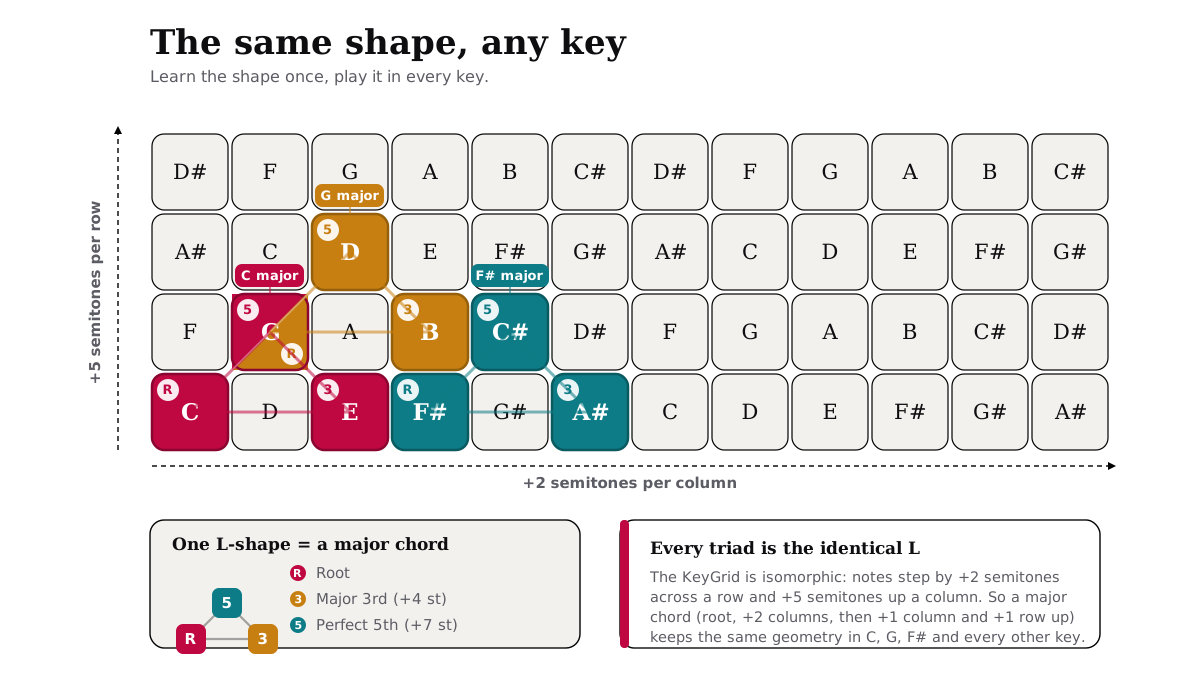
The same principle covers scales, arpeggios, and melodic runs. Every pattern you practise transfers instantly to any transposition, which means less time memorising and more time playing.
Two ways to show notes: scale and chromatic
The KeyGrid has two display modes, controlled by the Show Offscale toggle in Erae Lab's Tune tab for that element.
Scale mode (Show Offscale off)
Only the notes inside your selected scale are shown. Off-scale pads stay dark, so you cannot play a wrong note by accident. The whole surface becomes an in-key instrument, which is ideal for improvising: the layout itself acts as a harmonic guardrail, and every pad you can touch is a "right" note.
Chromatic mode (Show Offscale on)
Every pad becomes active. In-scale notes are lit in the element's colours; off-scale notes appear in a dimmer, distinct shade so you always know where you are. This gives you a full chromatic surface with visual scale guidance, which is what you want for passing tones, blue notes, or expressive bends.

Note: Show Offscale is a visual display control. It does not stop you from sliding between positions and landing on any pitch; it only shows or hides the off-scale keys on the LED surface.
Many players use chromatic mode to learn where all the notes live, then switch to scale mode for live performance.
The 14 scales available on a KeyGrid
Erae ships with 14 scales that can be assigned to a KeyGrid element:
| Scale | Character |
|---|---|
| Major | Bright, foundational |
| Aeolian (Natural Minor) | Dark, expressive |
| Melodic Minor | Jazz and classical |
| Harmonic Minor | Middle-Eastern flavour |
| Arabic | Exotic, double harmonic |
| Dorian | Blues and jazz minor |
| Phrygian | Flamenco, dark tension |
| Gypsy | Hungarian minor |
| Mixolydian | Rock, dominant-7th feel |
| Romanian | Romanian folk |
| Gypsy Minor | Dual augmented 2nd |
| Japanese | Pentatonic, spare |
| Spanish | Phrygian dominant |
| Blues | Minor pentatonic plus blue note |
The Chromatic scale (all 12 semitones) is offered on other keyboard element types, but it is not exposed as a KeyGrid option, since the KeyGrid is built around tonal scales. If you want every semitone on a KeyGrid, use chromatic mode (turn Show Offscale on) instead.
Root-note selection is completely independent of the scale. Pick any of the 12 pitch classes (C through B) as your root, and the scale pattern shifts accordingly without changing the grid geometry.
Setting the scale and Show Offscale in Erae Lab (Erae 2)
- Open your project in Erae Lab and select the KeyGrid element on the canvas.
- In the right panel, open the Tune tab.
- Under Default Values, use the Scale selector to choose a scale and the Start note selector to choose the root.
- Find the Show Offscale toggle. Turn it on to display all 12 chromatic positions, or leave it off to show only in-scale notes.
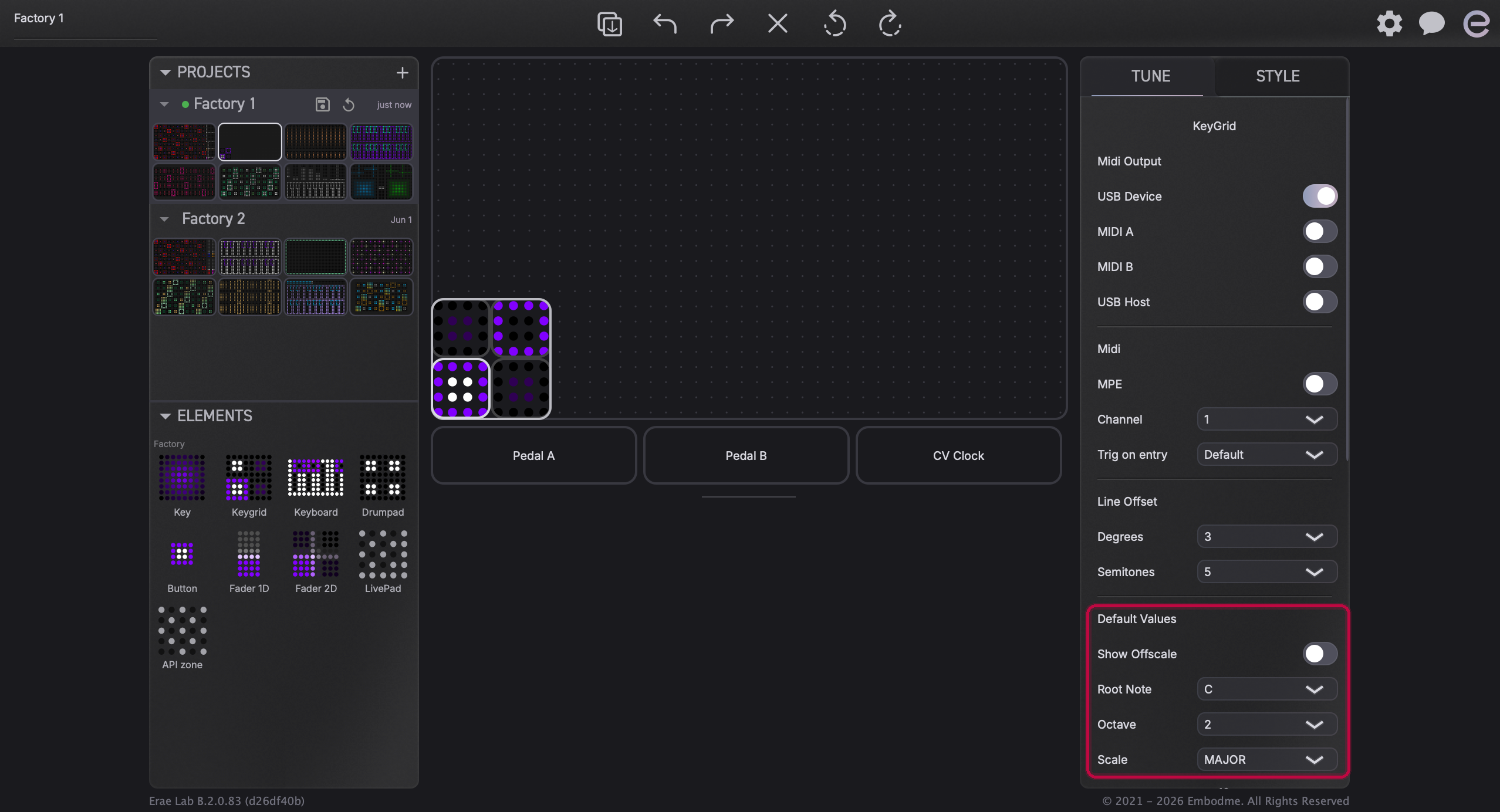
The grid on the device updates live as you change these settings.
Setting the scale on-device (Erae 2 LCD)
You can also change the scale directly on the Erae 2 without opening Erae Lab.
- Press the Settings button on the device to open the on-device menu.
- Use the encoder to reach the Scale Selector.
- The LCD shows three rollers: Scale, Root Note, and Octave. Scroll each roller with the encoder to make your selection.
- Press the encoder to confirm.
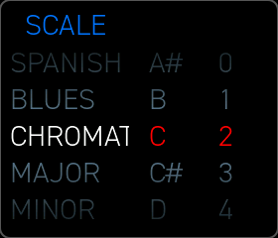
The device selector reflects your current per-element scale assignment. Changes made here update the same setting you see in Erae Lab's Tune tab.
Line offset: scale degrees versus semitones
The line offset is what makes the KeyGrid configurable. It sets how many steps separate the first pad of one row from the first pad of the row above. The offset is what turns the grid into different musical geometries. A perfect fourth per row recreates guitar and bass string spacing, a perfect fifth per row gives mandolin or violin tuning, and a full octave per row stacks the whole range vertically.
There are two offset fields in the Tune tab's Line Offset section, one for each display mode:
| Display mode | Show Offscale | Active slider | Each row step counts | Default |
|---|---|---|---|---|
| Scale mode | Off | Degrees | Steps within your chosen scale | 3 |
| Chromatic mode | On | Semitones | Fixed semitone steps (12-TET) | 5 |
Both sliders are always visible, but only one is active at a time; the inactive one is grayed out. The two are coupled: changing the Degrees slider unchecks Show Offscale (switching you to scale mode), and changing the Semitones slider checks it (switching you to chromatic mode). You never adjust both. Touch one slider and the mode follows.
Degrees offset (scale mode)
The Degrees value counts scale degrees, meaning steps within your selected scale. With a Major scale, C as root, and Degrees set to 3:
- Row 0 starts on C and steps through the scale: C, D, E, F, G, A, B.
- Row 1 starts 3 degrees above C, which is F: F, G, A, B, C, D, E.
- Row 2 starts 3 degrees above F, which is B: B, C, D, E, F, G, A.
The physical distance from C to F in C Major is a perfect fourth (5 semitones), which is what you hear when you move one row up. The value stays musically meaningful because it always counts scale steps and lets the scale handle the semitone arithmetic.
| Degrees value | Result in Major scale | Musical interval |
|---|---|---|
| 1 | One scale step per row | Varies (major 2nd, and so on) |
| 3 | Perfect 4th in C Major | Perfect 4th (5 semitones) |
| 4 | Perfect 5th in C Major | Perfect 5th (7 semitones) |
| 7 | One full octave of scale notes | Octave (12 semitones) |
A value of 3 or 4 is the usual choice for keyboard-style playing within a scale, turning the whole surface into an in-key instrument where you cannot land a wrong note.
Note: The semitone size of a given degree offset depends on the active scale. A 3-degree jump is a perfect fourth in Major but an augmented fourth in Harmonic Minor. The interval is consistent within the scale's own logic, not in raw semitones. This is exactly why the Degrees offset stays useful across scales.
Semitones offset (chromatic mode)
The Semitones value counts fixed 12-TET semitone steps, regardless of scale. With a Major scale, C as root, Show Offscale on, and Semitones set to 5:
- Row 0 starts on C and steps chromatically: C, C#, D, D#, E, F, F#, G.
- Row 1 starts 5 semitones above C, on F.
- Row 2 starts 5 semitones above F, on A#.
Every row is a fixed perfect fourth apart whether those notes are in the Major scale or not, so the spatial position of any note relative to another is always the same. The grid stays completely consistent, and you can reach chromatic notes that scale mode would hide.
| Semitones value | Musical interval | Typical use |
|---|---|---|
| 1 | Minor 2nd | Dense chromatic matrix, every pitch reachable |
| 3 | Minor 3rd | Symmetric diminished and augmented grids |
| 4 | Major 3rd | Wicki-Hayden-style layout |
| 5 | Perfect 4th | Guitar and bass string tuning |
| 7 | Perfect 5th | Mandolin and violin tuning |
| 12 | Octave | Stacked octave rows |
Note: For factory scales in chromatic mode, the Semitones slider caps at 11, one step below an octave. To get a full octave per row, switch to scale mode (turn Show Offscale off) and set Degrees to 7 with a 7-note scale such as Major or a minor mode.
Two modes side by side
The diagram below shows a small KeyGrid in C Major in both modes. On the left is scale mode (Show Offscale off, Degrees = 3): each row begins on an in-scale note (C, F, B) and off-scale positions are blank. On the right is chromatic mode (Show Offscale on, Semitones = 5): every pad is shown, in-scale ones highlighted and off-scale ones dimmed, and each row begins exactly 5 semitones above the previous one regardless of scale membership.

Anchoring the grid: Start note versus Root Note
Two controls in the Tune tab both affect pitch, and it helps to keep them straight:
- Start note sets the pitch class of the lowest pad on the grid (C, C#, D, and so on). It decides where the physical grid begins; all the line-offset calculations build upward from there.
- Root Note sets the scale reference: the pitch class treated as "home" and coloured as degree zero in the visual style. It decides which notes the scale is built from and which pad is highlighted as the anchor.
The two can be set independently. A common workflow is to set Start note to the lowest pitch you want on the surface, set Root Note to the key you are playing in, and let the line offset stack musically useful rows above it. On the device, both the root note and the register (Octave) live on the Scale screen; see Selecting Scales on Erae.
Choosing your offset at a glance
| Goal | Show Offscale | Active slider | Value |
|---|---|---|---|
| Play in-key, guitar 4th row spacing | Off | Degrees | 3 |
| Play in-key, violin 5th row spacing | Off | Degrees | 4 |
| Play in-key, one full octave per row | Off | Degrees | 7 (7-note scales) |
| See all notes, bass-guitar tuning | On | Semitones | 5 |
| See all notes, mandolin or violin tuning | On | Semitones | 7 |
| Dense chromatic matrix | On | Semitones | 1 |
Troubleshooting
The Semitones slider is grayed out. Show Offscale is off, so the Degrees slider is the active control. Turn Show Offscale on to enter chromatic mode and activate the Semitones slider.
I changed the Degrees slider but the grid didn't change. Show Offscale is on. In chromatic mode only the Semitones slider has any effect. Turn Show Offscale off to switch to scale mode and activate the Degrees slider.
The grid jumps by the wrong interval. Check which slider is active; only one is in effect at a time. Confirm the Show Offscale state, then confirm the Degrees or Semitones value you intended.
My lowest note isn't the pitch I expected. Check the Start note in the Tune tab and set it to the note name you want as the grid anchor. Start note sets the pitch class of the bottom of the grid, and the base octave sets which octave you start from.
Related articles
- Selecting Scales on Erae: how to change the scale and root note on the device and in Erae Lab.
- Erae Lab Tune Tab: MIDI, Expressivity & Configuration: the full reference for the Tune tab settings.