Assigning MIDI Control Change (CC) in Erae Lab
Erae Lab lets you assign a MIDI Control Change message to each axis of touch for most element types: pressure, horizontal position, vertical position, and movement speed. You can configure the CC number, the output range, and the controller type. This reference covers all six CC axes, the four controller types (CC, CC 14-bit, RPN, NRPN), and the shared settings that apply to every axis.
For MIDI channel, MPE, expressivity tuning (Pressure, Vibrato, Glissando), and the MIDI output destination selector, see Erae Lab Tune Tab: MIDI, Expressivity & Configuration.
Where to find CC settings in Erae Lab
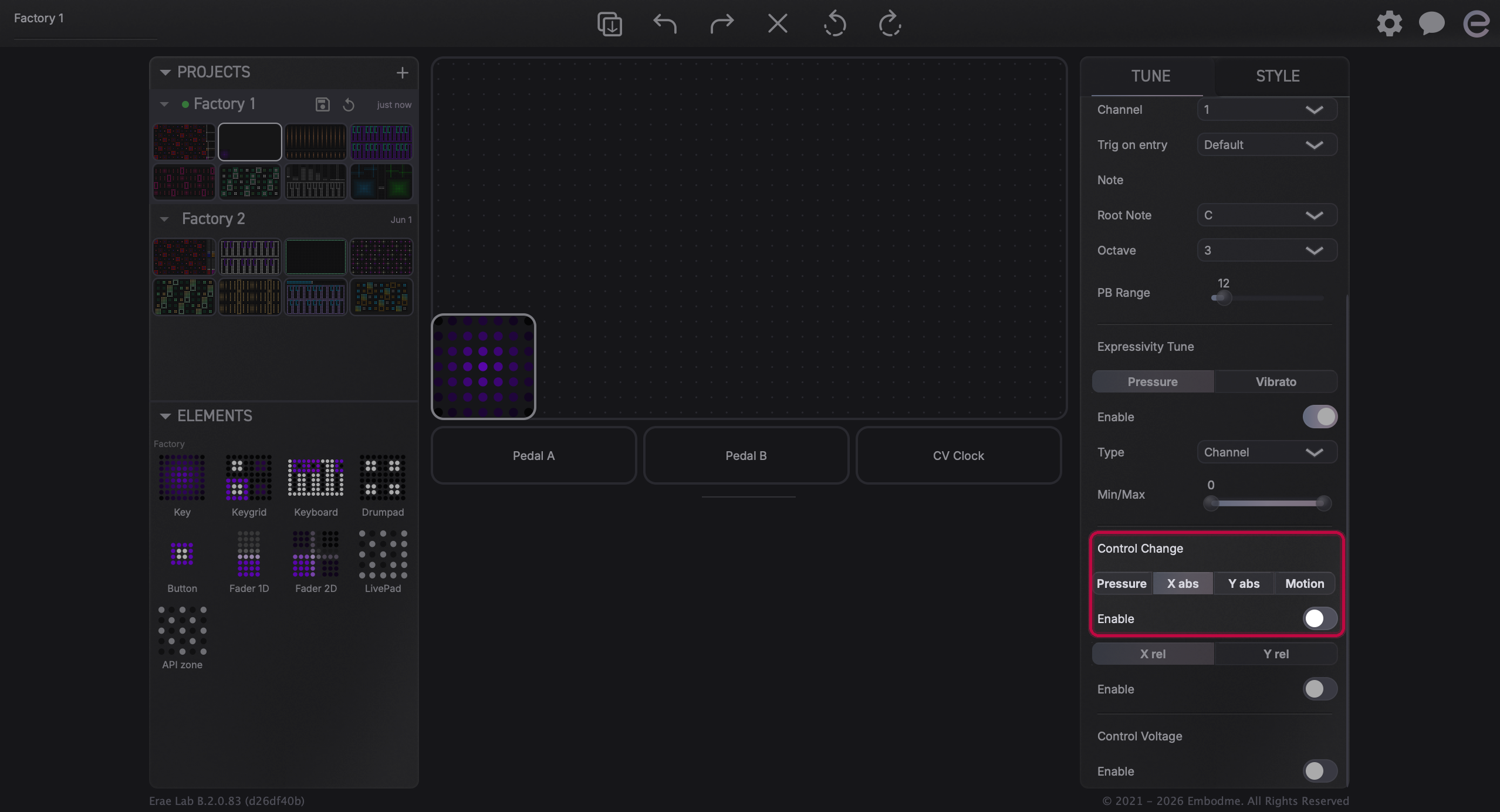
Select an element on the canvas, then open the Tune tab in the right panel. Scroll down past the MIDI channel and expressivity sections to find the Control Change section.
The Control Change section is organized into two groups:
- Absolute CC: sends the finger's current position or pressure as a fixed 0-127 value each moment. Use this when the receiving instrument expects a knob or fader position.
- Relative CC: sends the change in position since the last update, not the position itself. Use this to drive infinite-encoder-style parameters, or when you want the CC to accumulate in the receiving instrument rather than snap to a value.
Each group has a row of tabs across the top. Click a tab to see the settings for that axis.
(Screenshot pending re-capture: Erae Lab right panel open on the Tune tab showing the Control Change section with the Absolute tab row and Pressure tab selected.)
Absolute CC axes
The absolute tabs are: Pressure, X abs, Y abs, and Motion.
| Tab | What it tracks |
|---|---|
| Pressure | How hard the finger presses on the surface (0 = no press, 127 = maximum press) |
| X abs | Horizontal position of the finger within the element (0 = left edge, 127 = right edge) |
| Y abs | Vertical position of the finger within the element (0 = bottom edge, 127 = top edge) |
| Motion | How fast the finger is moving across the surface (0 = stationary, 127 = maximum speed) |
Each axis is disabled by default. Enable it by checking the Enable box at the top of that tab's settings.
Relative CC axes
The relative tabs are: X rel and Y rel.
When a relative CC is active, the element sends small increment or decrement values each moment, reflecting how far the finger has moved since the previous update. The absolute finger position is not reported.
Relative CC is particularly useful when driving patch parameters in a synthesizer that treats the incoming CC as an "increment by this delta" command rather than "jump to this position."
Each relative axis also exposes an Initial value slider. This is the CC value sent when the finger first touches the element, before any movement is detected, typically set to the midpoint (64) so that movement in either direction has headroom.
Enabling and disabling each axis
Every axis has an Enable checkbox at the top of its panel. When unchecked, the axis is disabled and no CC message is sent for that gesture: the remaining settings are hidden. When checked, the full controls appear and the CC is active.
You can enable any combination of axes simultaneously on a single element. For example, a 2D fader can send X position on one CC number, Y position on a second CC number, and pressure on a third.
Note: If you assign the same CC number to two axes on the same element (for example, X abs and Pressure both set to CC 74), Erae Lab shows a warning at the bottom of the Control Change section. Both will transmit, which usually causes the values to fight each other in the receiving instrument.
Choosing a controller type
Each axis lets you choose one of four controller types from the Type selector:
| Type | Description |
|---|---|
| CC | Standard 7-bit MIDI Control Change (0-127). Works with every synthesizer and DAW. The most common choice. |
| CC 14-bit | High-resolution 14-bit Control Change. Uses two CC numbers (the chosen index, plus index + 32 for the fine byte). Gives 0-16383 resolution instead of 0-127. Only useful if the receiving instrument explicitly supports 14-bit CC. |
| RPN | Registered Parameter Number. Select a Bank and Index. Used for standard parameters such as pitch-bend range (RPN 0/0). Refer to your instrument's documentation for supported RPNs. |
| NRPN | Non-Registered Parameter Number. Like RPN but for manufacturer-specific parameters. Select a Bank and Index matching your instrument's NRPN map. |
For most uses, leave the type set to CC.
When CC or CC 14-bit is selected, a second selector lets you pick the CC number (0-127 for standard CC; 0-31 for CC 14-bit, because numbers 32-63 are reserved for the fine bytes). The selector shows the standard MIDI CC name alongside the number, so you can quickly find named assignments such as "74: Filter Cutoff" or "11: Expression."
Shared settings on each absolute axis
Every absolute CC axis (Pressure, X abs, Y abs, Motion) shares the same set of controls below the Enable checkbox and type selector.
Min and Max
The Min and Max sliders define the output range. By default Min = 0 and Max = 127. If you set Min = 30 and Max = 100, the CC output will be clipped and scaled to that window: a fully-pressed key sends 100, a just-touched key sends 30.
Swapping Min above Max inverts the axis: the CC rises as the gesture goes in the opposite direction. For example, setting Min = 127 and Max = 0 for Y abs makes the CC rise as the finger moves down instead of up.
Shared settings on each relative axis
Relative axes (X rel, Y rel) have the same Min and Max controls as absolute axes, plus one additional field:
Initial value
The Initial value slider sets the CC value sent at the moment of first touch, before any movement is detected. The default is 64 (the midpoint). Set it lower if you expect mostly positive motion, or to 0 if you want the CC to start from silence.
Element-by-element CC availability
Not every element type offers all six CC axes. The table below shows which axes are available per element type.
| Element type | Pressure | X abs | Y abs | Motion | X rel | Y rel |
|---|---|---|---|---|---|---|
| Key | Yes | Yes | Yes | Yes | Yes | Yes |
| Isomorphic keyboard | Yes | Yes | Yes | Yes | Yes | Yes |
| Chromatic keyboard | Yes | Yes | Yes | Yes | Yes | Yes |
| Drumpad keyboard | Yes | Yes | Yes | Yes | Yes | Yes |
| 1D Fader | Yes | No | Yes | Yes | No | No |
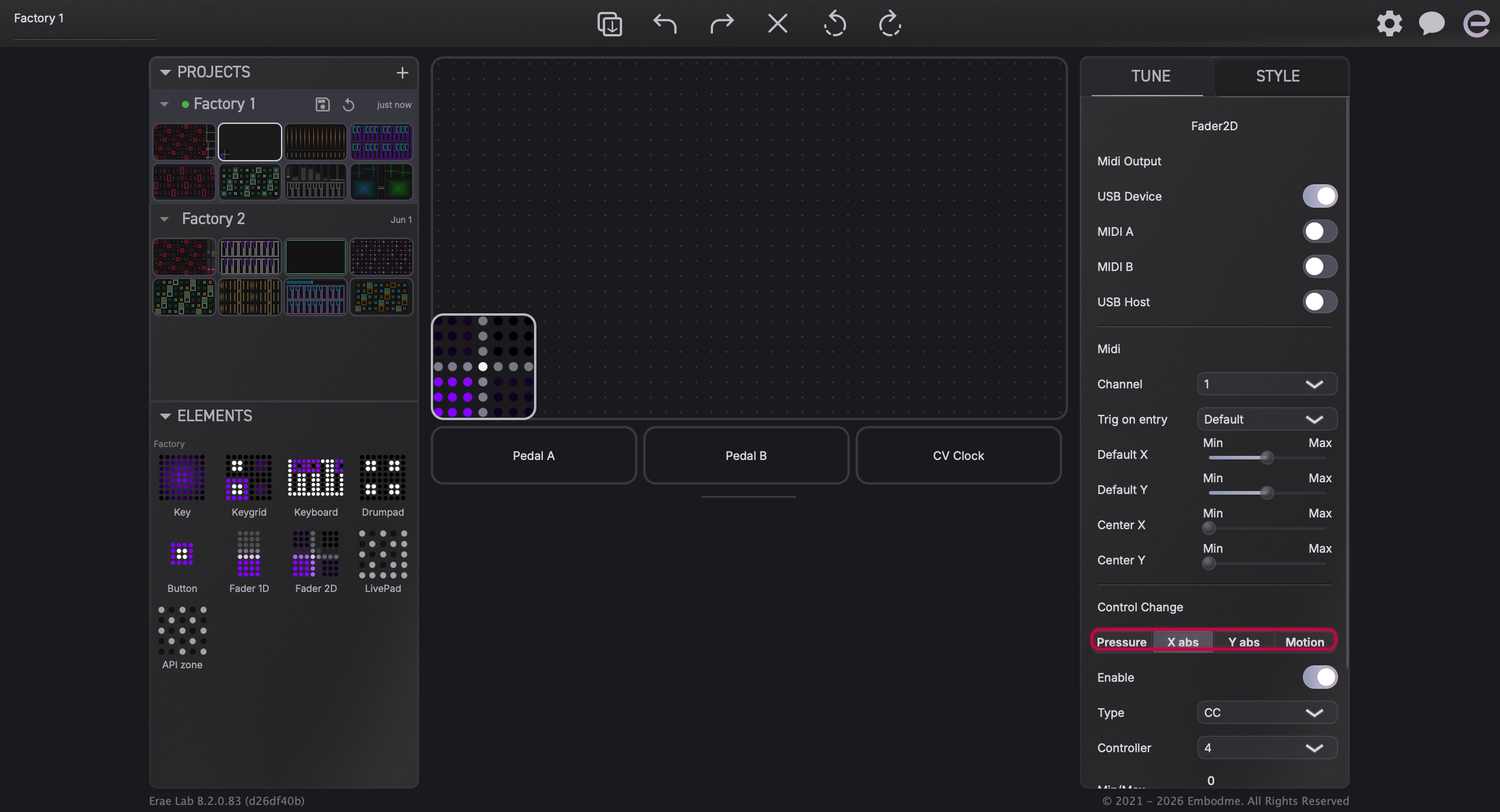
| 2D Fader | Yes | Yes | Yes | Yes | No | No |
| Button (CC mode) | On/Off values only | No | No | No | No | No |
| Button (Note mode) | Note on/off only | No | No | No | No | No |
| Pedal | Depends on pedal type | No | No | No | No | No |
| API Zone | Not configurable via CC panel | No | No | No | No | No |
Note: 1D Faders do not have an X absolute axis because a 1D fader moves in only one direction (Y). 2D Faders expose both X and Y absolute but not relative axes.
(Screenshot pending re-capture: Erae Lab Tune panel for a 2D fader element showing the Control Change section with X abs, Y abs, Pressure, and Motion tabs in the Absolute row.)
CC for buttons
Buttons in CC mode work differently from continuous elements. Instead of axis-based tracking, a CC-mode button sends:
- A CC value on press (the "On value"): the CC number and value sent when the button is pressed.
- A CC value on release (the "Off value"): the CC number and value sent when the button is released.
The On and Off values can use different CC numbers if needed. Each has its own type selector (CC / CC 14-bit / RPN / NRPN) and value slider.
Buttons in Note, Program Change, Tap Tempo, or CV mode do not have a CC panel: switch the button to CC mode first using the type selector at the top of the Tune panel.
Duplicate CC warnings
Erae Lab monitors your layout for CC conflicts. If two or more elements on the same layout are assigned to the same CC number on the same MIDI channel, a warning message appears at the bottom of the Control Change section when one of those elements is selected.
The warning does not prevent transmission: both elements will still send. It is a reminder to check that the conflict is intentional (for example, two elements deliberately layered) or to resolve it by adjusting CC numbers or channels.
Applying CC changes to the device
Changes you make in the Tune panel are saved to the project file immediately. The device itself is only updated when the project is synced. Look for the sync status indicator in the top bar: if the layout is marked as changed, use File > Sync (or the sync button in the toolbar) to push the updated configuration to Erae.
If you disconnect and reconnect the device, Erae Lab will offer to sync automatically. The device stores the last synced layout and will continue to use it even when Erae Lab is not running.
(Screenshot pending re-capture: Erae Lab top bar with the sync controls visible, showing the project is in a modified state.)

Tips for common setups
Controlling filter cutoff with pressure: Enable Pressure on the axis, set the CC to 74 (Filter Cutoff), and adjust the Min/Max range to match your synthesizer's useful range.
Driving a pitch wheel with Y abs on a key: Enable Y abs, assign it to CC 1 (Modulation), set Min and Max to cover only the upper half of the range (64-127) so that touching anywhere on the key begins from neutral.
Infinite encoder-style navigation using X rel: Enable X rel and set the CC number to match your DAW's encoder target. Move a finger left or right across the element to decrement or increment the target.
High-resolution recording with CC 14-bit: If your DAW or instrument supports 14-bit CC, switch the Type to CC 14-bit and pick a number in the 0-31 range. The Lab automatically pairs it with the corresponding fine byte (the same index plus 32).
Related articles
- Erae Lab Tune Tab: MIDI, Expressivity & Configuration: MIDI channel, MPE, pressure curve, vibrato, glissando, and output destination
- Erae Lab Overview: introduction to the Tune and Style panels
- MPE Setup on Erae 2: Ableton, Logic, Bitwig, Cubase & Reaper: per-DAW guide for enabling MPE so per-finger CC reaches each voice
- What Is MIDI MPE?: background on how MPE distributes polyphonic expression across channels