Connecting Erae to Hardware Synths: DIN MIDI, Clock & Adapters
Erae 2 offers four ways to connect to a hardware synthesizer. Erae Touch (MK1) supports one. This article walks you through each option, explains how to configure Erae Lab to route MIDI to your synth, covers clock sync behavior, and gives you a troubleshooting guide for DIN MIDI reliability issues (the most common hardware connectivity pain point).
Which connection type should I use?
| Connection | Best for | What you need |
|---|---|---|
| MIDI DIN (TRS adapter) | Any synth with a 5-pin MIDI IN port | The adapter cable included in the Erae 2 box |
| USB Host (Erae 2 only) | Modern synths with a USB MIDI port, no computer needed | A standard USB cable (type depends on the synth) |
| USB Device via computer | Any synth driven from a DAW | Computer running Erae Lab or a DAW with MIDI routing |
| CV/Gate (Erae 2 only) | Eurorack and analog modular synthesizers | A 3.5mm TS or patch cable appropriate for your module |
Note: Erae Touch (MK1) has a single MIDI Out A TRS port. It does not support USB Host or CV outputs. If you are using an Erae Touch, jump directly to the DIN MIDI section and the Erae Lab routing section.
Connecting via MIDI DIN: the TRS adapter
The included adapter
Erae 2 ships with two TRS 3.5mm mini-jack to 5-pin DIN adapter cables in the box. This is what you need to connect to any synthesizer with a standard 5-pin MIDI IN port.
Erae 2 has two independent TRS MIDI outputs: MIDI Out A and MIDI Out B. You can route different elements to each. For example, send a Keyboard element to synth A via MIDI Out A and a Fader bank to synth B via MIDI Out B.
Erae Touch (MK1) has only MIDI Out A.
Physical connection steps
- Power off or mute your synthesizer to avoid audio pops.
- Plug the TRS mini-jack end of the adapter into MIDI Out A on Erae.
- Plug the 5-pin DIN end into the MIDI IN port on your synth, not MIDI OUT or MIDI THRU.
- If you have a second synth and are using Erae 2, use the second adapter cable into MIDI Out B and connect it the same way.
Setting the MIDI output destination in Erae Lab
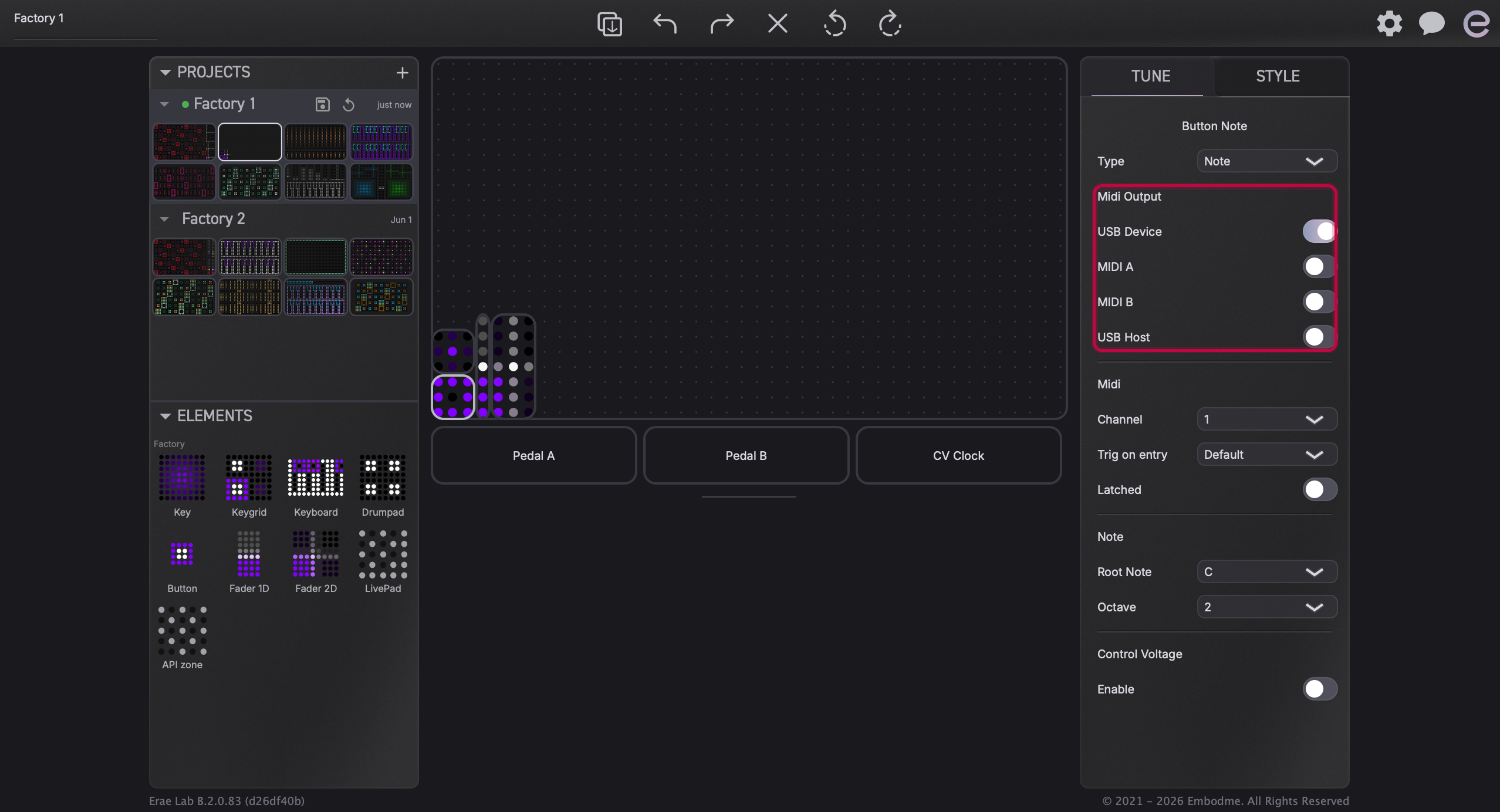
By default, every element you create in Erae Lab routes its output to USB Device only. You must explicitly enable MIDI A or MIDI B to route MIDI to your hardware synth via DIN.
Steps
- Open Erae Lab and select the element you want to route to your synth (click it on the canvas).
- In the right-hand settings panel, find the Midi Output section.
- You will see four checkboxes: USB Device, MIDI A, MIDI B, and USB Host.
- Check MIDI A to send that element's output to your synth via the MIDI Out A TRS jack (and the DIN adapter).
- If you want to stop sending to your computer at the same time, uncheck USB Device.
- Set the MIDI Channel field to match your synth's receive channel (check your synth's MIDI settings or manual).
Note: Erae Touch (MK1) shows only USB Device and MIDI A checkboxes: MIDI B and USB Host are not available. The same steps apply.
Matching the MIDI channel to your synth
Every hardware synth has a MIDI receive channel setting: the channel it listens on for notes, pitch bend, and CC data. If the channel in Erae Lab does not match the channel on your synth, nothing will play.
Most synths have their MIDI receive channel in a global settings menu. Common defaults are channel 1 (Korg, Roland) or "All channels" (omni). Set the Erae element's MIDI Channel to exactly the same number.
Most hardware synths ship with a MIDI implementation chart (usually in the manual appendix or downloadable as a PDF). It lists every CC number, note range, and channel the synth responds to. Match any Fader or Button CC numbers in Erae Lab to those values.
USB Host: connecting directly to a synth's USB port (Erae 2 only)
Erae 2 can act as a USB MIDI host, meaning it can connect directly to a synthesizer's USB MIDI port without a computer in the signal chain. This is the most reliable connection type for synths that support it, and it avoids any adapter compatibility issues.
Which synths work in USB Host mode?
Any synthesizer with a USB MIDI Device port can connect this way. This includes most modern hardware synths: Arturia, Elektron, Korg, Moog, Roland, Sequential, and many others. Check your synth's manual to confirm it has a "USB MIDI" port (sometimes labeled "USB Type B" or just "USB").
Required cable
A standard USB cable is all you need:
- Plug the USB-A end into Erae 2's USB Host port.
- Plug the other end into the synth's USB port (USB-B, USB-C, or micro-USB, depending on the synth model).
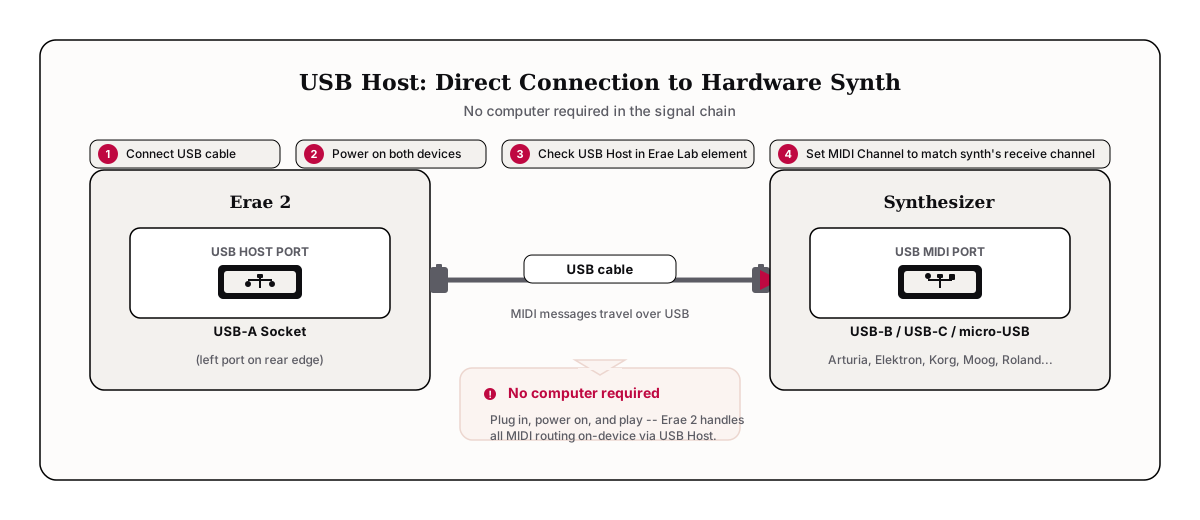
The USB Host port is hot-pluggable, so you can connect or disconnect the cable with either device powered on.
Setup steps
- Connect the USB cable between Erae 2's USB Host port and the synth's USB port. You do not need to power either device off first.
- In Erae Lab, select the element and check USB Host in the Midi Output section.
- Set the MIDI Channel to match the synth's receive channel.
Note: Erae 2 can connect to one USB device at a time on its USB Host port. Erae Touch (MK1) has no USB Host port and cannot use this mode.
MIDI clock: what Erae sends and how to control it
Understanding MIDI clock behavior avoids a common frustration: your synth's arpeggiator or sequencer suddenly syncing to Erae's tempo without you intending it to.
What Erae sends when running as clock master
When Erae 2's clock source is set to INT (the default), it continuously sends MIDI Timing Clock messages on all four MIDI outputs simultaneously: USB Device, USB Host, MIDI Out A, and MIDI Out B. This is built-in behavior and cannot be selectively disabled per output.
If your hardware synth has a "MIDI Clock Receive," "External Sync," or "Clock Source" setting and it is enabled, the synth will follow Erae's tempo. To stop this, disable clock reception on the synth side. Do not change it in Erae.
Changing the clock source on Erae 2
Access the clock settings via the Erae 2's on-device LCD: press the encoder to open the menu, navigate to Settings, then Clock source.
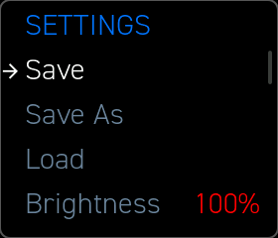
The four clock source options are:
| Setting | Erae role | What happens |
|---|---|---|
| INT (default) | Clock master | Erae sends MIDI Timing Clock on all outputs; tempo controlled by the Tempo setting or tap tempo |
| USB-dev | Clock follower | Erae locks to MIDI clock received on USB Device input (e.g., from a DAW) |
| MIDI | Clock follower | Erae locks to MIDI clock received on its TRS MIDI In jack |
| USB-host | Clock follower | Erae locks to MIDI clock received from a connected USB device on its USB Host port |
When set to any follower mode (USB-dev, MIDI, or USB-host), Erae stops sending Timing Clock pulses and instead synchronizes its internal engine to the incoming clock signal.
CV Clock output (Erae 2 only)
Separate from MIDI clock, Erae 2 can output an analog clock signal on one of its 24 CV output jacks. To configure this, navigate on the device to Settings > CV Clock and enable it. You can choose the beat division: 1, 2, 4, 8, 24, or 48 pulses per quarter note. This is intended for Eurorack and modular gear that uses analog patch-cable clock sync.
Note (Erae Touch / MK1): Erae Touch also sends MIDI clock on MIDI Out A and USB Device when running as clock master. The clock source selection follows the same logic, but there is no CV Clock output and no on-device LCD to change settings, so use Erae Lab's project settings panel instead.
MIDI routing between ports (Erae 2 only)
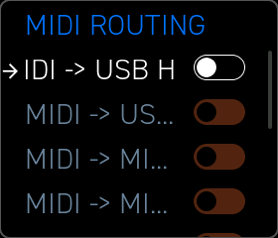
Erae 2 can forward MIDI from one port to another. For example, routing MIDI received from a USB Device (your DAW) out to MIDI Out A (your hardware synth), or merging USB Host input into the USB Device output.
To configure this, navigate on the device to Settings > Routing. You will see a matrix of toggle switches for 10 routing combinations:
- MIDI In to USB Host, USB Device, Out A, or Out B
- USB Device to USB Host, Out A, or Out B
- USB Host to USB Device, Out A, or Out B
This is useful in standalone rigs where you want Erae to act as a MIDI hub between several devices.
Troubleshooting DIN MIDI reliability
DIN MIDI reliability issues, such as intermittent notes, stuck notes, notes on the wrong channel, or complete silence, are the most common hardware connectivity problem reported by Erae users. Most cases are resolved through the steps below without a hardware fault.
Why USB MIDI is more reliable than DIN MIDI
USB MIDI is a packet protocol with hardware-level error correction. TRS/DIN MIDI is a serial signal at 31,250 baud with no error correction. Any electrical noise, ground loop, or cable quality issue will cause missed bytes or corrupted messages on DIN that USB would never see. This is expected behavior, not a defect.
Step-by-step troubleshooting
If the synth receives no MIDI at all:
- Confirm the element has MIDI A (or MIDI B) checked in Erae Lab. The factory default is USB Device only, and MIDI A is unchecked.
- Confirm the synth's MIDI receive channel matches the element's MIDI channel in Erae Lab.
- Confirm the DIN adapter is plugged into the synth's MIDI IN port, not MIDI OUT or MIDI THRU.
- Try a known-good adapter or a different synth. If it works on the second synth, the first synth's MIDI In circuit may have a ground issue.
- Try a different TRS-to-DIN adapter. Cheap adapters often have poor solder joints.
- Update Erae to the latest firmware: some earlier firmware versions had DIN MIDI regressions that were fixed in subsequent releases.
If MIDI works but is unreliable (stuck notes, dropped notes, phantom notes):
- Shorten the cable run between Erae and the synth. Longer cables pick up more electrical noise.
- Try a shielded MIDI cable. Unshielded cables or very cheap adapters are more susceptible to interference.
- Avoid routing the MIDI cable parallel to power cables or near switching power supplies.
- Test with USB MIDI (connect Erae to a computer and route MIDI through the DAW to a software synth). If USB works reliably but DIN does not, this points to a cable or adapter quality issue, not an Erae firmware issue.
When to open a support ticket:
If you have tested with a known-good DIN cable, a second synth, and the latest firmware, and the MIDI Out A port is still completely silent, that may indicate a hardware fault. Open a support ticket and include:
- Your Erae firmware version (visible on the LCD home screen on Erae 2)
- The synth model and adapter brand/model you tested with
- Whether USB MIDI works correctly on the same unit
Configuring for specific hardware synths
Every hardware synth has a MIDI implementation chart, usually in the manual appendix or as a downloadable PDF from the manufacturer's website. It lists:
- Which MIDI channel(s) the synth listens on
- Which CC numbers control parameters (filter cutoff, resonance, envelope, LFO rate, etc.)
- The note range the synth responds to
- Whether the synth supports pitch bend, aftertouch, and their ranges
Generic workflow for connecting Erae to any hardware synth:
- Find your synth's MIDI implementation chart.
- Note the MIDI receive channel. In Erae Lab, set the element's MIDI Channel to the same number.
- In Erae Lab, enable MIDI A in the element's Midi Output section (and optionally uncheck USB Device if you do not want it going to your computer).
- If you want to control parameters (filter, envelope, etc.), add Fader elements in Erae Lab and set their CC numbers to match what the synth responds to.
- Play a note. The synth should sound. If it does not, check the channel match and that MIDI A is checked.
MPE note
Most hardware synthesizers do not support MPE (MIDI Polyphonic Expression). For hardware synths, use standard single-channel MIDI output (USB Device or MIDI A). Only route to the MPE output mode (USB Device MPE channel) when connecting to an MPE-capable instrument.
On-device element routing (Erae 2 only)
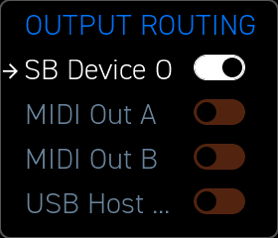
As a quick alternative to opening Erae Lab, Erae 2 lets you change an element's MIDI output routing directly from the device LCD. Navigate to Settings > Routing, then select an element: you will see MIDI Out A and MIDI Out B toggle switches. This mirrors the Erae Lab checkboxes exactly and is useful for quick live adjustments.
Erae Touch (MK1): what applies and what does not
All sections marked "Erae 2 only" do not apply to Erae Touch.
| Feature | Erae Touch (MK1) | Erae 2 |
|---|---|---|
| TRS MIDI output | MIDI Out A only | MIDI Out A and MIDI Out B |
| TRS MIDI input | Not available | Available (combined A/B input) |
| USB Host port | No | Yes |
| CV outputs | No | 24 outputs (-5 V to +8 V) |
| Footswitch inputs | No | 2 (Input A, Input B) |
| On-device LCD settings | No | Yes |
| Erae Lab MIDI checkboxes | USB Device, MIDI A | USB Device, MIDI A, MIDI B, USB Host |
The sections on DIN MIDI physical connection, setting MIDI output destination in Erae Lab, MIDI clock, and troubleshooting all apply to Erae Touch with the single MIDI Out A port.