Erae Power Requirements
Your Erae 2 has a dedicated USB-C Power port for full power, separate from the USB-C port that connects to your computer. Erae 2 has no battery: it always runs on external or bus power. This article explains the two power modes, what changes between them, and how to recognise the Low Power warning on your device.
The three USB-C ports
The back panel of your Erae 2 has three USB-C ports. They are not interchangeable: each has a specific role.
| Port | Purpose |
|---|---|
| Power | Main power input; plug your USB-C power adapter here for full power |
| Device (USB Device) | Connects to your computer; Erae 2 appears as a class-compliant USB-MIDI device carrying two virtual MIDI cables, Main and MPE |
| Host (USB Host) | USB host mode; connects USB MIDI instruments such as synths and controllers, supplying up to 0.5A (500mA) |
Powering the Power port
Connect a USB-C power adapter to the Power port, then flip the power switch to turn on your Erae 2. For full LED brightness, CV outputs, and firmware updates, use a laptop-class USB-C PD adapter rather than a weak source such as a phone charger.
Power modes: full power vs. Low Power
Your Erae 2 automatically detects how much power is available and adjusts its behaviour accordingly. The device can still run in Low Power mode when powered from another port, such as bus power over the Device port, instead of the Power port.
Full power (roughly 15W or more via the Power port)
When the Power port receives a sufficient power contract (roughly 15W or more, such as from a laptop-class USB-C PD adapter), everything works:
- Full LED brightness (100%)
- CV/Gate outputs active across all 12 TRS outputs
- Footswitch inputs (TRS outputs 11 and 12) active
- MIDI B output active
- Metronome active
- Host port powered: USB MIDI instruments receive bus power
Low Power (bus power or a weak source, roughly under 15W)
If the Power port is disconnected and the Erae 2 is only receiving bus power, such as over the Device port from your computer, or if a weak source is connected, the Erae 2 enters a Low Power state. It will turn on and function as a MIDI controller, but several features are disabled:
- LED brightness capped at around 25%
- CV/Gate outputs disabled (CV pins remain at minimum, no gate signals)
- Footswitch inputs disabled
- MIDI B output disabled
- Metronome disabled
- Host port unpowered: USB MIDI instruments connected to the Host port will not be detected
This mode is fine for basic note playing or quick laptop sessions where you do not need modular integration or accessories. It is not suitable for studio use requiring CV control, footswitch pedals, or a connected USB MIDI instrument.
Comparison at a glance
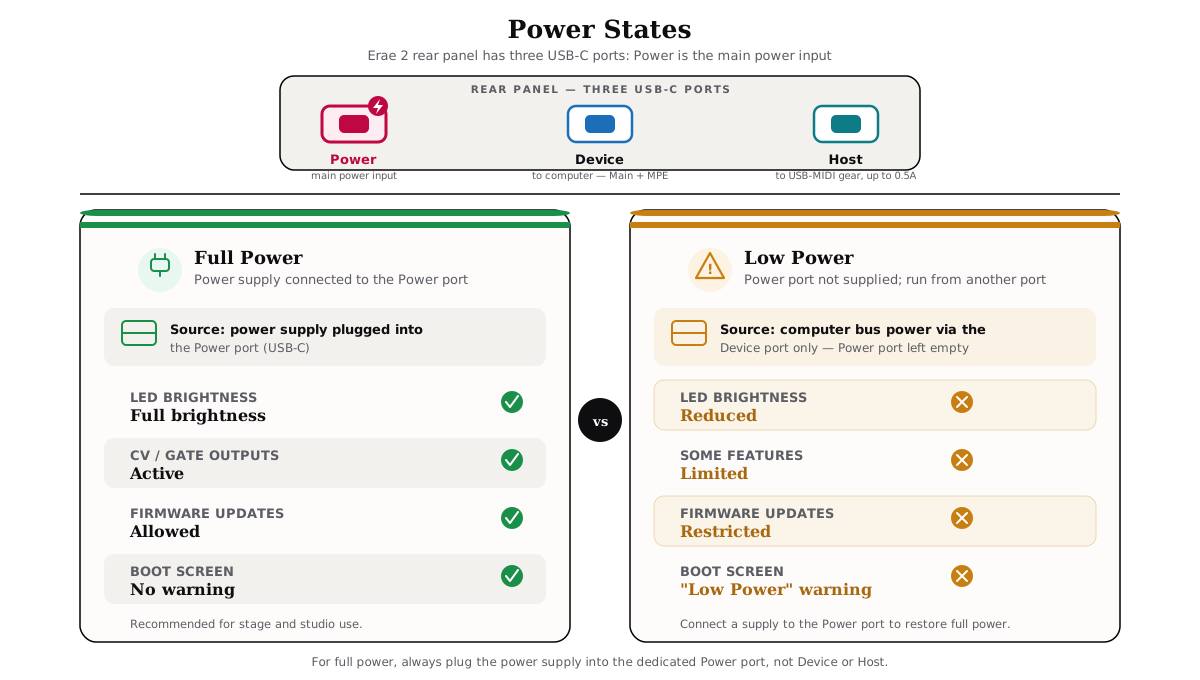
| Feature | Full power (15W+) | Low Power |
|---|---|---|
| LED brightness | 100% | ~25% |
| CV/Gate outputs | Enabled | Disabled |
| Footswitch inputs | Enabled | Disabled |
| MIDI B output | Enabled | Disabled |
| Metronome | Enabled | Disabled |
| Host port | Powered (up to 0.5A) | Unpowered |
| Firmware update | Allowed | Blocked |
Note: Firmware updates require sufficient power on the Power port. Erae Lab will not start a firmware update if the device is in the Low Power state, and shows "Please connect your Erae to a power supply before updating firmware."
The "Low Power" warning
If your Erae 2 boots without detecting sufficient power on the Power port, it displays a warning on the LCD screen immediately after startup:

Low Power (Low brightness, CV, MIDI B, Metronome disabled)
This warning tells you that the device is running in reduced-capability mode. It appears when:
- The Power port is not connected, and the device is only running on bus power such as over the Device port
- The connected supply does not provide enough power (roughly under 15W)
- A non-PD-compliant adapter is connected to the Power port
Press any button to dismiss the warning. To resolve it, connect a laptop-class USB-C PD adapter to the Power port and restart the device.
Adapter compatibility
The Erae 2 uses USB Power Delivery (USB-C PD) on the Power port. A laptop-class USB-C PD adapter is recommended to unlock all features. If you use a USB-C charger:
- It must support USB-C PD
- It should be rated at 27W or higher to reach full LED brightness (the adaptive brightness curve reaches maximum at 27W input)
- Adapters rated below 15W will trigger the Low Power warning and disable CV, footswitch, MIDI B, and USB host
Standard USB-C chargers (5V only, no PD negotiation) will power the device at reduced brightness, similar to running on bus power alone.
Warning: Using a power adapter that does not meet the above specifications may damage your Erae 2 and void your warranty.
Erae Touch (legacy product)
If you own the original Erae Touch (MK1), the power requirements are different. The Erae Touch uses a 15V/2A barrel-jack AC-to-DC adapter, not USB-C. The adapters for both products are incompatible with each other. This article covers the Erae 2 only. The Erae Touch shipped with its own adapter and instructions.
Troubleshooting
Device turns on but brightness is very low Connect a laptop-class USB-C PD adapter to the Power port. Running on bus power alone, or a weak source, caps brightness at around 25%.
CV outputs are not producing any signal CV outputs require sufficient power on the Power port. Check that a USB-C PD adapter is connected there, and that the Low Power warning does not appear at boot.
USB MIDI instrument connected to the Host port is not detected The Host port is only powered when the Power port has sufficient power. Connect a power adapter to the Power port, then reconnect the USB MIDI instrument.
The Low Power warning appears even with a power adapter plugged in Make sure the adapter is plugged into the Power port, not the Device or Host port. If the warning still appears with the correct port, try a different outlet or cable, and confirm the adapter supports USB-C PD at 15W or more.
Firmware update not starting Erae Lab blocks firmware updates when the device is in the Low Power state, showing "Please connect your Erae to a power supply before updating firmware." Connect a USB-C PD adapter to the Power port, restart your Erae 2, and try again.
If none of the steps above resolve the issue, send a bug report from Erae Lab so we can investigate further.
See also: